Reset a STICKER
The reset options range from a harmless reboot to a full vendor erase. Pick the least destructive option that solves your problem.
Open HARDWARIO Manager → STICKER → Tools → Reset, choose an option, and hold the phone against the STICKER.
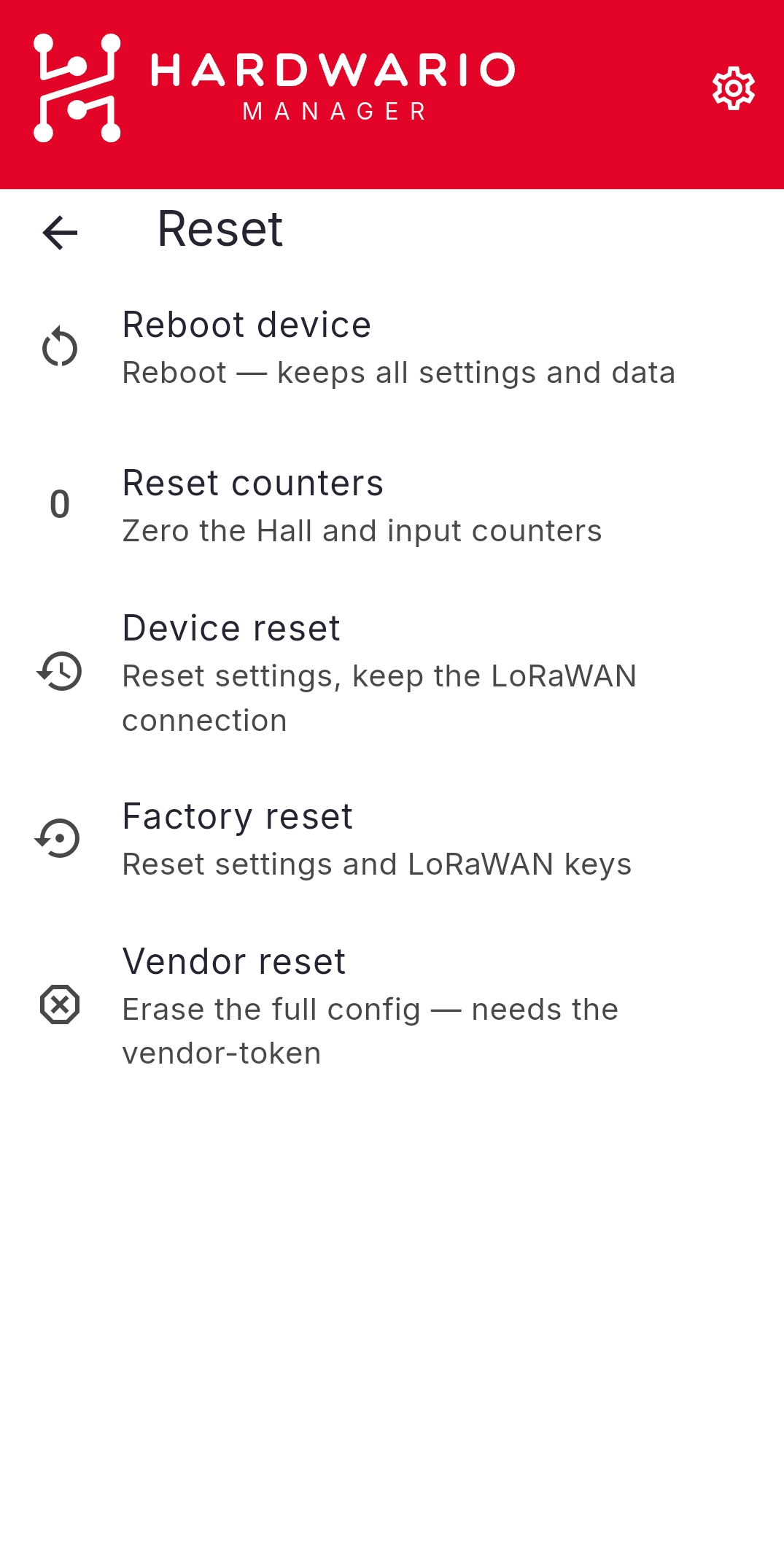
| Reset | What it does |
|---|---|
| Reboot device | Restarts the device; keeps all settings and data. |
| Reset counters | Zeroes the Hall and input counters. |
| Device reset | Resets settings; keeps the device identity and the LoRaWAN keys/session (stays provisioned). |
| Factory reset | Resets settings and drops the LoRaWAN session and keys — the device re-joins the network. Keeps the device identity. |
| Vendor reset | Wipes the device back to its serial number and vendor token (configuration, LoRaWAN keys and secret key all erased) and sets a new secret key (requires the vendor-token). |
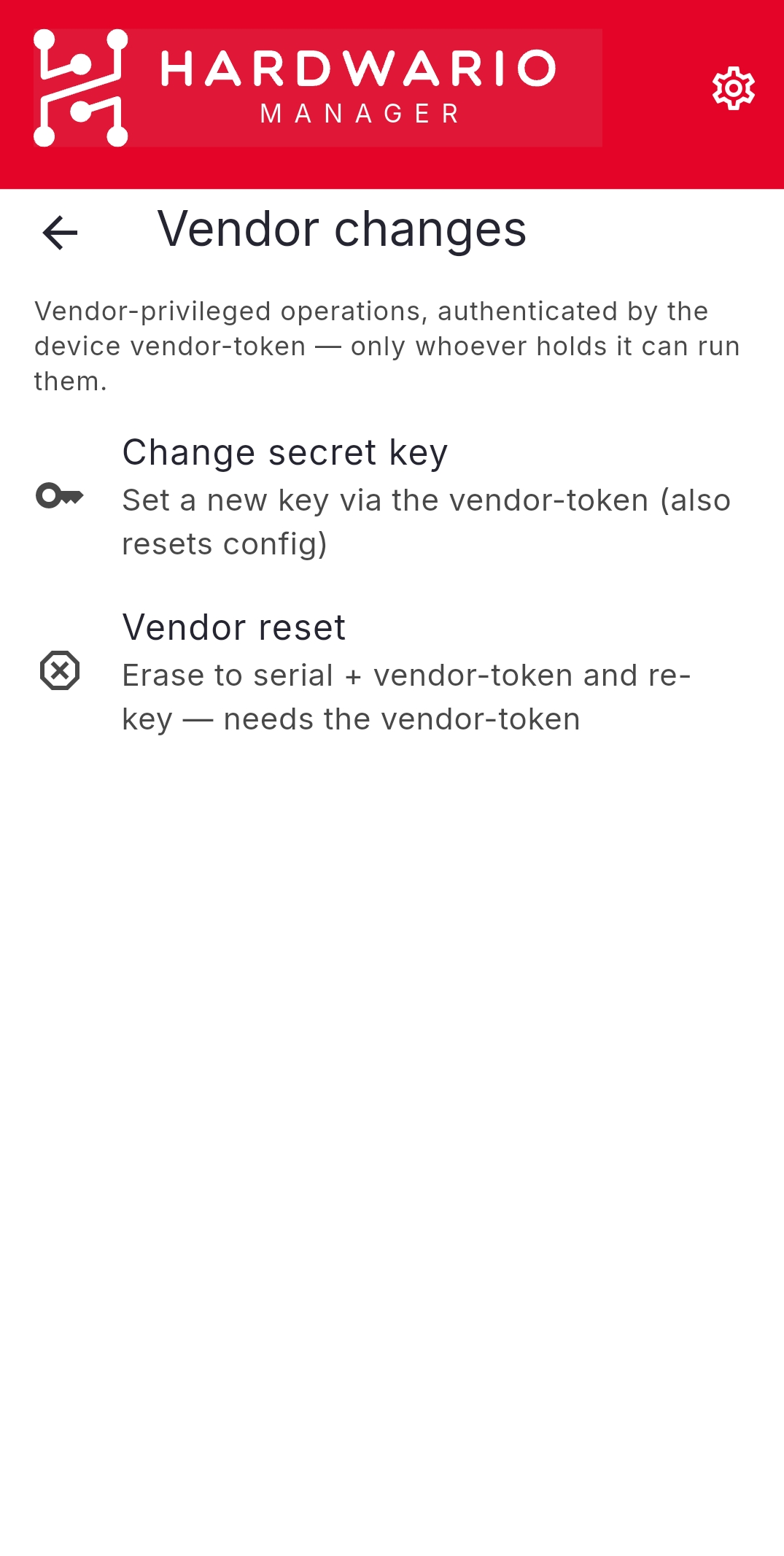
Vendor changes
STICKER → Tools → Vendor changes (authenticated by the device vendor-token) can:
- Change secret key — set a new secret key (this also resets the configuration).
- Vendor reset — wipe the device back to its serial number and vendor token, setting a new secret key.
No undo
A factory reset drops the device's LoRaWAN session and keys (it re-joins the network); a vendor reset wipes it back to its serial number and vendor token and sets a new secret key. There is no undo — only use these when you intend to start from a clean state.