Read device info and LoRaWAN keys
Read a STICKER's identity and the LoRaWAN keys you need to register it on a network — over NFC, in a few seconds.
Save the device first
Reading the LoRaWAN keys uses the encrypted channel, so the STICKER must be saved with its secret key. See Before you begin in the Configuration guide.
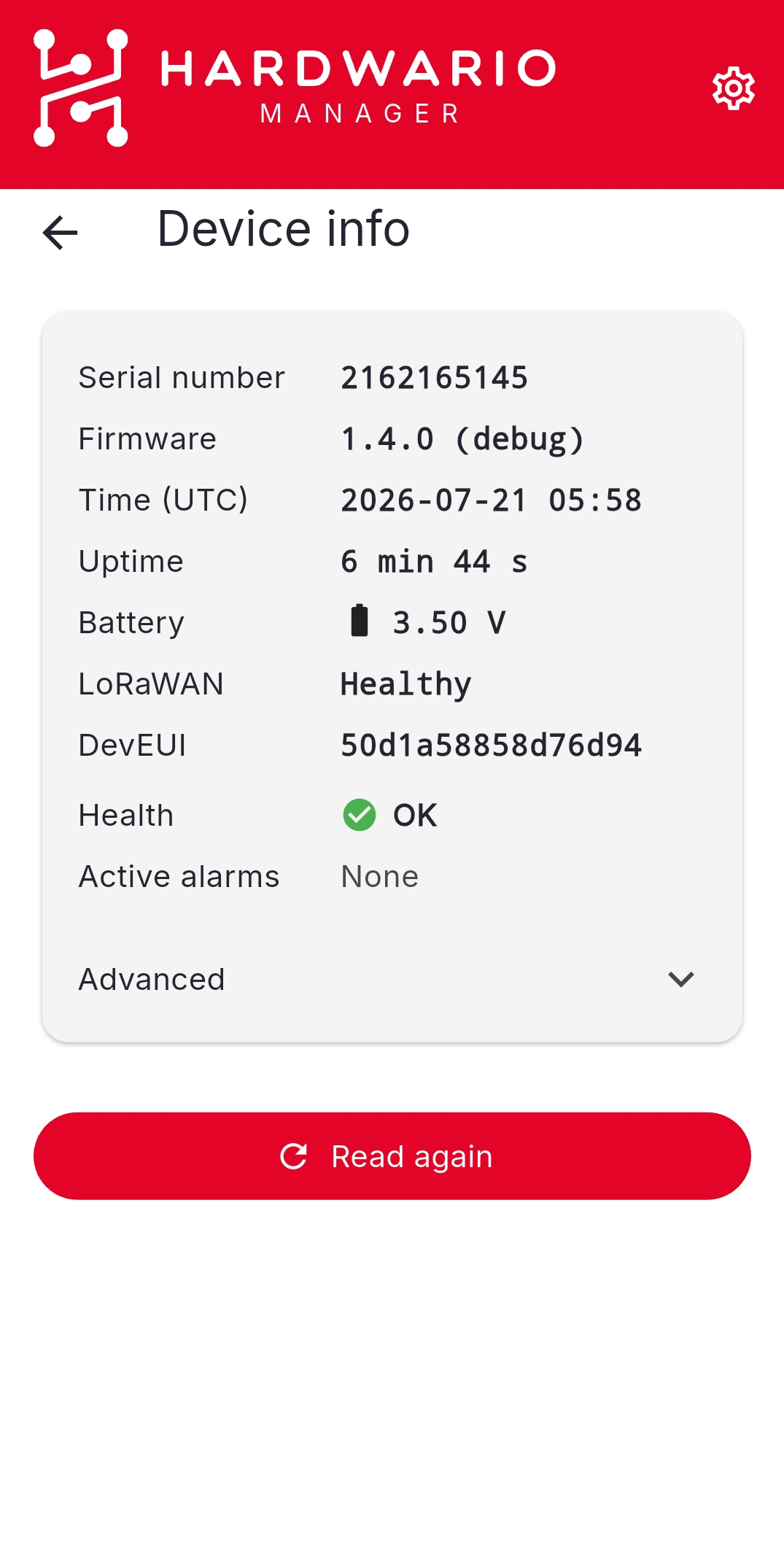
Read device info
- Open HARDWARIO Manager and go to STICKER → Device info.
- Hold the phone against the STICKER and keep still.
- The app shows the serial number, firmware version, uptime, and clock.
Read LoRaWAN keys
- Go to STICKER → LoRaWAN keys.
- Hold the phone against the STICKER.
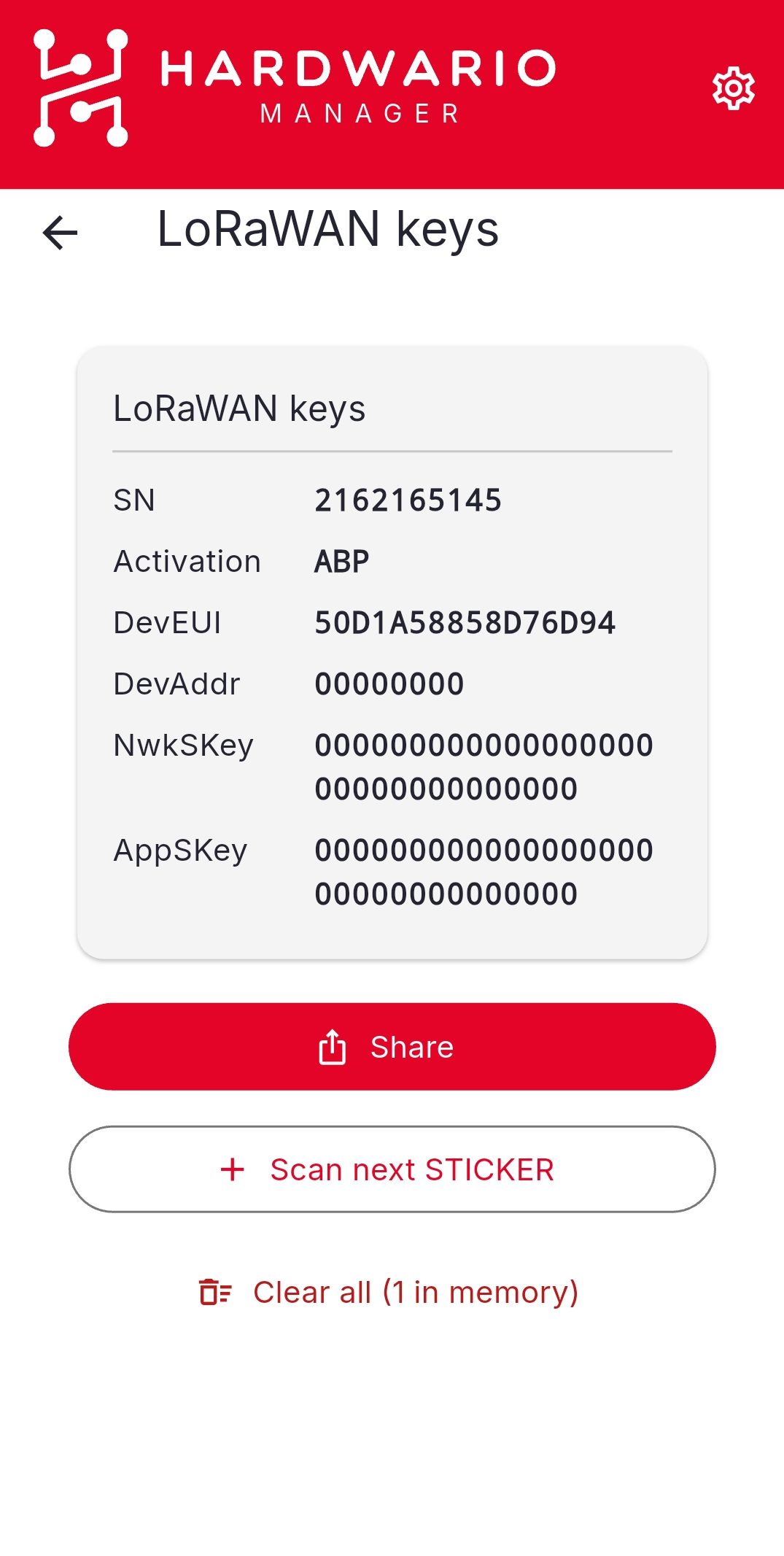
- The app shows the DevEUI and the LoRaWAN keys for the device's activation mode — for OTAA the JoinEUI and AppKey, for ABP the DevAddr and session keys.
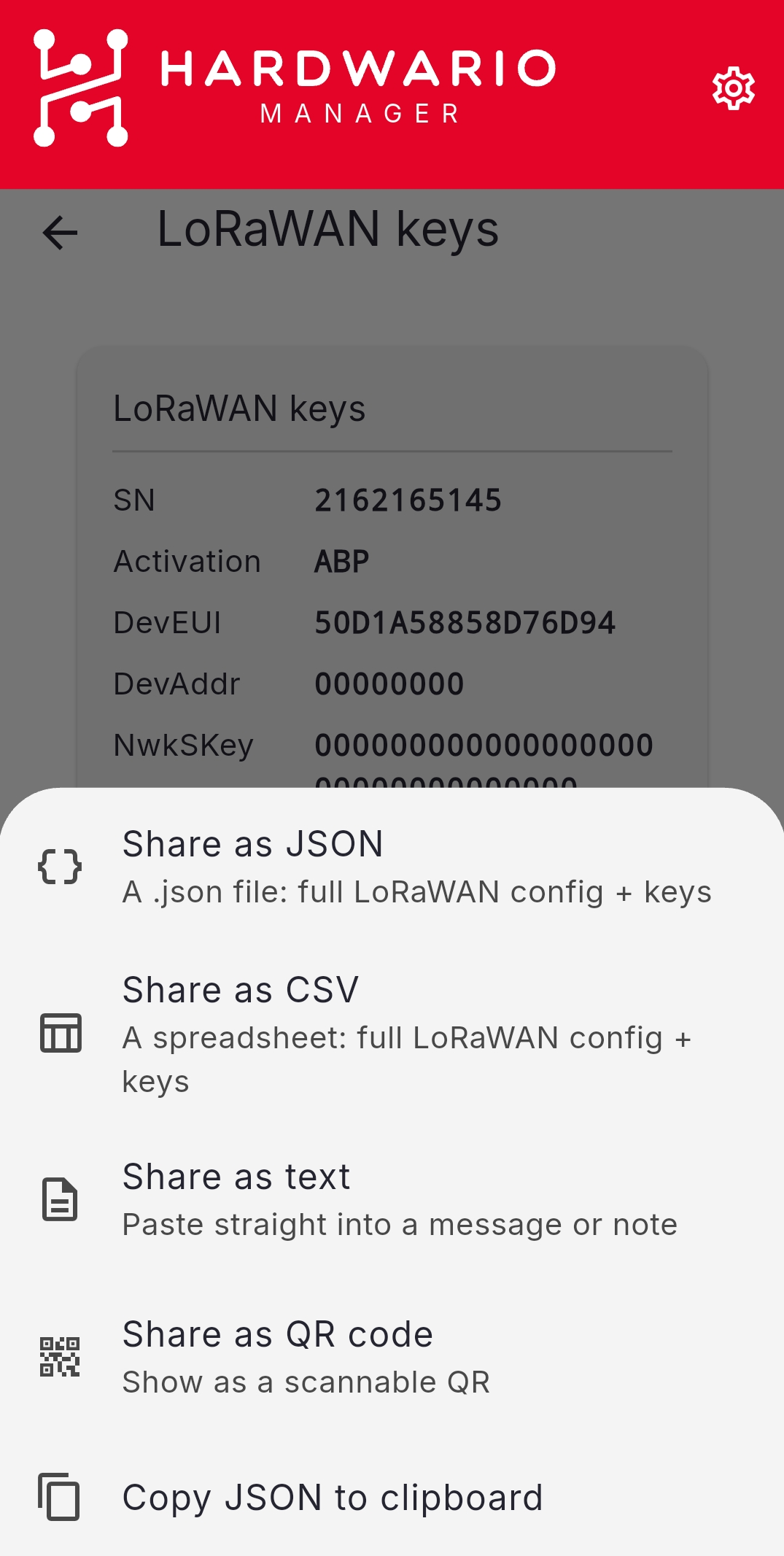
Share the keys
Use the share action to export the keys as JSON, CSV, plain text, or a QR code, or copy them to the clipboard. Use them to register the device in ChirpStack or The Things Stack.