Reset a STICKER
The reset options range from a harmless reboot to a full vendor erase. Pick the least destructive option that solves your problem.
Open STICKER → Tools → Reset, choose an option, and hold the phone against the device.
| Reset | What it does |
|---|---|
| Reboot device | Restarts the device; keeps all settings and data |
| Reset counters | Zeroes the Hall and input counters |
| Device reset | Resets settings but keeps the LoRaWAN connection — the device stays provisioned |
| Factory reset | Resets settings and drops the LoRaWAN session and keys, so the device re-joins the network. Keeps the device identity |
Vendor changes
Two further operations sit under STICKER → Tools → Vendor changes. They are authenticated by the device's vendor-token rather than its secret key, which is why they are kept apart from the reset ladder above.
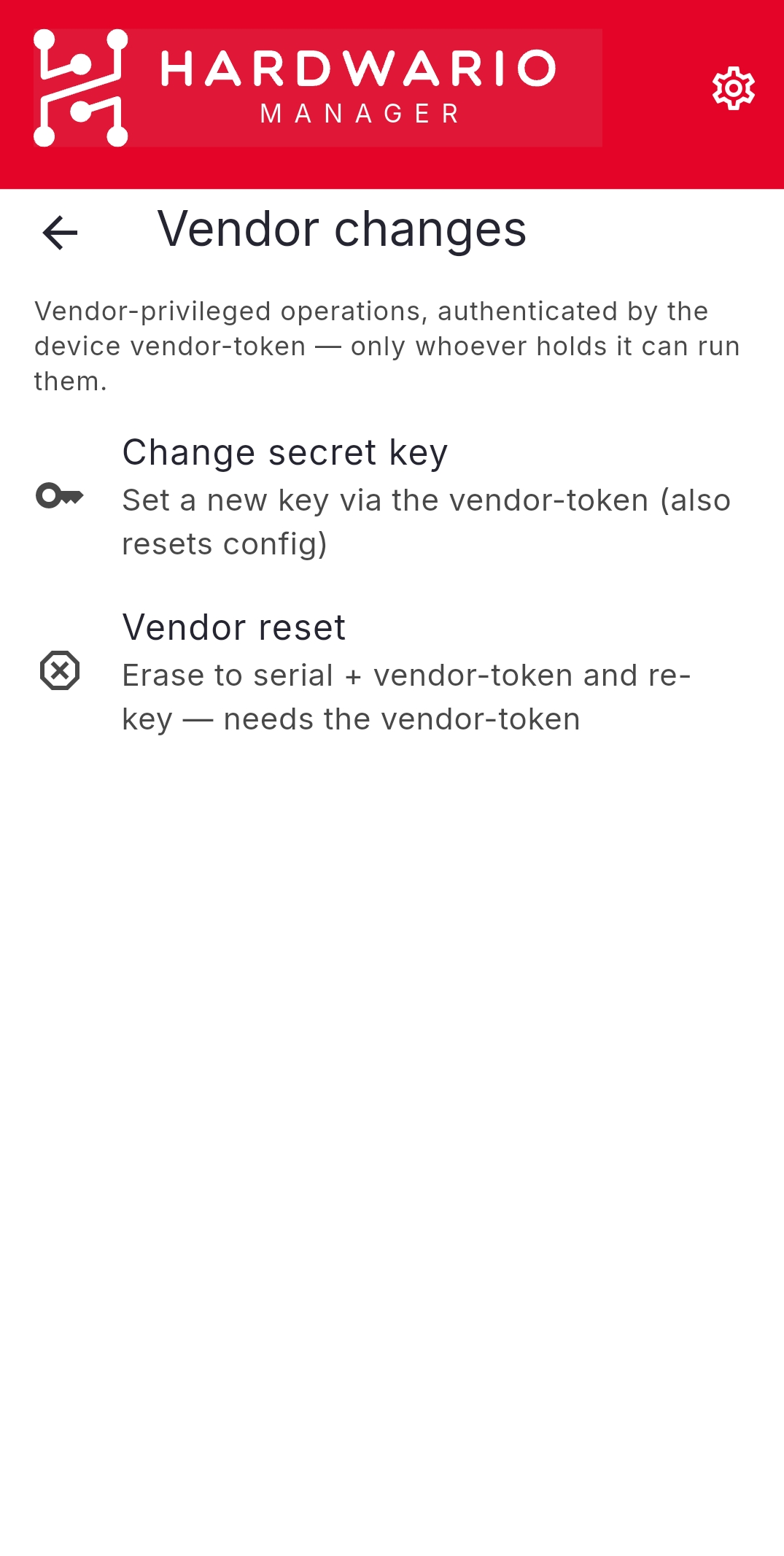
| Operation | What it does |
|---|---|
| Change secret key | Sets a new secret key on the device |
| Vendor reset | Wipes the device back to its serial number and vendor token — configuration, LoRaWAN keys and secret key are all erased — and sets a new secret key |
The screen can load the vendor-token from Saved STICKERs: tap the device to read its serial, and the app fills in the token it has stored for it. A dice button generates a random key so you do not have to invent one.
On success the new secret key is saved back into your Saved STICKERs list, so the device keeps working without you copying anything by hand.
The current firmware has no in-place re-key, so Change secret key resets the device configuration as well. Plan to re-apply the configuration — a template makes that a single tap.
A factory reset drops the device's LoRaWAN session and keys, so it re-joins the network. A vendor reset wipes the device back to its serial number and vendor token and sets a new secret key. Neither can be undone — use them only when you intend to start from a clean state.