Saved STICKERs
Saved STICKERs is the list of devices you manage. It holds each device's secret key and vendor-token, so every other screen can work without asking you for credentials.
Open STICKER → Saved STICKERs. The title shows how many devices you have.
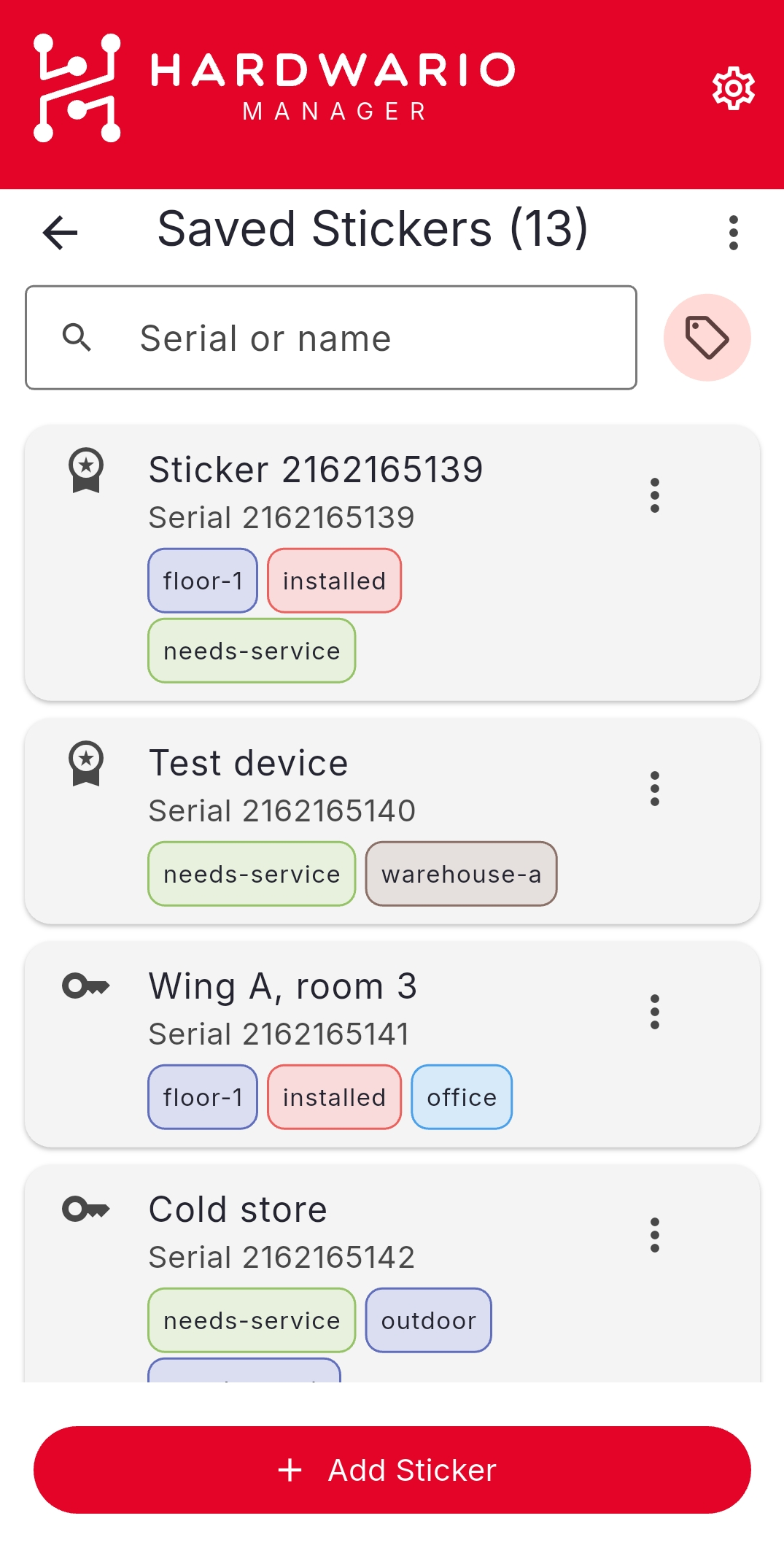
Use the Serial or name box to search, and the tag icon to filter — see Organise devices with tags.
Add a device
Devices reach the list two ways.
Claim it. The Add screen claims the device against your ATELOS account: tap it over NFC, scan its QR code, or enter its details by hand. Claiming brings across the device's secret key. It needs an ATELOS login — see ATELOS account.
Import it. If you already hold the keys — from a colleague's export, a spreadsheet, or a shared QR code — use Import instead. No account needed.
A device's details
Tap a row to open the device.
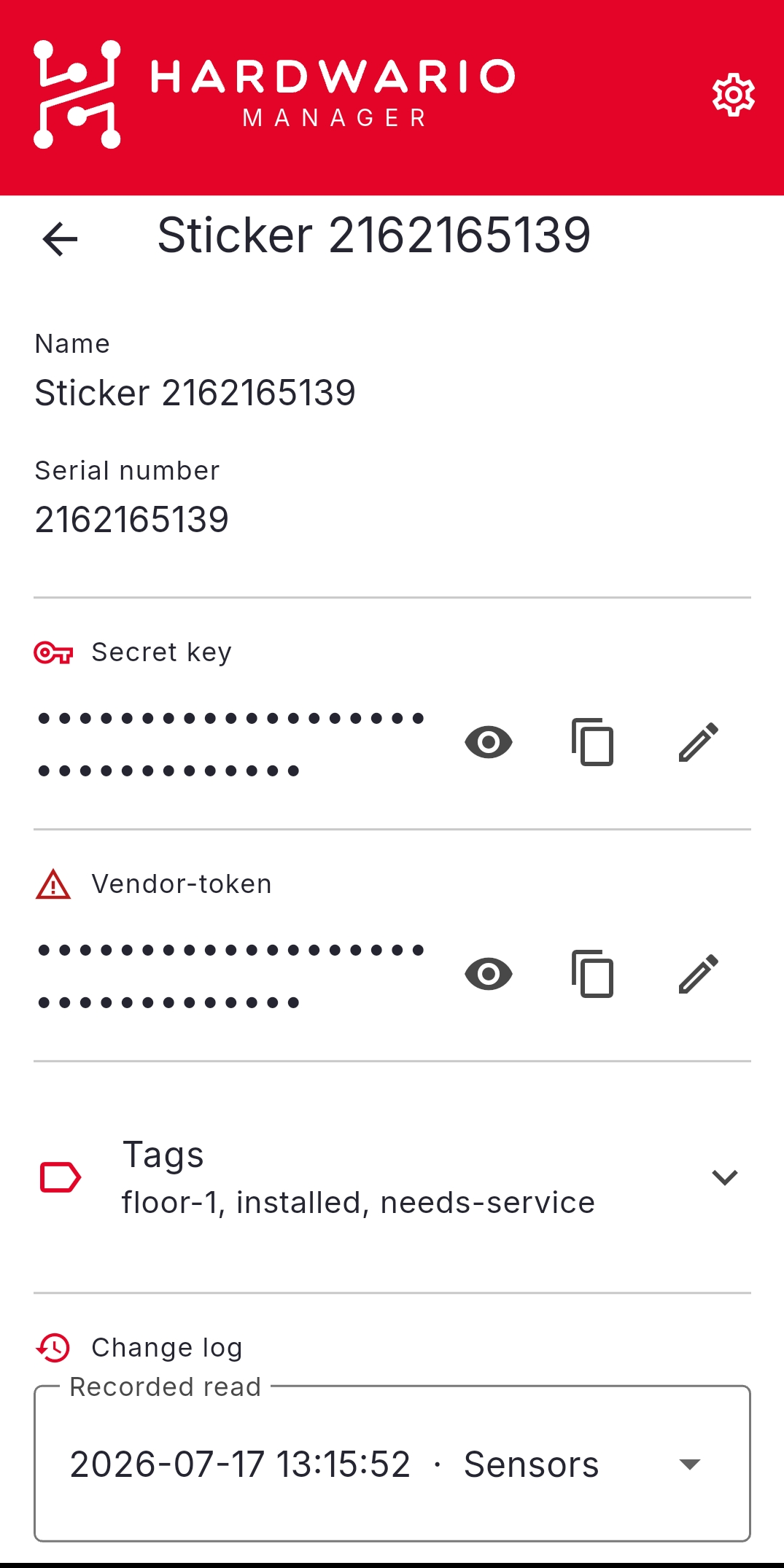
| Field | Notes |
|---|---|
| Name | A label of your choosing. Editable. |
| Serial number | The device's identity. |
| Secret key | Reveal, copy, or edit it. Required for every encrypted exchange. |
| Vendor-token | Reveal, copy, or edit it. Required for Vendor changes. |
| Tags | See Organise devices with tags. |
| Change log | See Device change log. |
The row menu also offers Generate QR code, which produces a claim QR carrying the serial and secret key so another operator can gain the same access to that device.
Export devices
Open the ⋮ menu on the list and choose Export.
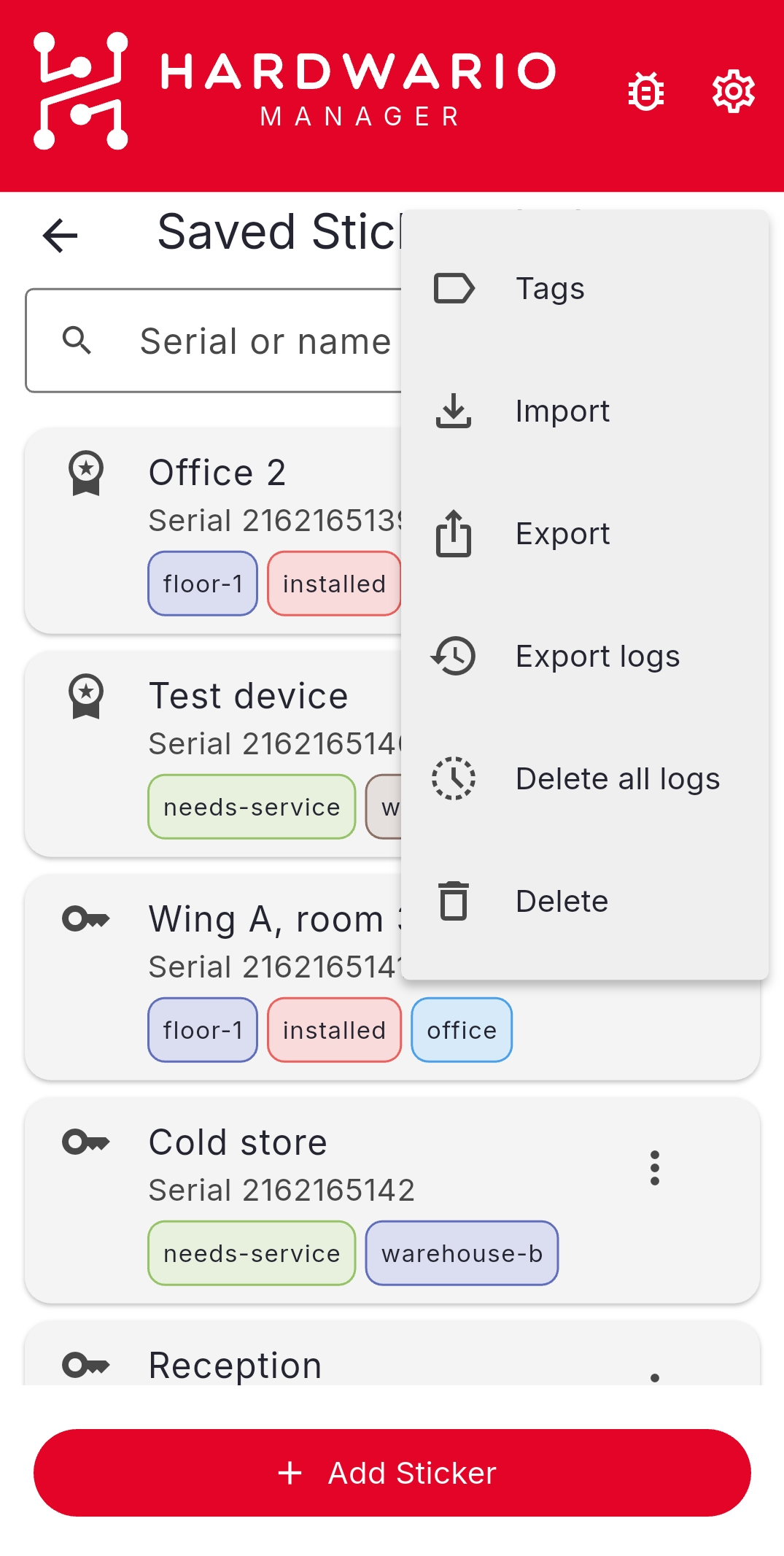
Select the devices to export, then choose what to include and where to send it:
- Include vendor token — off by default.
- Include tags — adds a tags column to the CSV.
Then pick a target: Share as QR code, Share as JSON, or Share as CSV.
An export contains the devices' secret keys, and optionally their vendor-tokens. Treat the file or QR code as you would the keys themselves.
A QR transfer carries up to 8 devices per code; for a longer list the app produces several codes in sequence, with Share next to move through them.
Import devices
Open the ⋮ menu and choose Import:
- Import from QR code — scan one or more codes, using Import more to continue through a multi-code export.
- Import from file — a CSV or JSON export.
Before anything is written the app confirms what it found, including how many devices carry keys and how many new tags will be created. Devices are matched by serial number, so re-importing updates an existing entry rather than duplicating it.