Configure a STICKER
This guide walks through reading, editing and writing a STICKER's configuration over NFC. If you have not installed the app yet, start with Install the app.
Go to STICKER → Configuration.
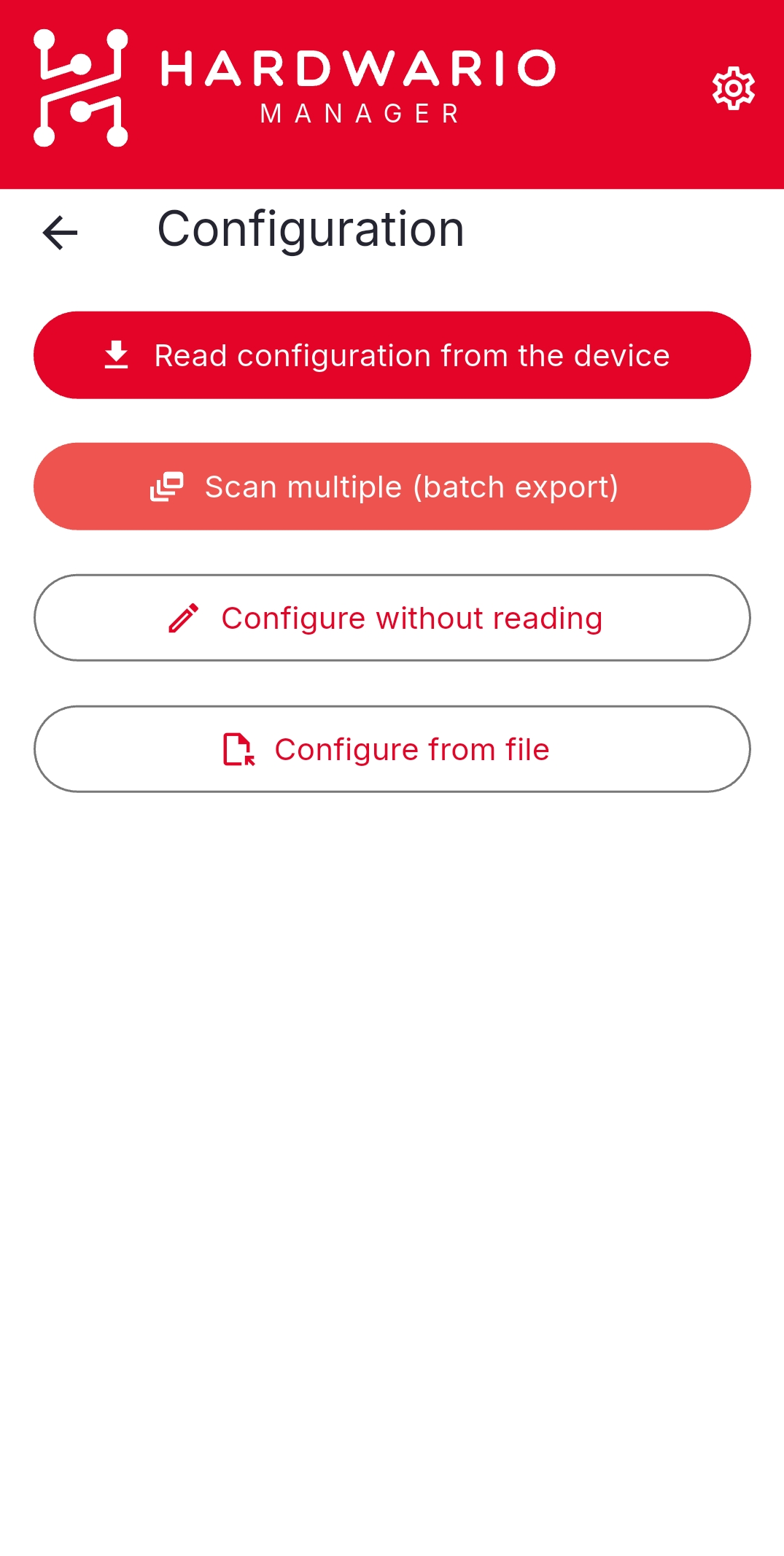
| Entry action | What it does |
|---|---|
| Read configuration from the device | Read what is on a device, then edit and write it back. The usual path. |
| Scan multiple (batch export) | Capture many devices' configurations in one session — see Scan multiple devices |
| Configure without reading | Build a configuration and write it to a device, including a powered-off one — see Configure a powered-off device |
| Configure from file | Load a configuration you saved earlier (see below) |
Read and edit
Choose Read configuration from the device and hold the phone against the STICKER until the configuration is read. Then open the section you want to change.
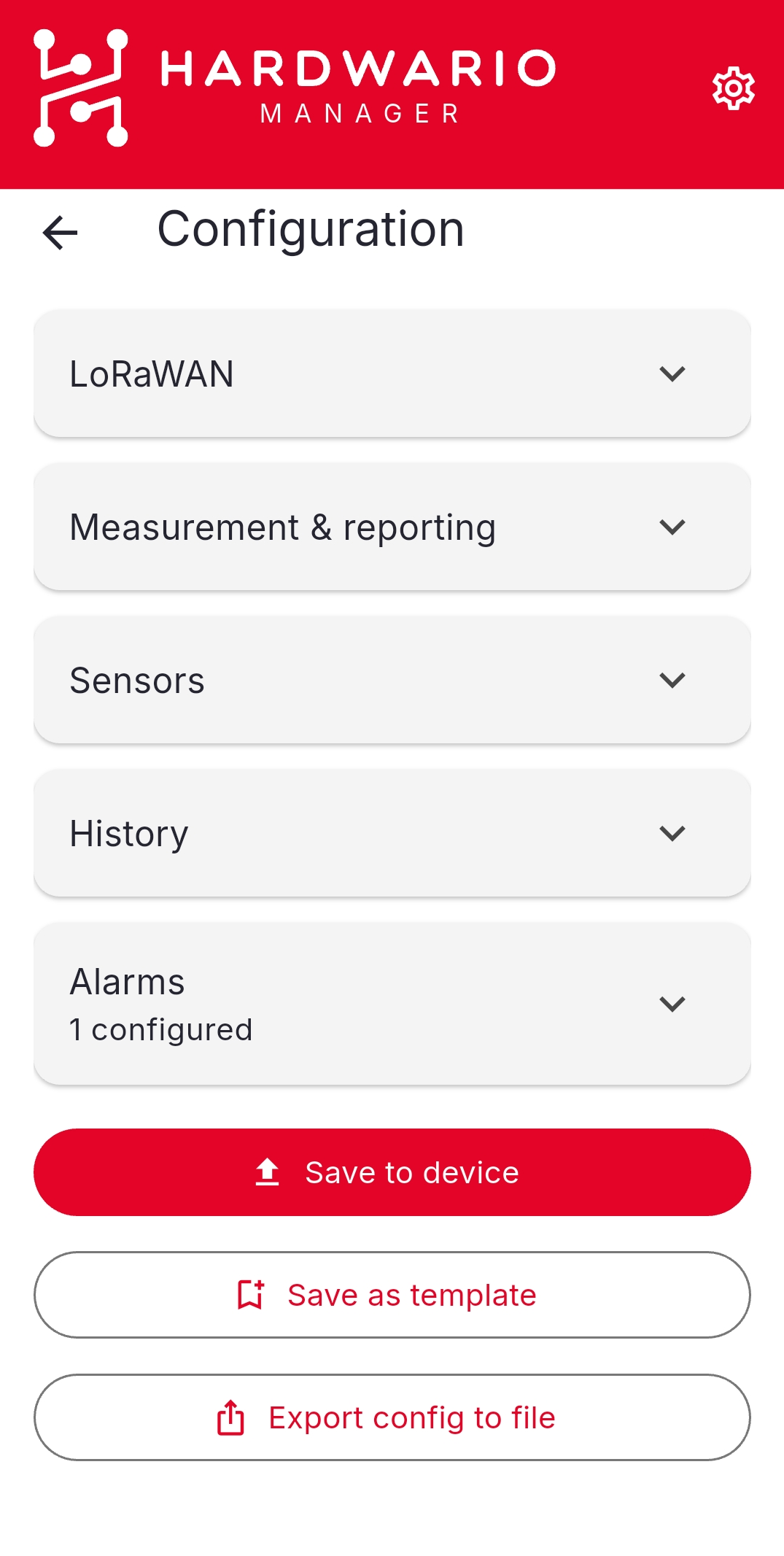
| Section | Covers |
|---|---|
| LoRaWAN | Region, activation mode, EUIs, and — in a Keys sub-group — the key material for the selected mode |
| Measurement & reporting | Sample and report intervals |
| Sensors | Which sensors are enabled |
| History | Whether measurements are stored, and which channels — see Sensor history |
| Alarms | Alarm rule slots — see Alarm rules |
Keys sits inside the LoRaWAN section and is collapsed by default. It shows only the keys that apply: JoinEUI and AppKey for OTAA, DevAddr and the session keys for ABP. The DevEUI is in the LoRaWAN basics above it.
Sensors is deliberately placed above History, because which sensors are enabled decides which history channels exist.
Write the changes
Edit what you need, then tap Save to device and hold the phone against the STICKER again.
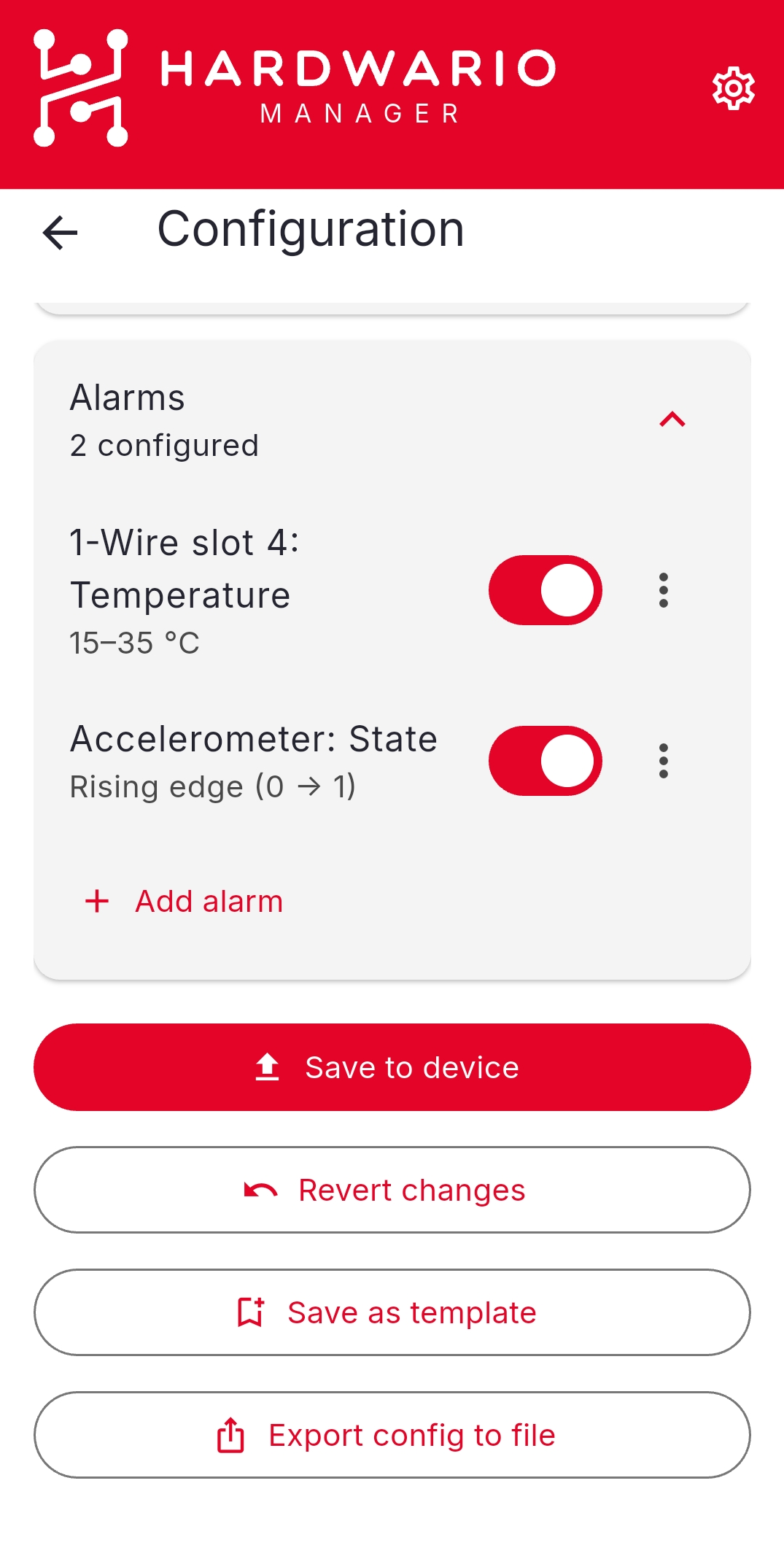
The other actions on the screen:
| Action | Effect |
|---|---|
| Apply template | Fill the form from a saved template before writing — see Templates |
| Revert changes | Discard your edits |
| Revert to read values | Put a single field back to what the device reported |
| Save as template | Turn the current settings into a reusable template |
| Export config to file | Save a copy you can reload later |
Nothing is written to the device until you tap Save to device.
For the meaning of each individual parameter, see Configuration parameters.
Export config to file writes JSON with the key material removed, so a configuration file is safe to share with a colleague. Keys stay with the device and in your Saved STICKERs list.
Configure from file
Configure from file accepts three kinds of file and adapts to each:
| File | What happens |
|---|---|
| A single configuration export | Loaded straight into the form |
| A batch export | The app asks you to choose a device from the file |
| A change-log export | The app asks you to choose a point in time, then rebuilds the configuration as it was at that read |
Reuse a configuration across devices
To set up many devices the same way, save a template and apply it to each device — over NFC, or offline to powered-off devices. See Templates.
A factory reset drops the device's LoRaWAN session and keys, so it re-joins the network. A vendor reset wipes it back to its serial number and vendor token and sets a new secret key. There is no undo. See Reset a device.