Read device info and LoRaWAN keys
Read a STICKER's identity and the LoRaWAN keys you need to register it on a network — over NFC, in a few seconds.
Both screens use the encrypted channel, so the device must be saved with its secret key. See Saved STICKERs.
Read device info
- Open HARDWARIO Manager and go to STICKER → Device info.
- Hold the phone against the STICKER and keep still.
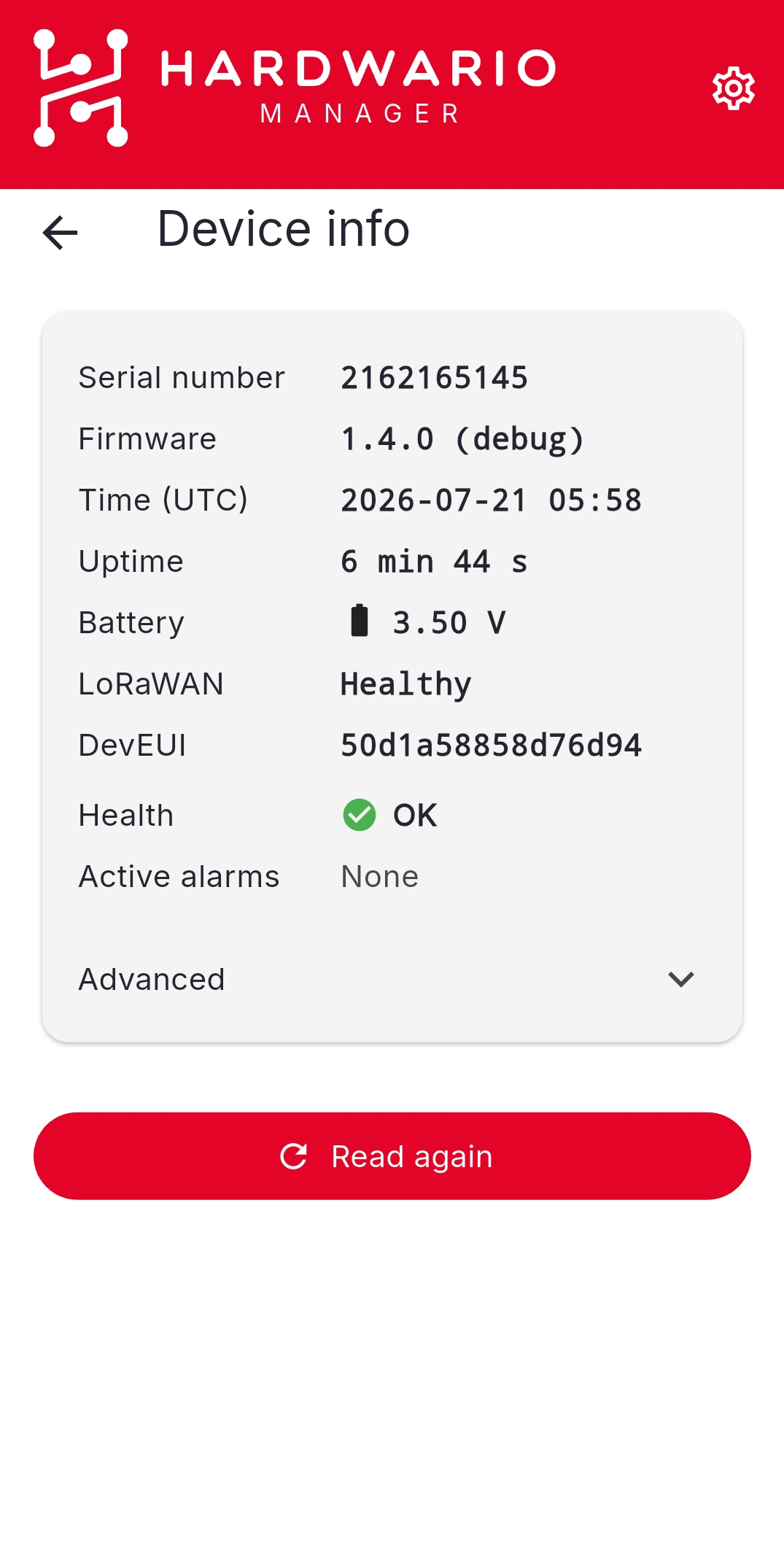
| Field | Meaning |
|---|---|
| Serial number | The device's identity |
| Firmware | The running firmware version |
| Time (UTC) | The device clock |
| Uptime | How long since the last boot |
| Battery | The measured supply voltage |
| LoRaWAN | The state of the LoRaWAN connection |
| DevEUI | The device's LoRaWAN identifier |
| Health | A summary of the device's status flags |
| Active alarms | Which alarm rules are currently tripped — see Alarm rules |
Advanced expands further diagnostic detail, such as the firmware build and the cause of the last reset. Read again repeats the read without leaving the screen — hold the phone against the device again.
Read LoRaWAN keys
- Go to STICKER → LoRaWAN keys and choose Read LoRaWAN keys.
- Hold the phone against the STICKER.
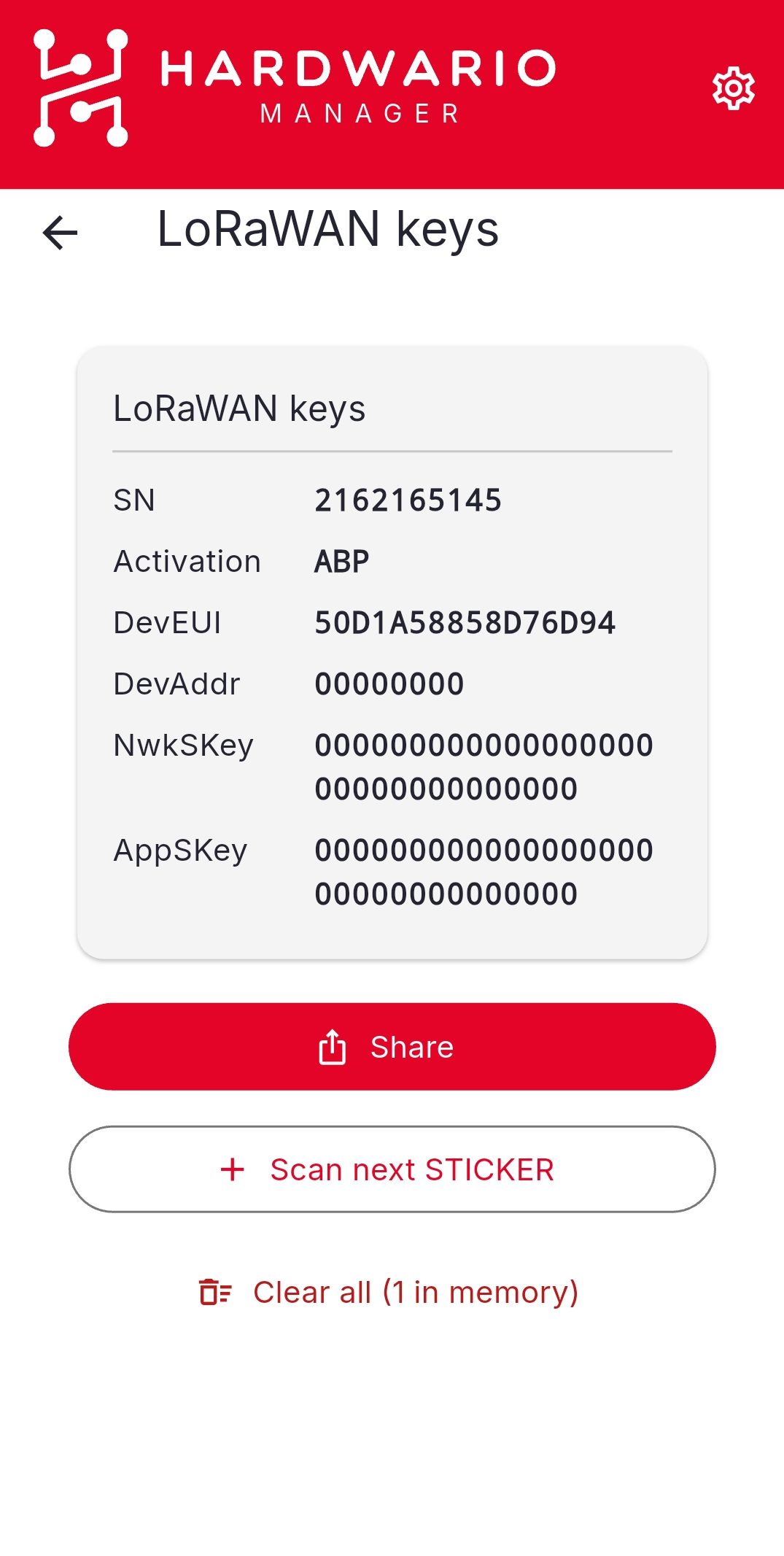
What is shown depends on the device's activation mode:
| Mode | Keys shown |
|---|---|
| OTAA | DevEUI, JoinEUI (AppEUI), AppKey |
| ABP | DevEUI, DevAddr, and the session keys |
Read several devices in one session
The screen keeps a list rather than replacing the last reading. Use Scan next STICKER to add another device, step through the captured devices with the pager, and Clear all to start over. This is the quick way to collect the keys for a batch of devices before registering them.
Share the keys
Share the keys as JSON, CSV, text, or a QR code, or use Copy JSON to clipboard. When more than one device is captured, the share actions cover the whole set and Share all exports them together.
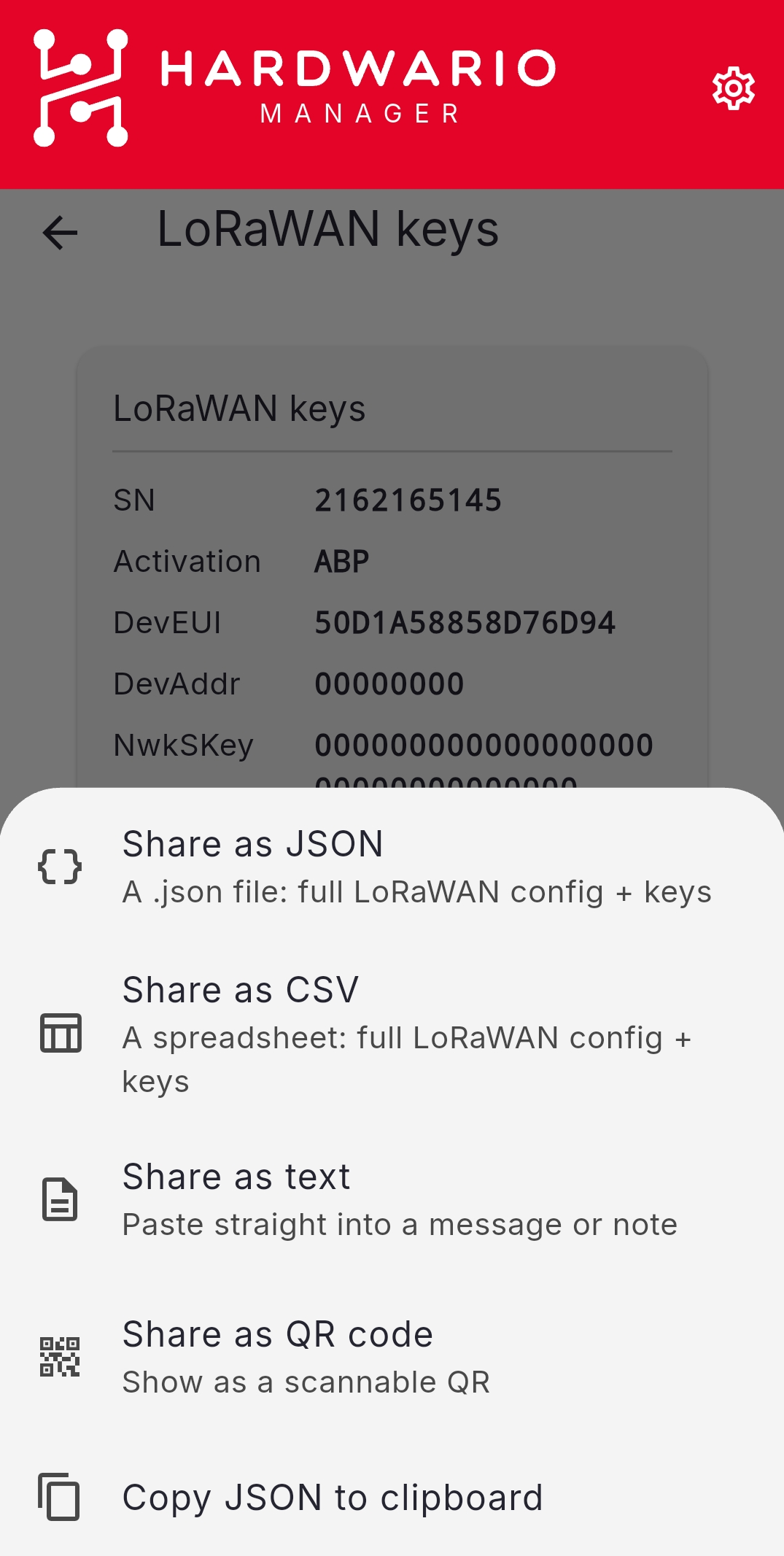
Use them to register the device in ChirpStack or The Things Stack.
Unlike a configuration export, a LoRaWAN-key export strips nothing — the AppKey and session keys are included in full so the file can be used to register the device. Treat it accordingly, and be careful where you display the QR code.