Templates: create, share, edit, and apply
A template is a reusable configuration preset — capture once, apply to many. Templates carry only shareable settings; per-device identity and secrets (serial number, LoRaWAN keys and EUIs, session keys) are deliberately left out, so a template is safe to reuse across devices and safe to hand to a colleague.
Open STICKER → Templates.
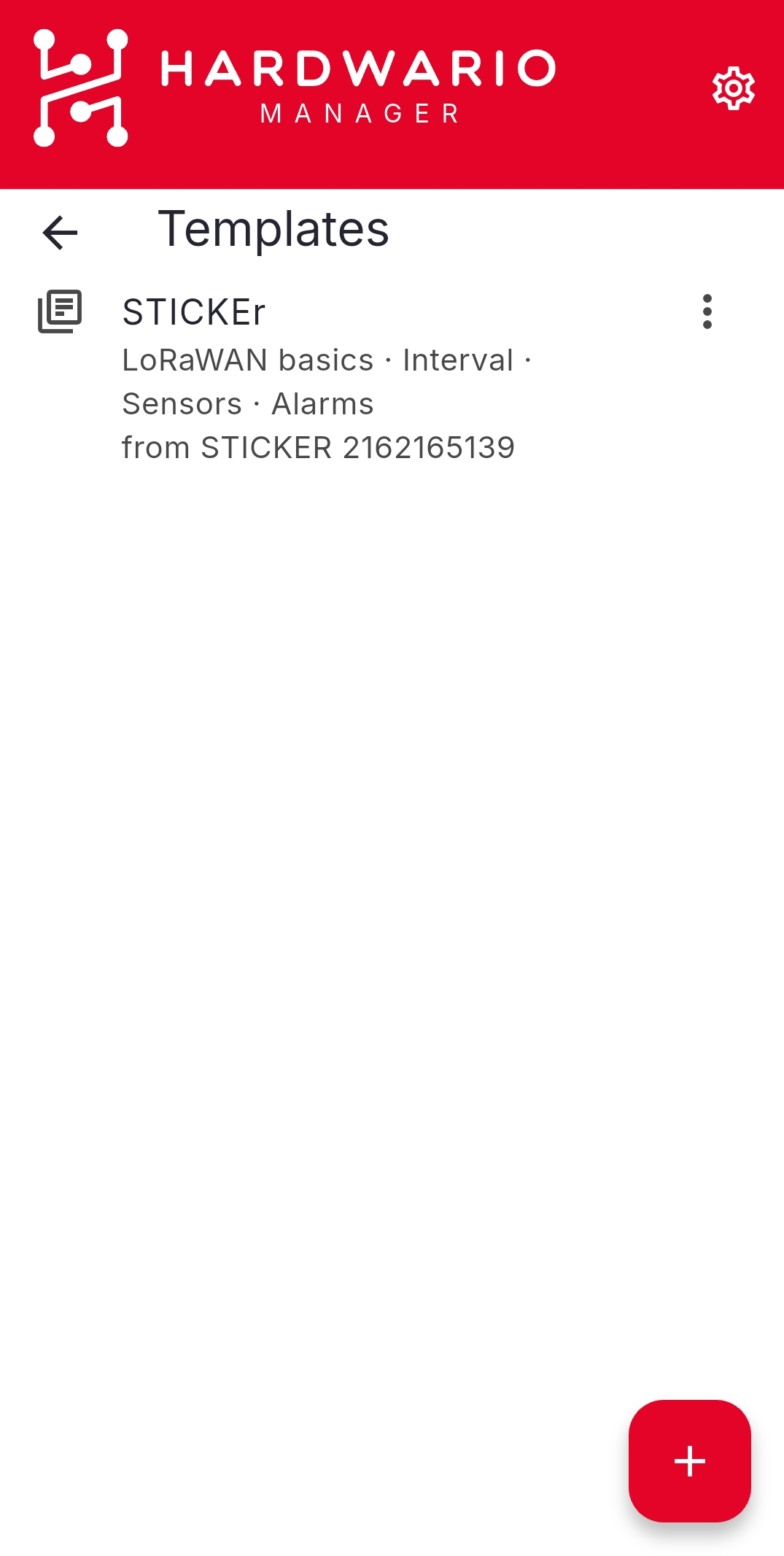
Create a template
Choose Add template and pick a source:
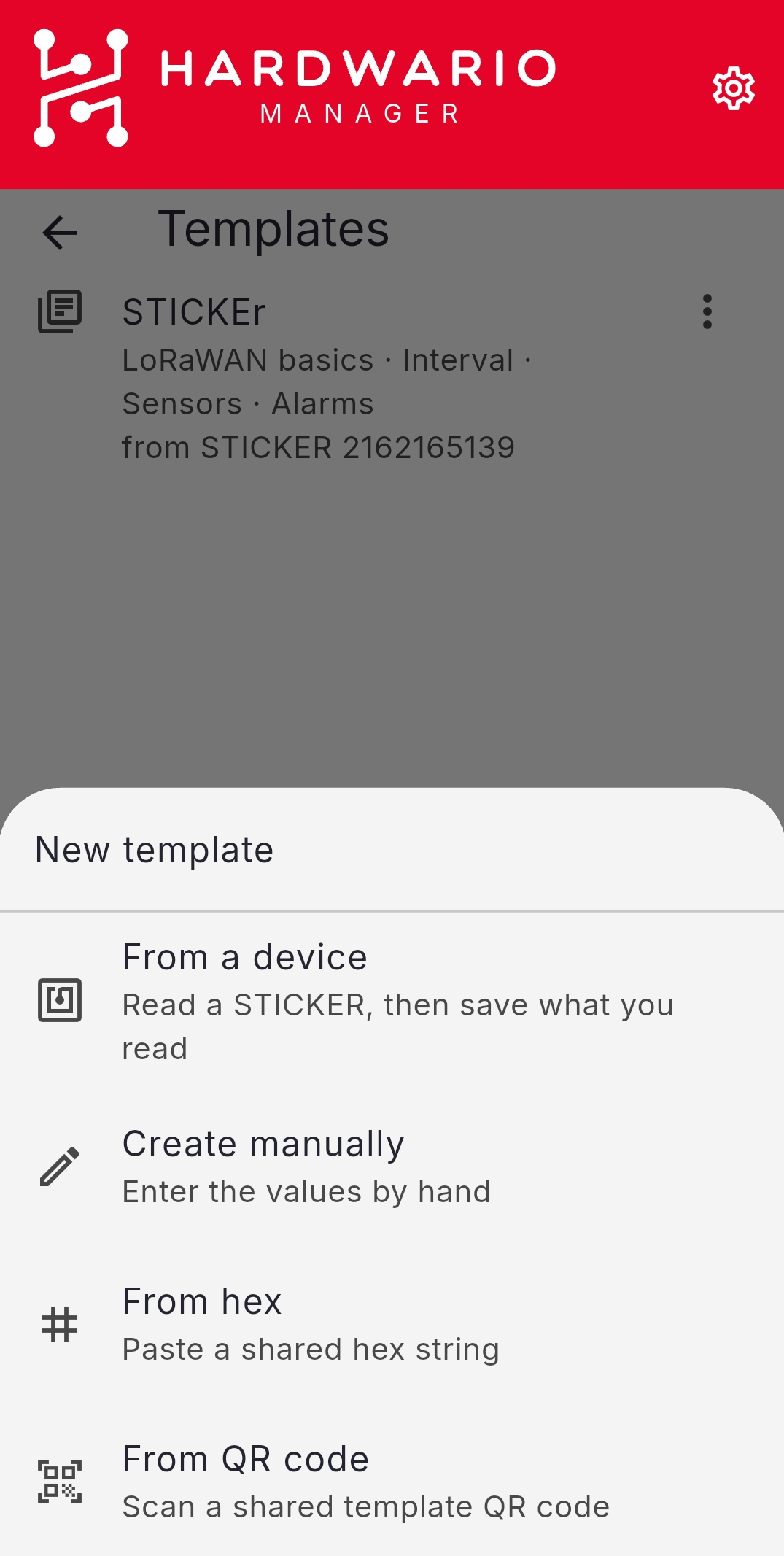
| Source | Use it when |
|---|---|
| From a device | You have a device already set up the way you want |
| Create manually | You are building a preset from scratch |
| From hex | Someone sent you a template as a hex string |
| From QR code | Someone shared a template as a QR code |
Building one manually, give it a name and set values in any category. A category left empty is not saved, so a template carries only what you chose.
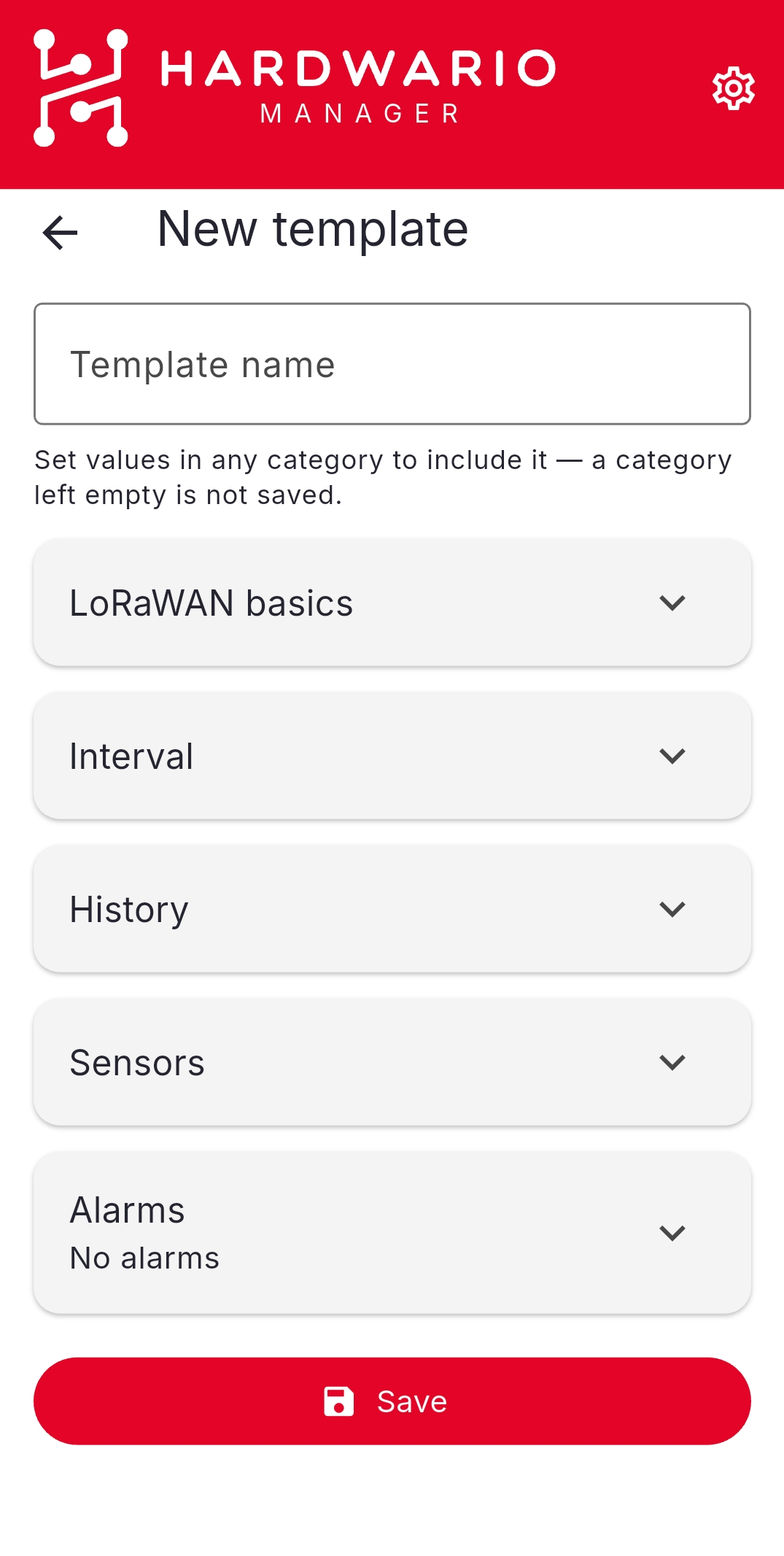
You can also save the configuration you are currently editing with Configuration → Save as template, or build one in a browser with the Template Generator.
Edit a template
Open a template and choose Edit values.
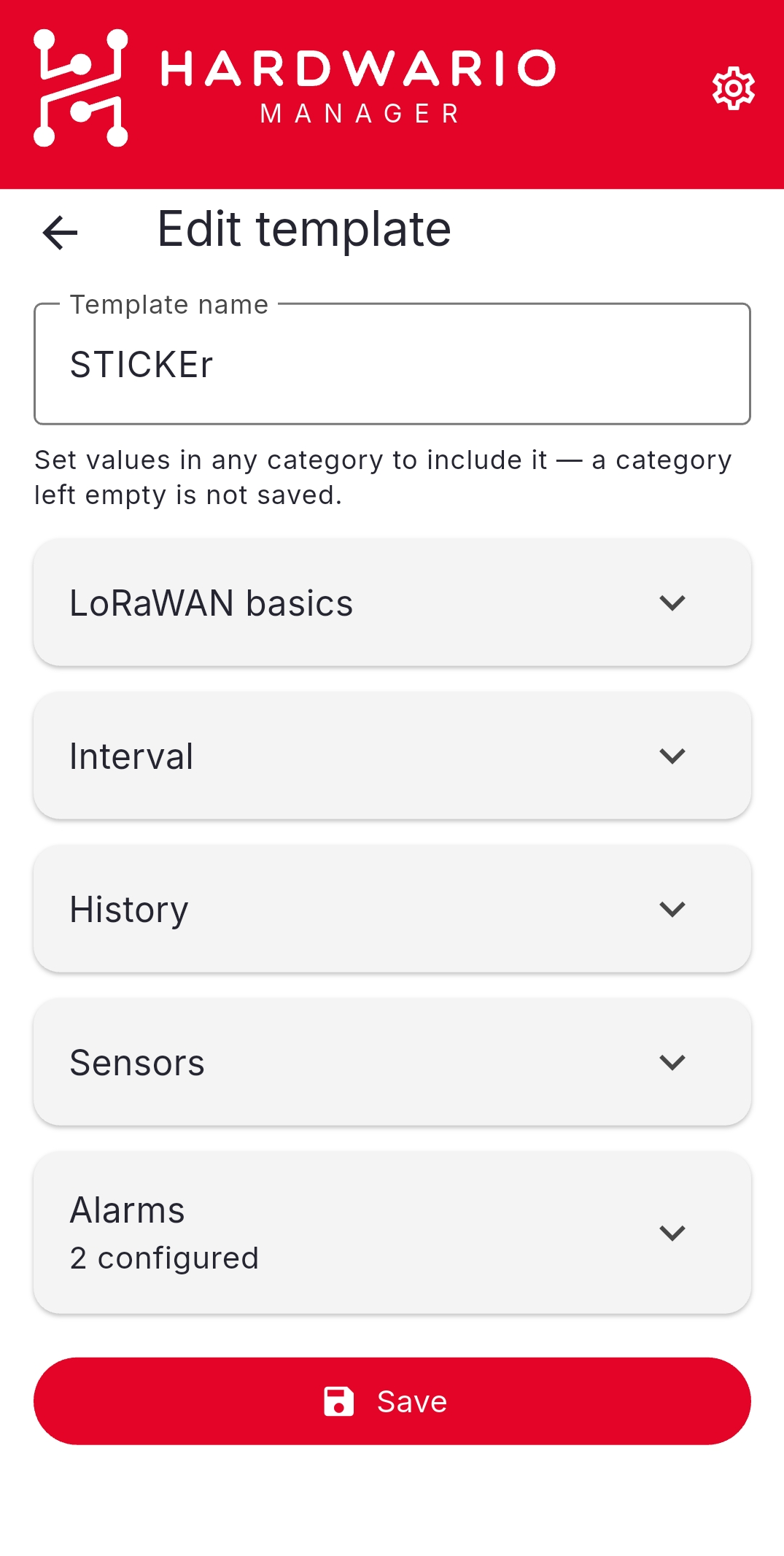
Rename and Delete are in the same menu.
Apply a template
Open a template and choose how to write it:
| Action | What happens |
|---|---|
| Apply over NFC | Read the device, review the resulting changes, then write |
| Apply offline | Write to powered-off devices in bulk — see Configure a powered-off device |
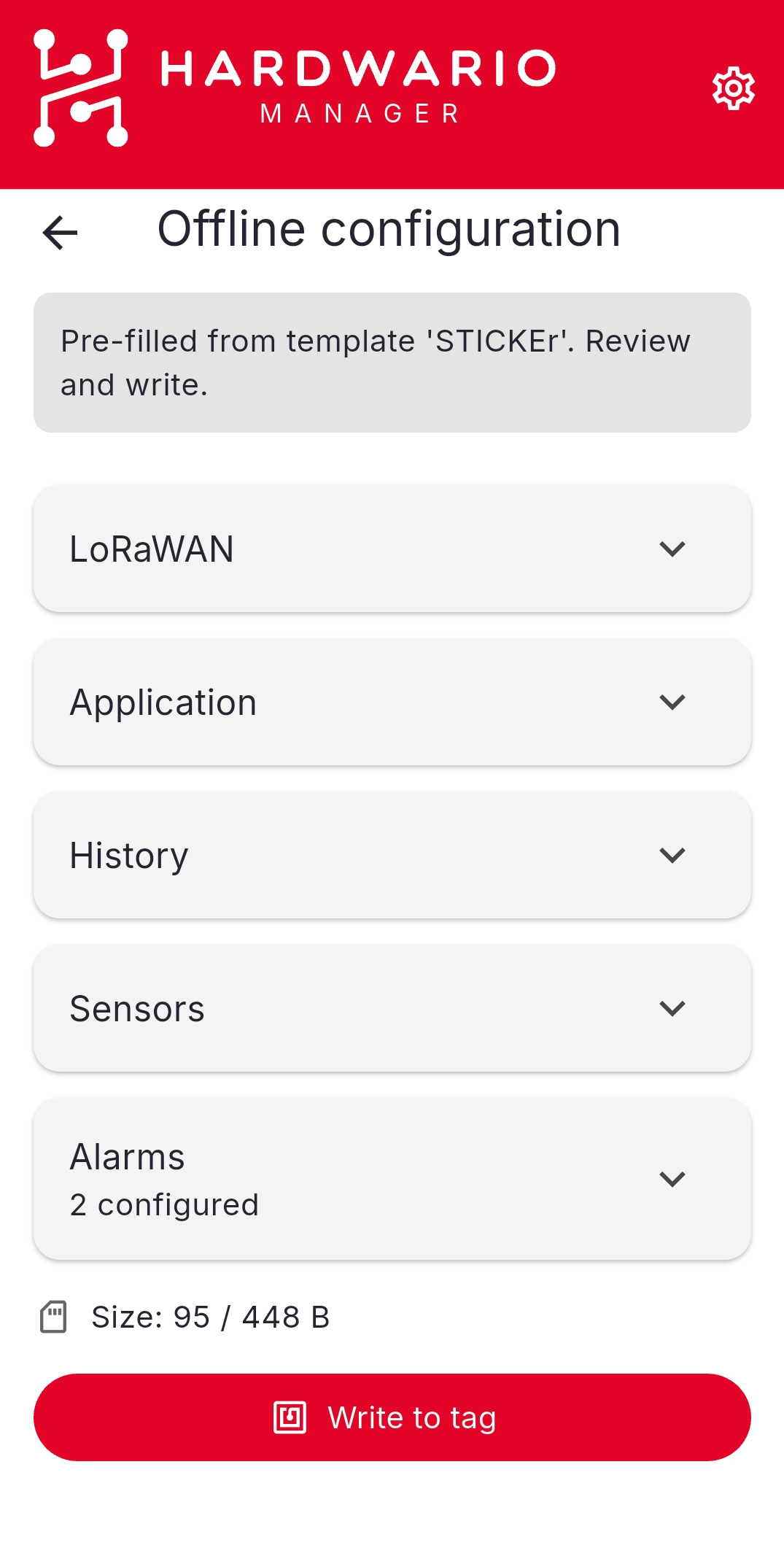
Applying offline pre-fills the configuration from the template. Review it, then Write to tag.
Share a template
Open a template and choose Share to produce a QR code and a hex string; Copy hex puts the string on the clipboard. Anyone can load it back with Add template → From QR code or From hex.
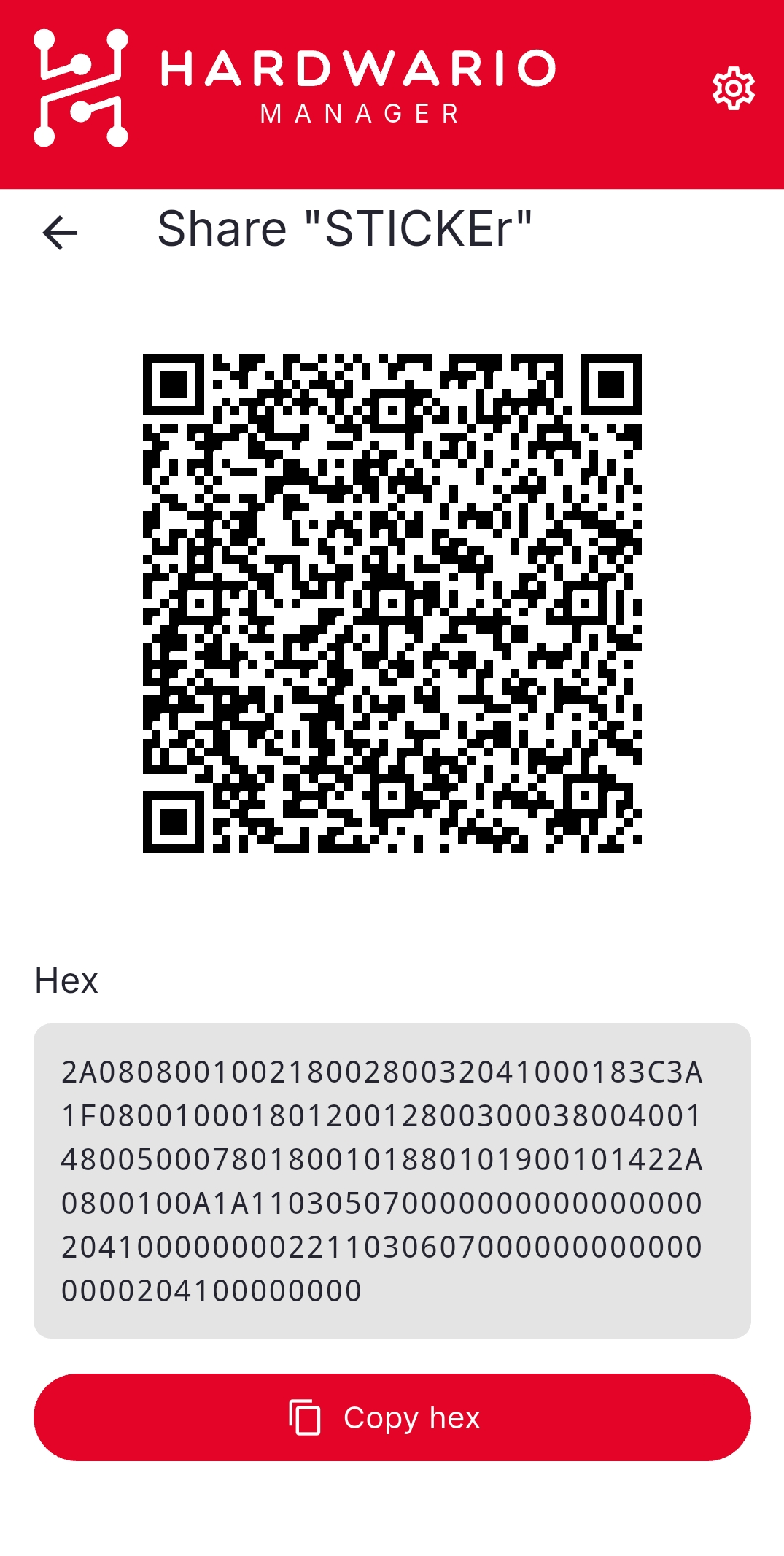
A template that is too large to fit in a QR code is offered as hex only.
Importing a template with the same name as one you already have asks whether to Replace it.