Scan multiple STICKERs (batch export)
Capture the configuration of many devices in one session and export them together — useful for inventory, audits, and backups before a change.
Capture the devices
- Open HARDWARIO Manager and go to STICKER → Configuration → Scan multiple (batch export).
- Choose which sections to capture — LoRaWAN, Application, Sensors, Alarms.
- Tap each STICKER in turn. Every device's configuration is captured automatically as you tap it, and the running count grows.
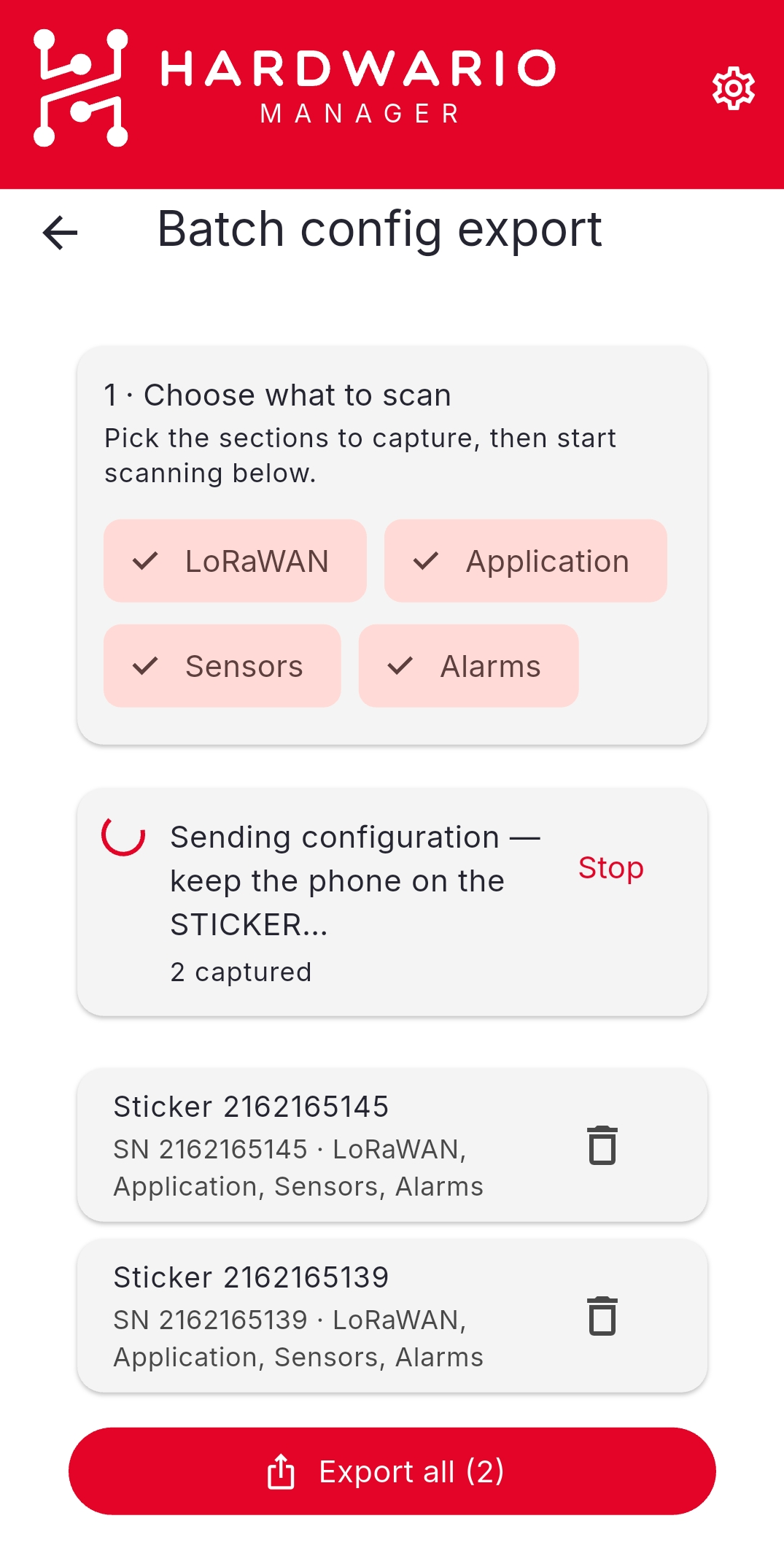
The scanner re-arms itself after each device, so you can work through a tray without touching the screen between taps. Tapping a device you have already captured updates its entry rather than adding a duplicate, and Remove drops one from the set.
Export them together
When you have scanned everything, choose Export all and pick a format.
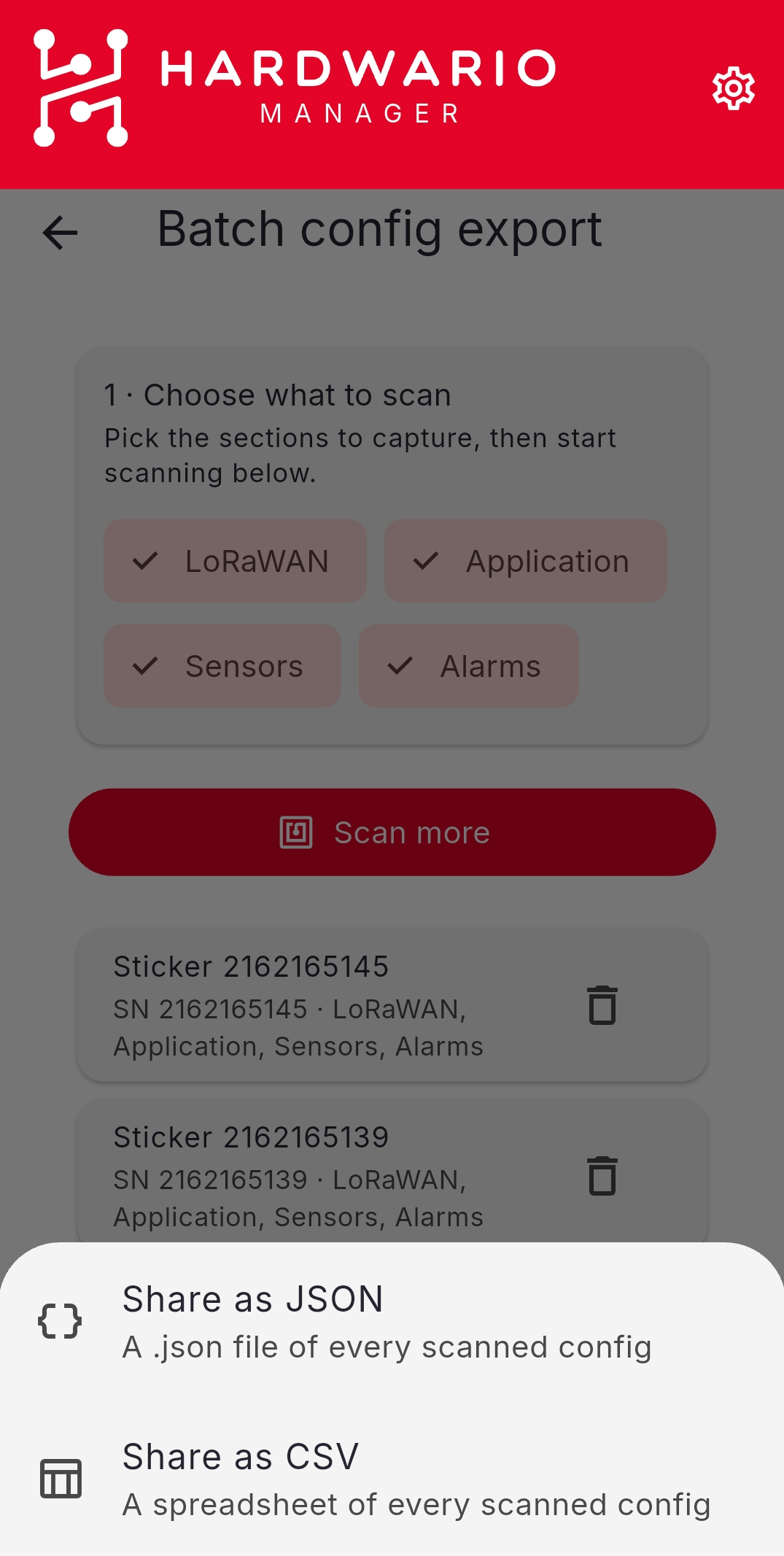
| Format | Result |
|---|---|
| Share as JSON | One .json file containing every captured configuration |
| Share as CSV | A spreadsheet with one row per captured configuration |
This only reads
A batch scan never writes to a device. To give many devices the same settings, use a template instead.
A batch export can be loaded back in later: Configuration → Configure from file recognises a batch file and asks which device from it to load. See Configuration.