CHESTER over Bluetooth
CHESTER is managed over Bluetooth Low Energy. Connect the phone to a device and you can read its state, edit its configuration, drive its shell, bind external BLE sensor tags, update its firmware, and reboot it.
Open HARDWARIO Manager and choose CHESTER.
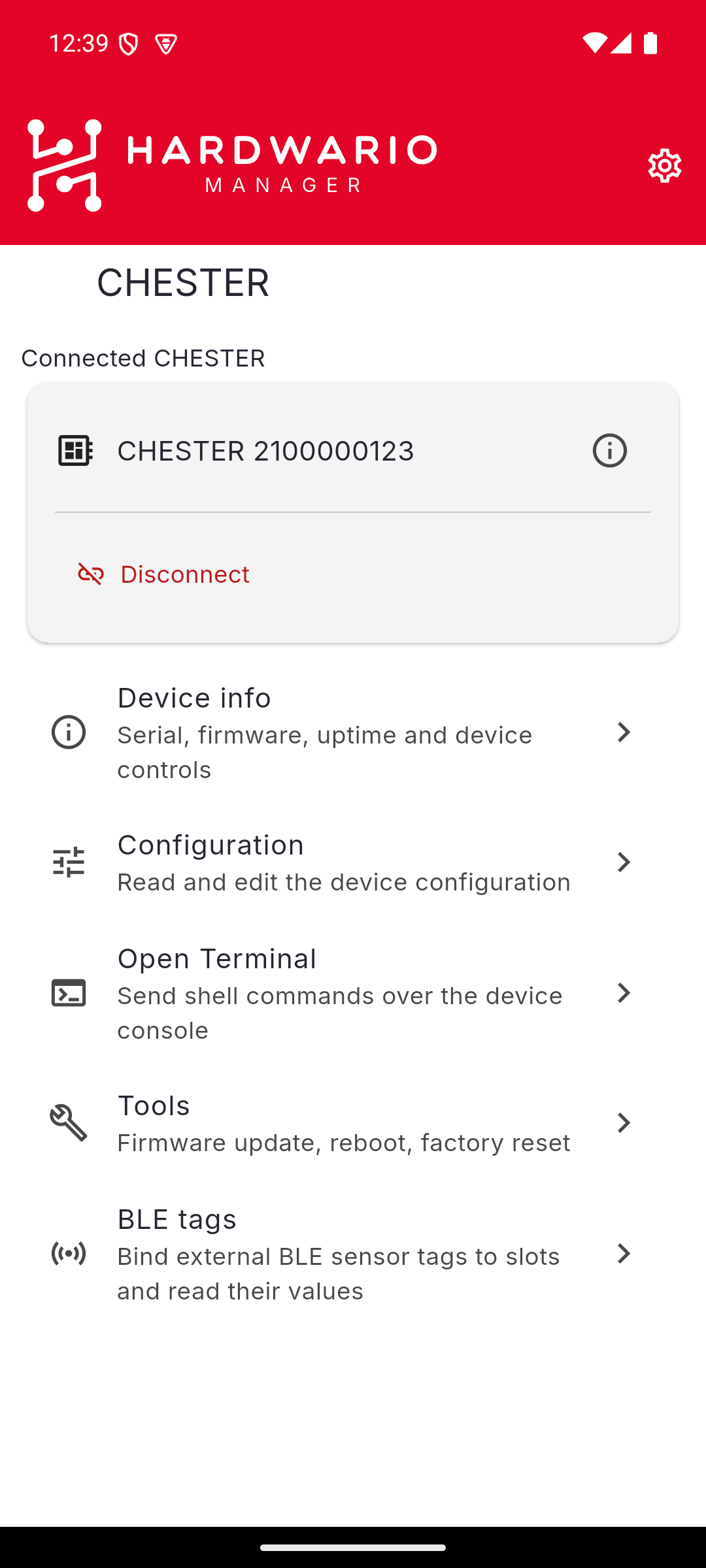
The menu
| Entry | What it does |
|---|---|
| Device info | Serial, firmware, uptime and device controls |
| Configuration | Read and edit the device configuration |
| Open Terminal | Send shell commands over the device console |
| Tools | Firmware update, reboot, factory reset |
| BLE tags | Bind external BLE sensor tags to slots and read their values |
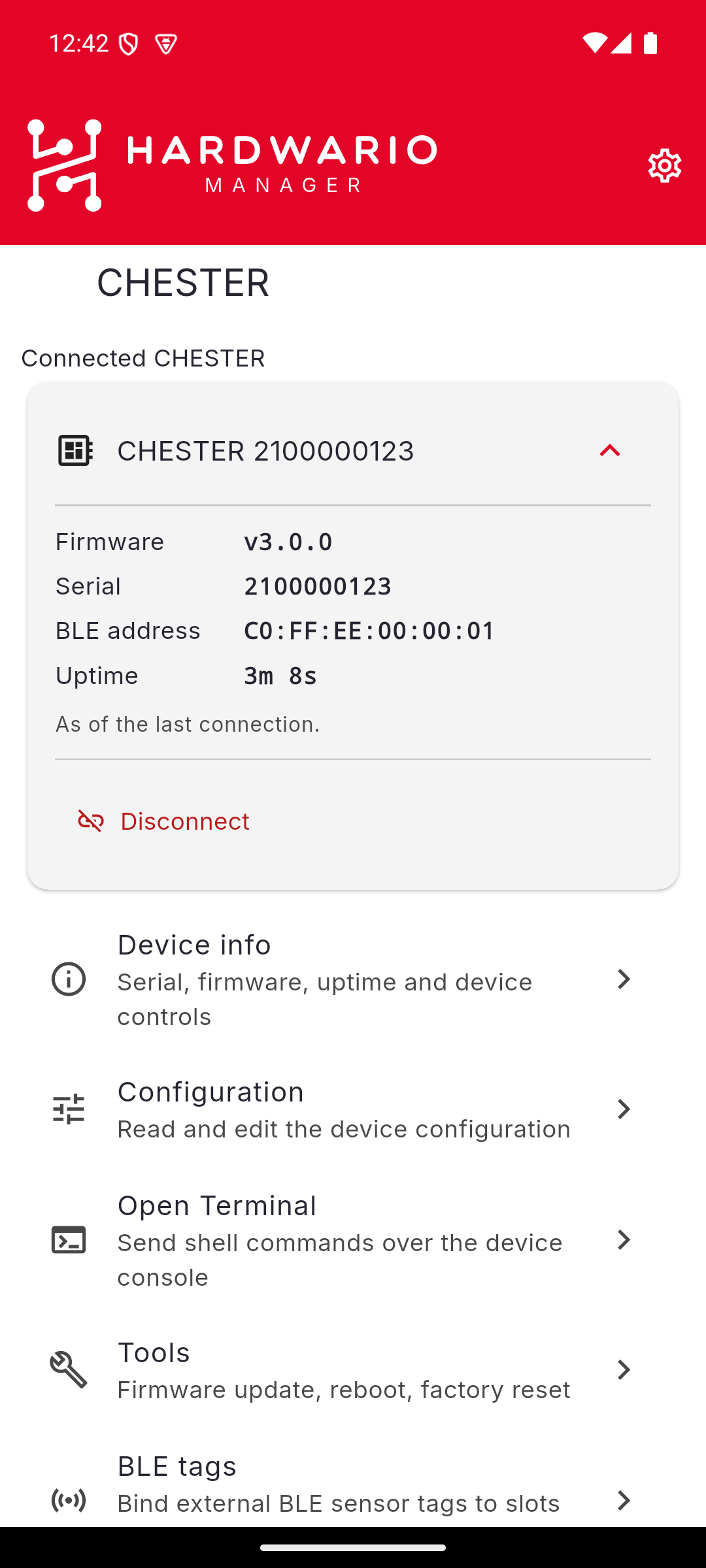
The connected device card
Above the menu, Connected CHESTER names the device you are attached to. Its arrow expands a summary — firmware, serial number, BLE address and uptime, as of the last connection — and Disconnect closes the link.
One device at a time, and only while the screen is open
The app holds one CHESTER connection, and it belongs to the CHESTER screen. Leaving that screen disconnects the device. To reconnect, the setup wizard offers the device again under Recent devices.
Before you start
- Bluetooth must be on, and the app needs the nearby devices permission — see Install the app.
- Pairing uses the 6-digit passkey tied to the device. Scanning the QR code on the CHESTER label is the path that fetches it for you.
- Keep the phone near the device. Most connection problems are range or a stale pairing — see Troubleshooting.
Start with Connect and pair.