CHESTER Terminal
The terminal gives you the device's shell over Bluetooth — the same console you would reach over a cable, from the phone.
Open CHESTER → Open Terminal. An empty terminal suggests where to start:
Type a command below — try "help" or "config show".
Running commands
Type a command into Enter a shell command and send it. The command is echoed
into the log as $ command, and the device's output follows verbatim in a
monospace block. Output can be selected and copied.
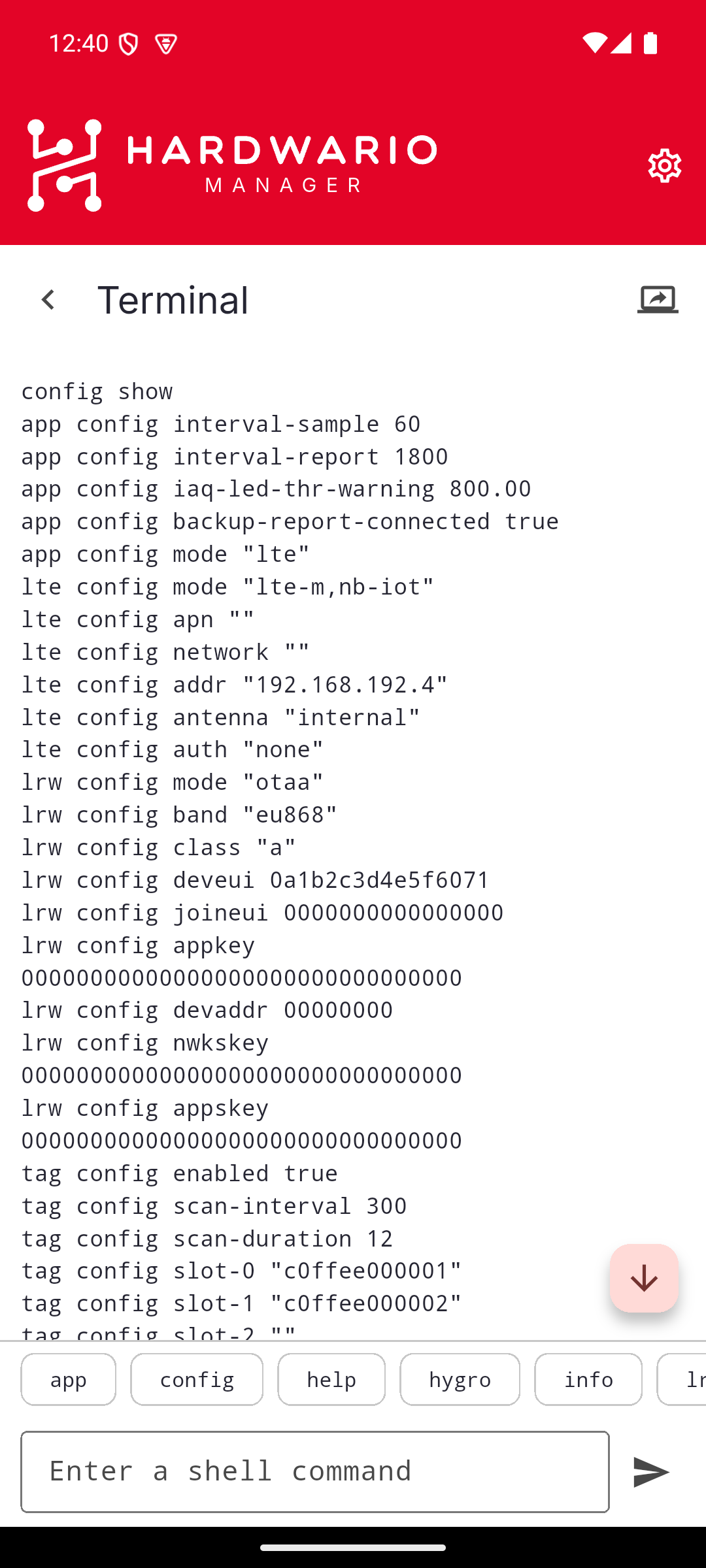
If a command cannot be sent, the failure is written into the log itself as an
[error] line, so the transcript keeps a complete record of what happened.
Command suggestions
The terminal learns the device's own command set rather than guessing:
- when you open it, the app quietly asks the device for its command list;
- once you type past the first word, it asks that command for its subcommands.
Matching suggestions appear as chips above the input. Tapping one fills the input — it never runs the command, so you always send it yourself.
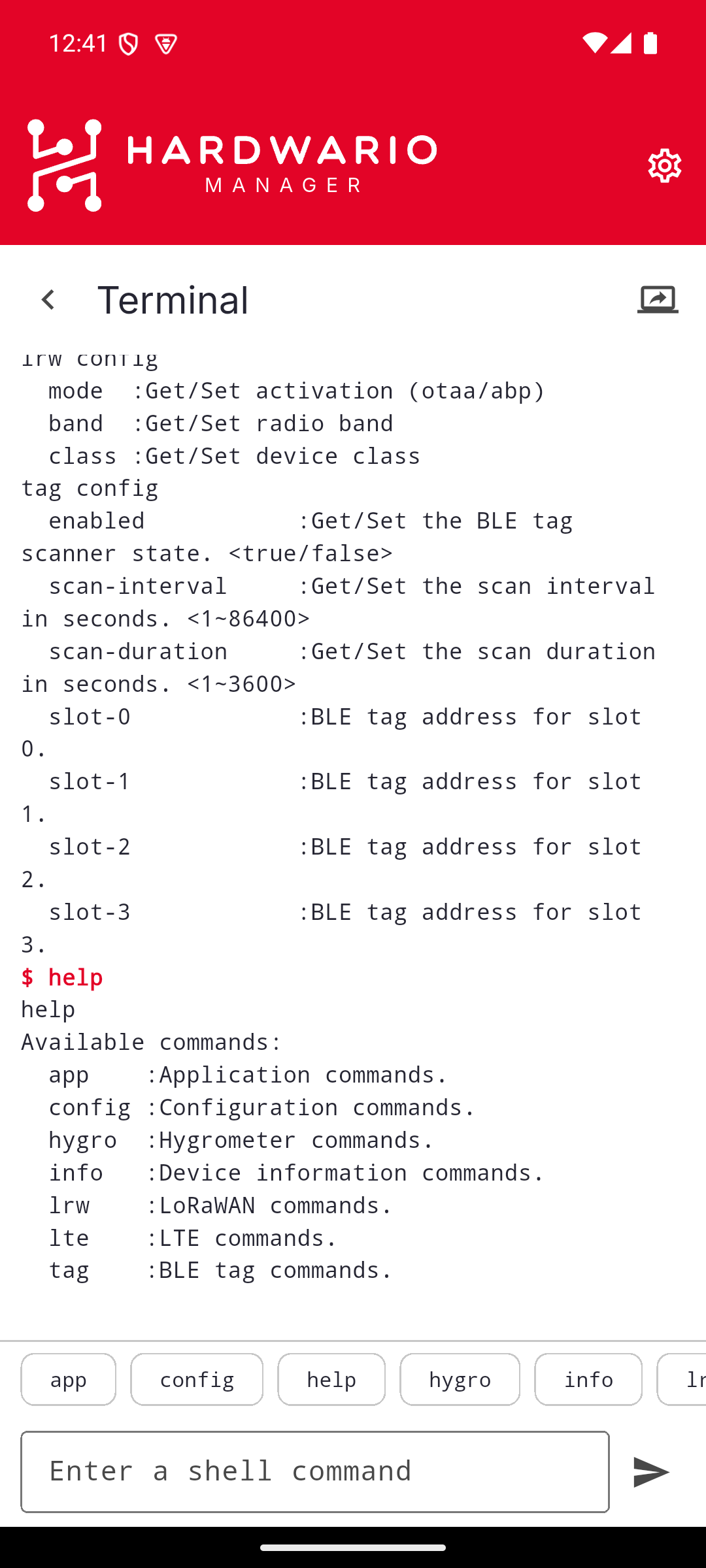
Running help yourself prints the same list the suggestions are drawn from — the
command groups this firmware exposes, each with a one-line description.
Suggestions come from the connected device, so they match its firmware. They are cleared when you disconnect.
Scrollback
The log is kept per device, so reconnecting to a CHESTER brings back what you did with it last time. A scroll-to-bottom button appears when you scroll up, and sending a command jumps back to the newest output.
If the device clears the screen itself, the log clears with it.
Sharing the session
The action in the top bar shares this terminal with someone else, who can then watch and drive the device from a browser. See Share a terminal session.
Settings changed from the shell live in the device's working memory. Use Device info → Save configuration to commit them so they survive a reboot — see Device info.