Connect to a CHESTER
Open HARDWARIO Manager → CHESTER. If nothing is connected, the app shows the Set up CHESTER wizard: Scan QR, then Connect & pair.
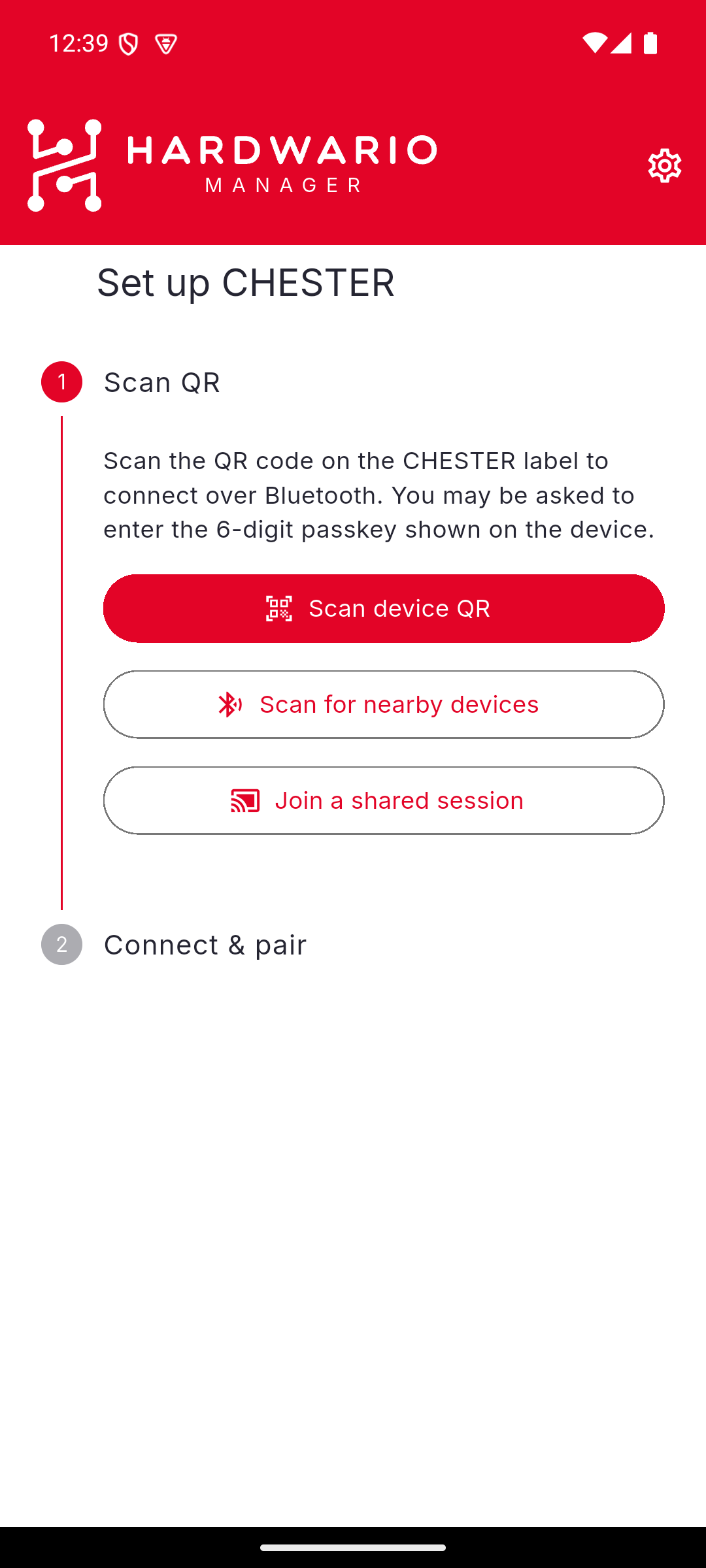
Scan the device QR — the usual path
The QR code on the CHESTER label identifies the device and lets the app look up its Bluetooth passkey, so pairing needs no typing.
- Choose Scan device QR.
- Allow the camera if asked, and point it at the QR code on the CHESTER label.
- Allow Bluetooth if asked. The app connects and pairs.
While it works, the wizard shows Connecting to CHESTER…. Once the passkey is known, a card appears:
Pairing automatically — No need to type anything. If Android shows a Bluetooth passkey prompt, it's already filled in — just confirm it.
The passkey is also shown on the card and copied to the clipboard, so you can paste it if the phone asks for it.
Automatic pairing is an Android feature. On iOS the system shows its own pairing dialog and you enter the 6-digit passkey from the card yourself.
Scan for nearby devices
If you do not have the label to hand, choose Scan for nearby devices.
The app scans and lists what it finds, strongest signal first, showing each device's name and its signal strength in dBm. Use Filter by serial number to narrow a crowded list, and Rescan to search again. Tap a device to connect.
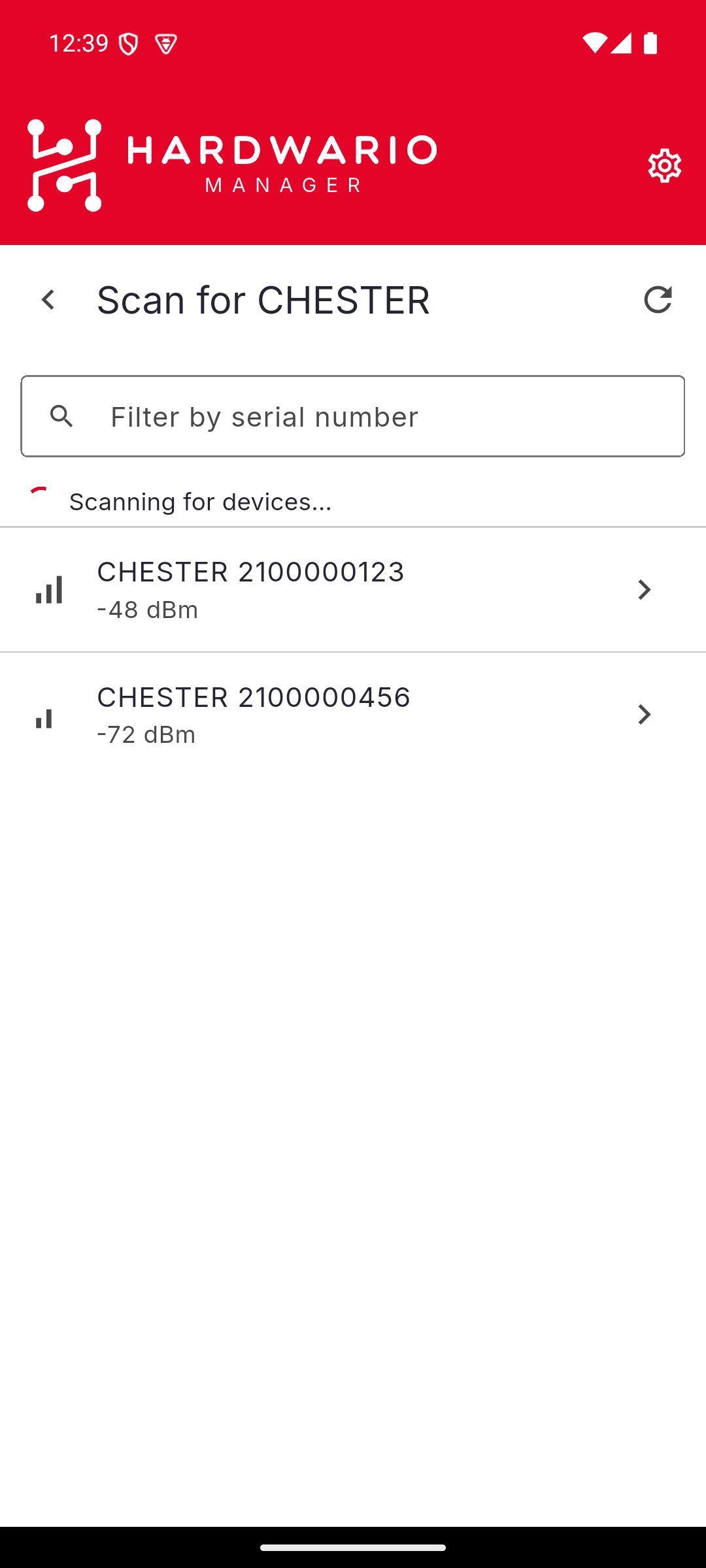
A device reached this way has no passkey looked up for it, so the phone's pairing prompt will ask you for the 6-digit passkey. You can read it from the device's QR label — open the QR in any camera app and the page it opens shows the passkey. Devices connected this way are also not added to Recent devices.
If nothing appears, check that the CHESTER is powered on and in range, then scan again.
Recent devices
Devices you connected to by QR are remembered. The wizard lists them under Recent devices, each with Tap to reconnect; the delete icon removes one from the list.
Only the serial number and name are stored — no keys or secrets.
Join a shared session
Join a shared session does not connect to a device at all. It attaches to a CHESTER that a colleague is sharing from their phone, so you can drive its console remotely. See Share a terminal session.
After connecting
The wizard is replaced by the CHESTER menu. Continue with Device info or Configuration.
If a connection fails, see Troubleshooting — the app classifies the failure and tells you what to do, with the raw error kept behind a Technical details expander.