Share a terminal session
A shared session puts the CHESTER console you are connected to onto a link, so a colleague — HARDWARIO support, for example — can see the output and run commands from their own browser or phone while you hold the device.
A shared session has no password. Anyone who opens the link can view and control the connected CHESTER. Share it only with people you trust, and stop sharing as soon as you are done.
Share your session
- Connect to the CHESTER and open Terminal.
- Use the share action in the top bar.
- The sheet shows a numeric Session ID and a link, along with a live status: Connecting…, Waiting for viewers, or the number of viewers attached.
- Send the link with Copy link or Share.
While a session is live, the share icon changes colour so it is obvious the device is exposed.
Stop sharing ends it. Leaving the Terminal screen also ends the session.
Join someone else's session
You do not need a device of your own to join.
- Open HARDWARIO Manager → CHESTER.
- In the setup wizard, choose Join a shared session.
- Enter the numeric Session ID the host gave you and choose Join.
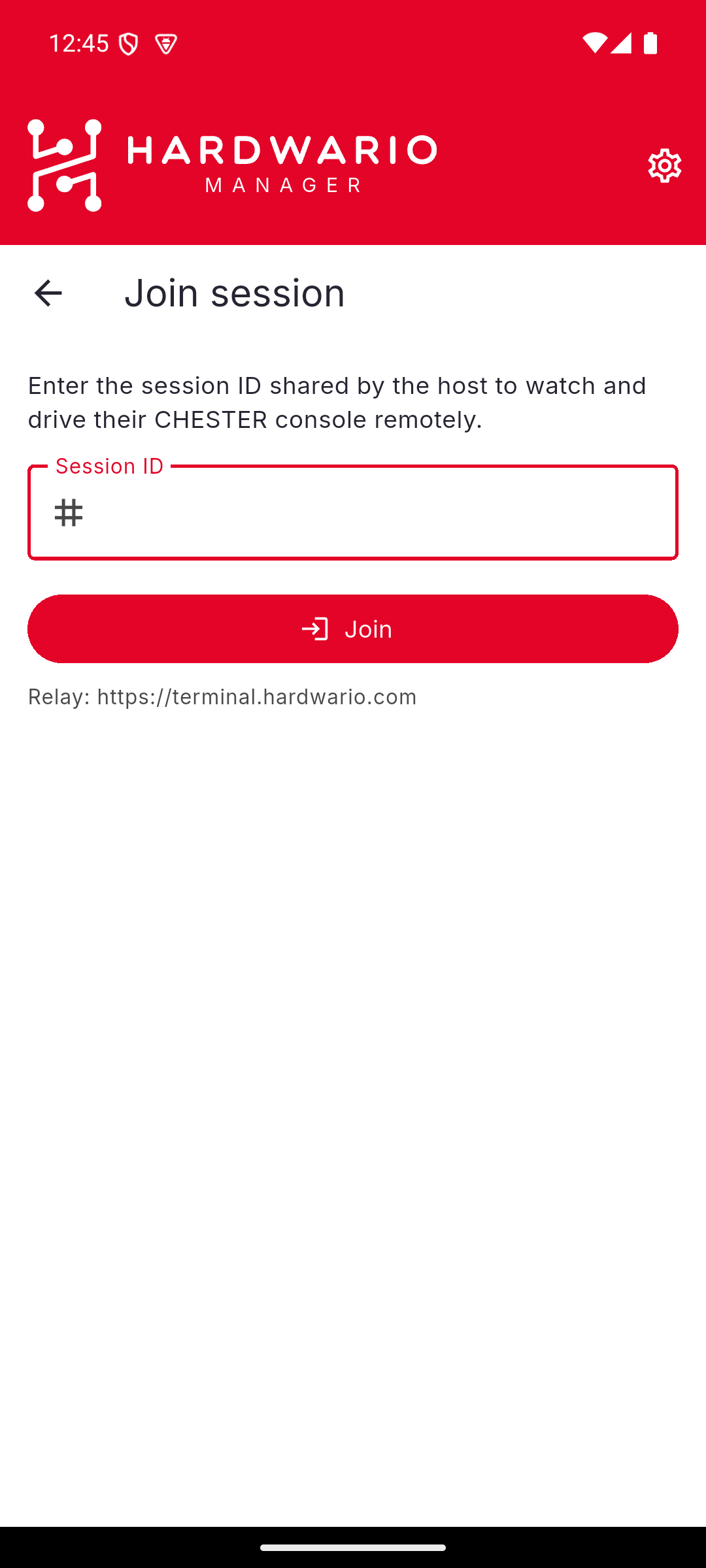
The screen names the relay the session runs through, so you can see where the console traffic is going before you join.
The viewer shows the host's console output and an input for running commands on their device. A status line tells you what the host is doing — whether they are connected, still attaching a device, or have not produced output yet.
Leave ends your side. If the host stops sharing, a banner says so and the input is disabled.
What travels over the link
The session carries the console: the commands sent and the output returned.
Anything you would see in the terminal, a viewer sees too — including values
printed by config show. Bear that in mind before sharing a session on a device
holding production keys.