STICKER over NFC
STICKER is configured by holding the phone against the device. There are no cables, no programmer, and no desktop software. STICKER is NFC-ready and can be configured even with no batteries inserted — the NFC field from the phone powers the chip long enough to store settings, which the device applies on its next boot.
Open HARDWARIO Manager and choose STICKER.
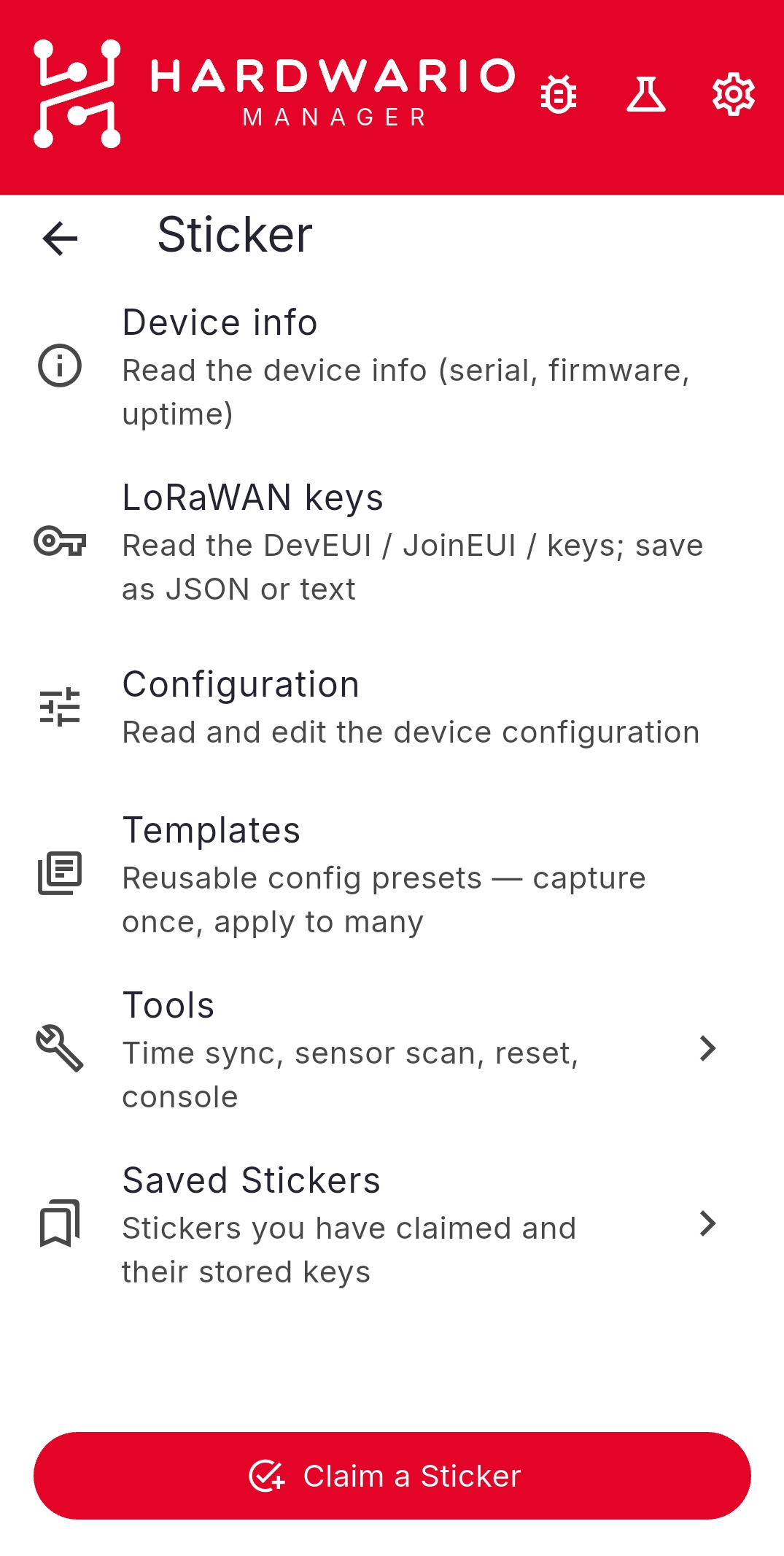
The screenshots in this section come from an earlier build, so a few labels are capitalised differently from the current app, which writes the product name in full capitals throughout. The screens themselves are laid out as shown.
The menu
| Entry | What it does |
|---|---|
| Device info | Read the serial number, firmware version, uptime, and clock — see Device info and LoRaWAN keys |
| LoRaWAN keys | Read the DevEUI and the keys needed to register the device on a network |
| Configuration | Read and edit the full device configuration — see Configuration |
| Templates | Reusable configuration presets — see Templates |
| Tools | Time sync, sensors, history, resets — see Tools |
| Saved STICKERs | The devices you manage and their stored keys — see Saved STICKERs |
The button at the bottom, Claim a STICKER, records a device against your ATELOS account so the app can fill in its keys. See ATELOS account.
How a tap works
When a screen says hold the phone against the …, touch the back of the phone to the STICKER and keep still for a second or two. The NFC antenna is usually near the top back of the phone; if nothing happens, move the phone slowly around that area until it reads.
STICKER talks over an AES-CCM encrypted channel, so the app needs the device's secret key before it can read or write. Once a device is saved, the app fills the key in automatically — it takes the serial and nonce from the tag and looks the key up in your saved list — so most actions need no typing at all.
On Android you hold the phone against the device for the whole exchange.
On iOS the whole exchange runs inside one system scan sheet, and the sheet asks you to lift the phone and tap again partway through. That lift is required: it gives the device the field-off moment it needs. Follow the prompts on the sheet and keep each tap steady.
If the device is not in your list
If a tag reads correctly but its serial is not among your saved devices, the app shows an Unknown STICKER screen and offers to claim it rather than simply failing. See ATELOS account.
Troubleshooting
| Problem | What to check |
|---|---|
| The STICKER will not read | NFC is on, no thick case in the way, hold the top-back of the phone flat against the device and keep still for a few seconds. |
| A write seems to do nothing | The device silently ignores writes made with the wrong secret key. Confirm the saved secret key for this device is correct. |
| The configuration is too large | Reduce the number of settings. The app shows the size against the device's limit while you edit. |
| No response after a LoRaWAN join | Verify the keys and the device profile in your network server. |