Bind BLE sensor tags
CHESTER can read external Bluetooth sensor tags and report their values alongside its own. Each tag occupies a slot on the device; binding a tag to a slot is what tells the CHESTER to watch for it.
Open CHESTER → BLE tags.
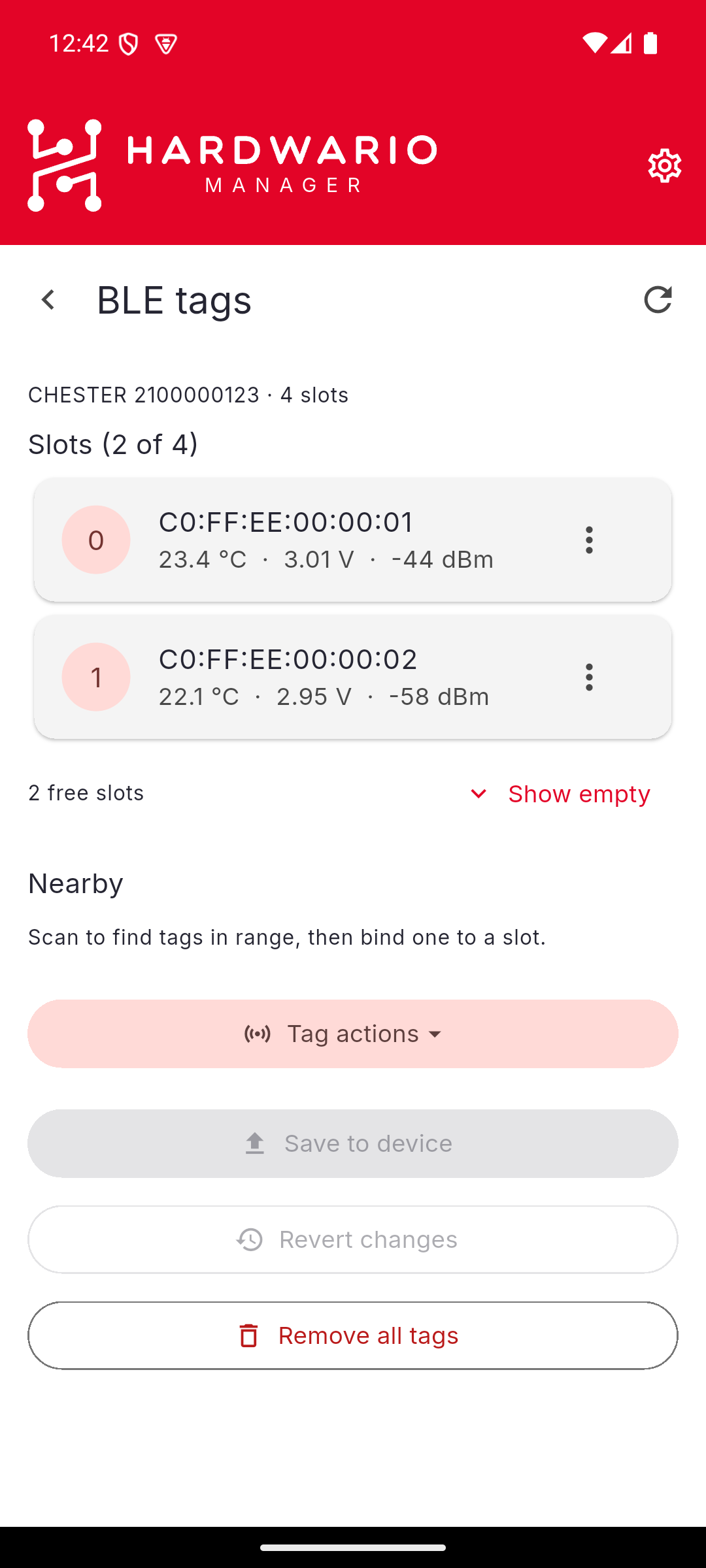
The slots
The header names the device and how many slots it has, and the list shows how many are in use — for example Slots (2 of 4).
Each filled slot shows the tag's Bluetooth address and its latest readings: temperature, battery voltage, and signal strength in dBm. Empty slots are hidden by default; Show empty reveals them so you can pick where a new tag goes.
The ⋮ menu on a slot acts on that slot alone — use it to clear a slot you want to reuse.
Bind a tag
- Under Nearby, use Tag actions to scan for tags in range.
- Pick the tag you want and bind it to a slot.
- Tap Save to device.
Nothing reaches the CHESTER until you save — Save to device and Revert changes stay disabled until you have actually changed something, so the buttons themselves tell you whether there is anything pending.
Use the refresh action in the top bar to re-read the slots and their current values from the device.
Clear the slots
Remove all tags empties every slot at once. As with a single slot, the change is staged until you Save to device.
Related settings
The tag scanner has its own configuration — whether it is enabled, how often it
scans, and for how long. Those sit in the BLE tags group under
Advanced Configuration, and in the shell they are the
tag config commands: enabled, scan-interval, scan-duration, and
slot-0 … slot-3. See Terminal.