Update CHESTER firmware over Bluetooth
The app downloads a firmware image from a link and flashes it to the connected CHESTER over Bluetooth.
Open CHESTER → Tools → Firmware update.
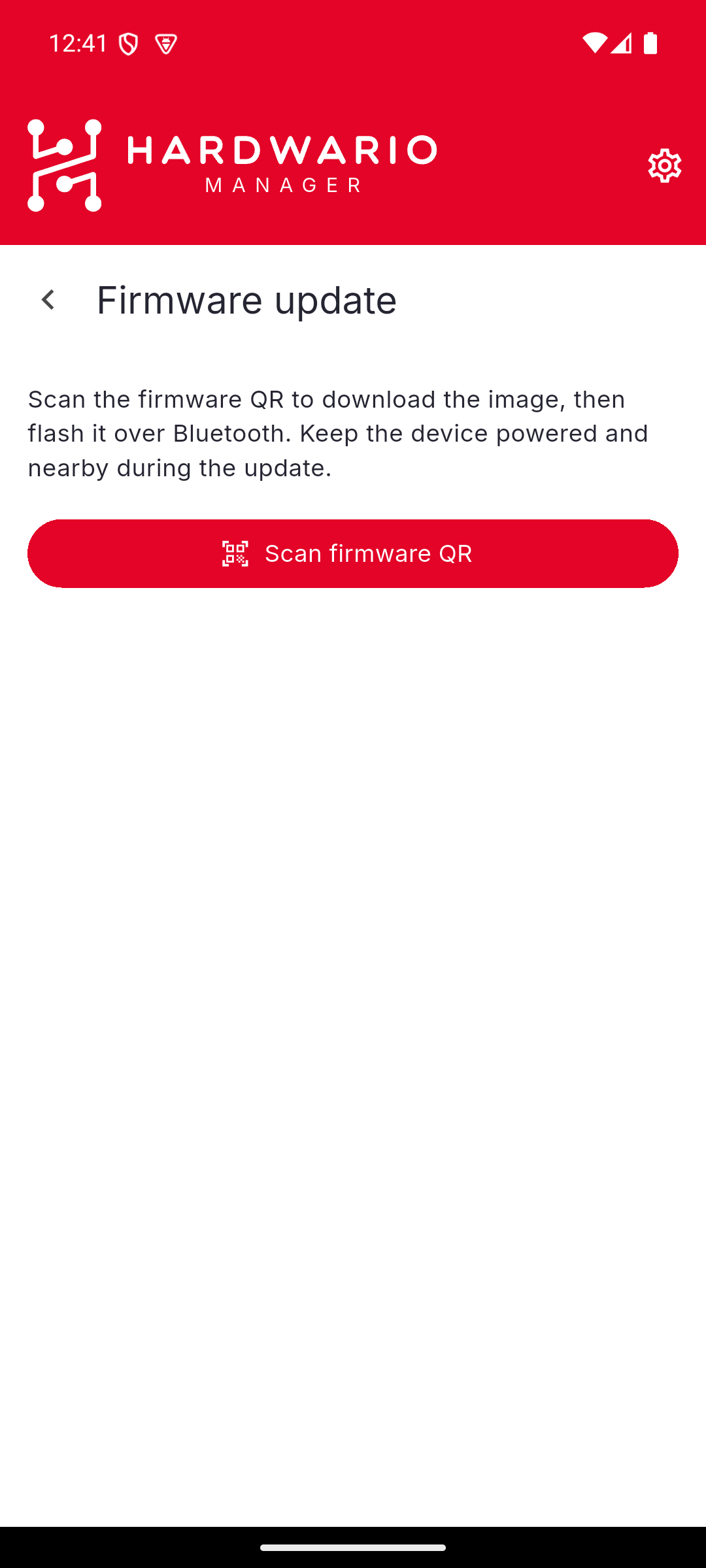
The update screen takes its image from a QR code carrying the firmware link — there is no catalog to browse, no address to type, and no file picker. You get that QR with your custom build, or from the pre-built binaries for catalog applications.
Run the update
- Choose Scan firmware QR and point the camera at the code.
- The app downloads the image — Downloading firmware…
- Check the summary: the file name, its size, and its SHA-256 digest. Use Scan a different firmware if it is not what you expected.
- Choose Start update.
The update then runs through its stages, with a progress bar:
| Stage | What is happening |
|---|---|
| Preparing… | Getting the device ready |
| Uploading… n% | Transferring the image |
| Testing the new image… | The device checks the image it received |
| Rebooting the device… | The device restarts into the new firmware |
| Confirming the new image… | The new firmware is marked as good |
| Done |
When it finishes, the app confirms the device is restarting with the new firmware and may take a moment to come back.
You cannot navigate away while an update is running. Keep the phone near the device and both powered until it finishes.
If it fails
A failed update is safe. The image is only confirmed after the device has restarted and tested it, so a device that fails midway reboots into its previous firmware.
The app says which phase failed, because that determines what to do next:
| When it failed | What it means |
|---|---|
| Before or during validation | The update never started. Try again. |
| During the upload | The transfer stopped before finishing. The device keeps its current firmware — safe to retry. |
| After the upload | The device reverts to its previous firmware on the next reboot. Reconnect and check its version before retrying. |
If the update stops responding — no progress for 90 seconds — the app aborts and tells you. Usually the device lost power or went out of range.
Other messages you may see:
- The device refused the firmware image — the image is not valid for this hardware. Check the QR points at firmware for this CHESTER variant.
- The device has no room for the image — reboot it and try again.
- The downloaded firmware file is empty — the QR does not point at a valid image.
See Troubleshooting for connection problems.