Organise saved devices with tags
Tags label and filter the devices in your saved list — for example by site, customer, floor, or state of deployment. A device can carry as many tags as you need, and each tag has its own colour.
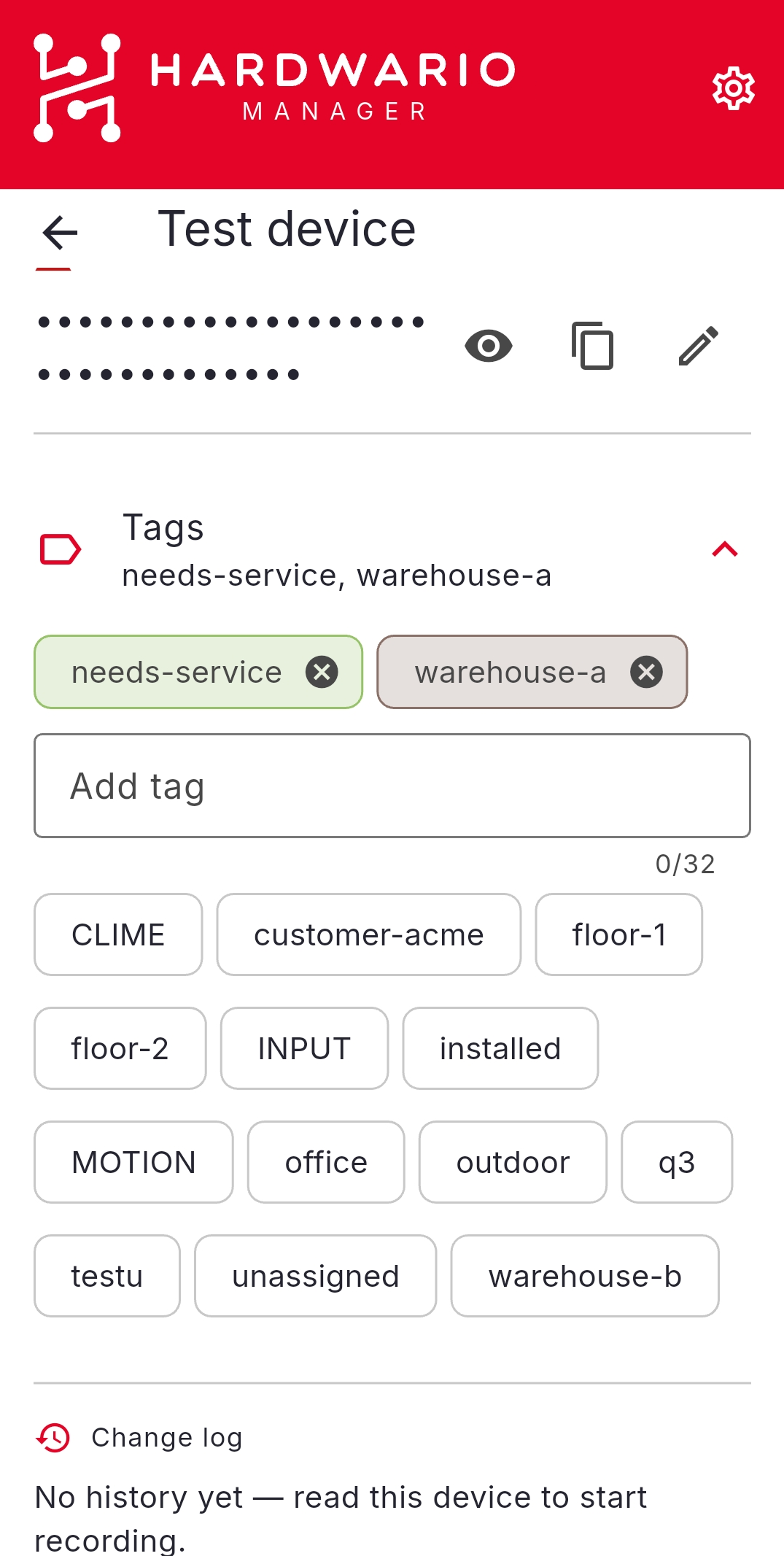
Tag a device
- Open HARDWARIO Manager and go to STICKER → Saved STICKERs.
- On a device row, or in its Detail, choose Edit tags.
- Pick existing tags or create a new one, then confirm.
Manage the tag registry
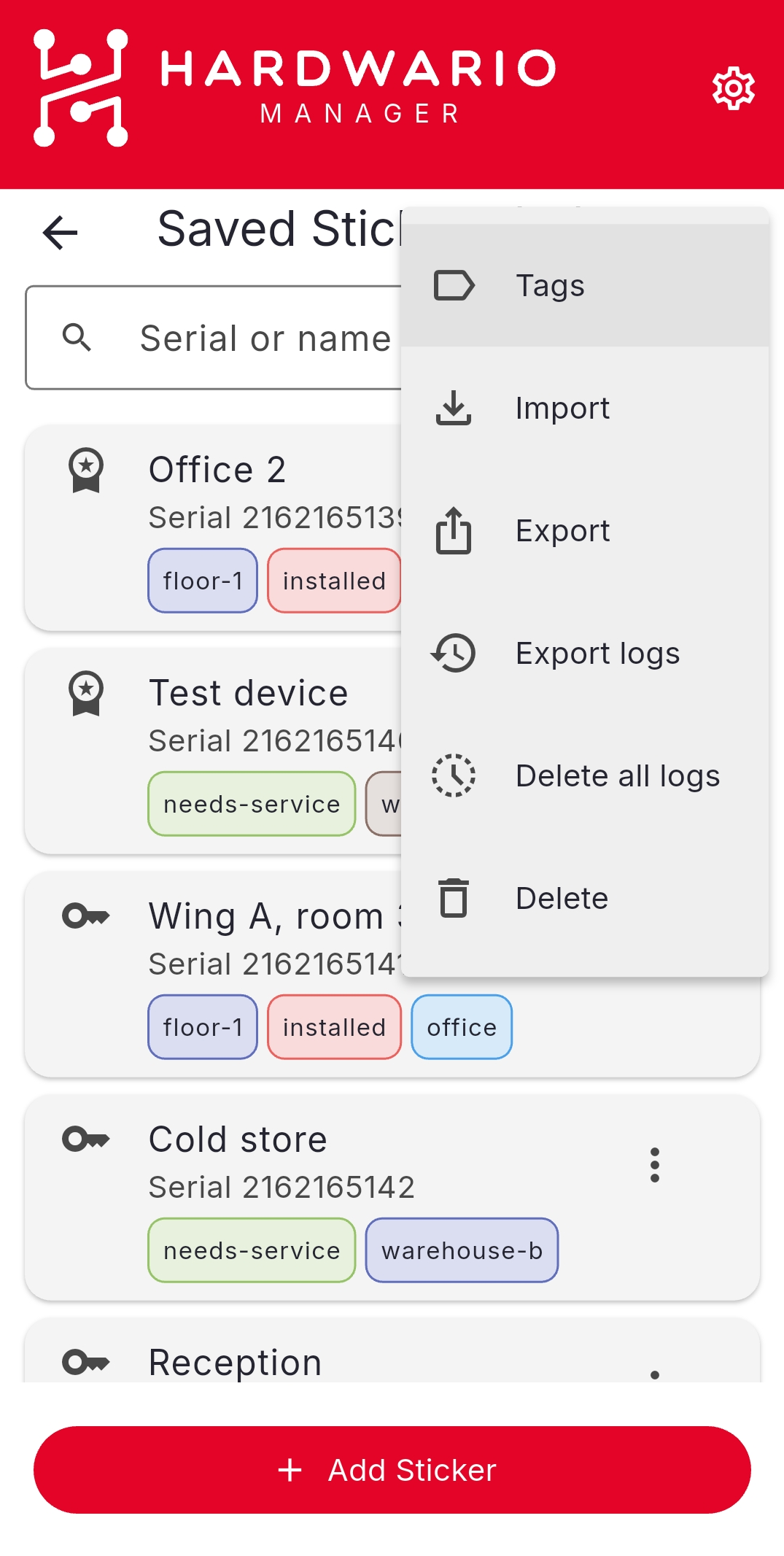
Open the ⋮ menu on the Saved STICKERs list and choose Tags.
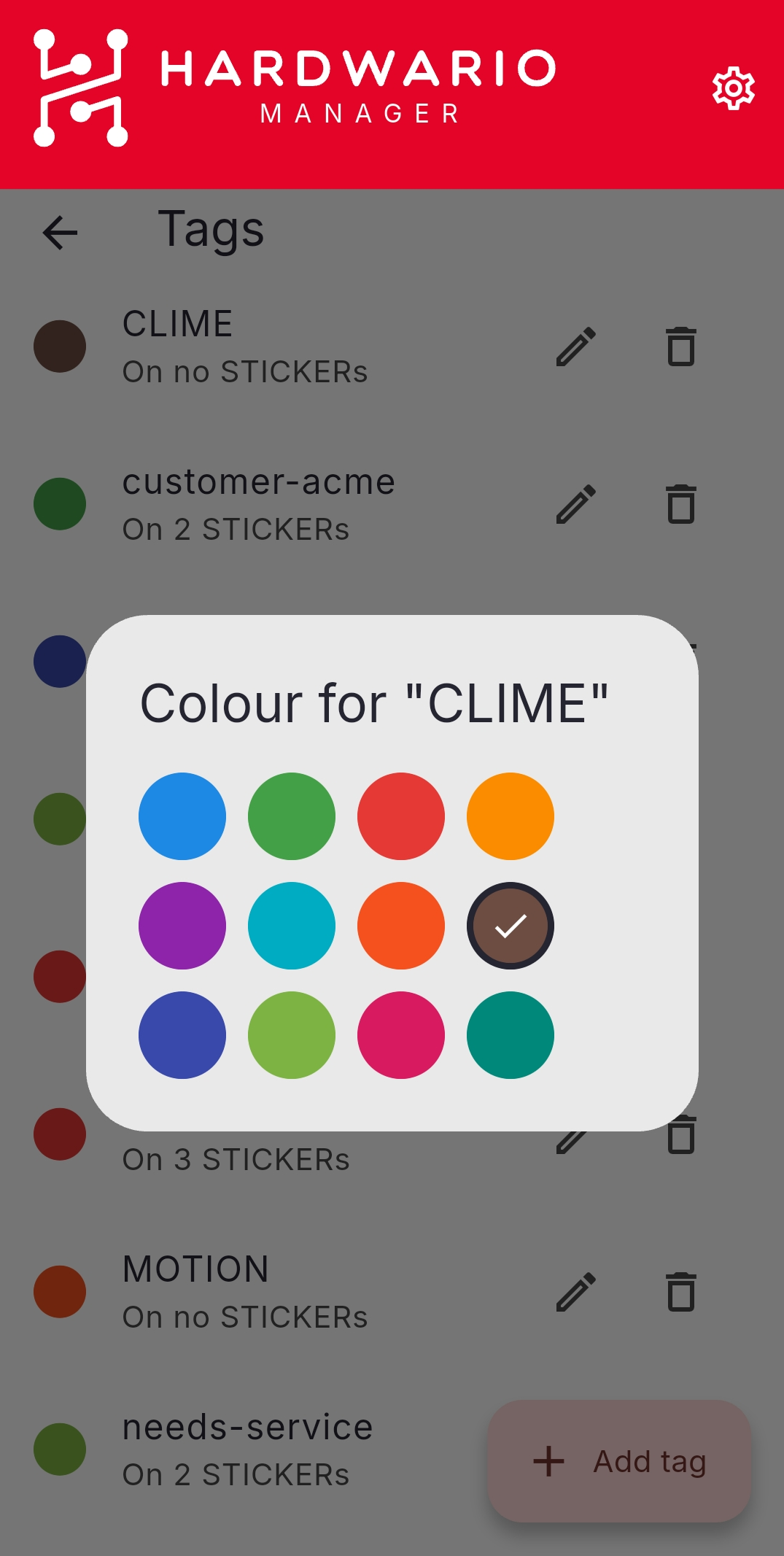
The registry covers your whole list: add, rename, recolour, and delete tags, with a count showing how many devices use each one. Renaming or recolouring a tag updates it on every device at once.
Filter by tag
Back in Saved STICKERs, tap the tag icon and pick one or more tags to show only the matching devices. A badge on the icon shows how many filters are active, and Clear removes them all.
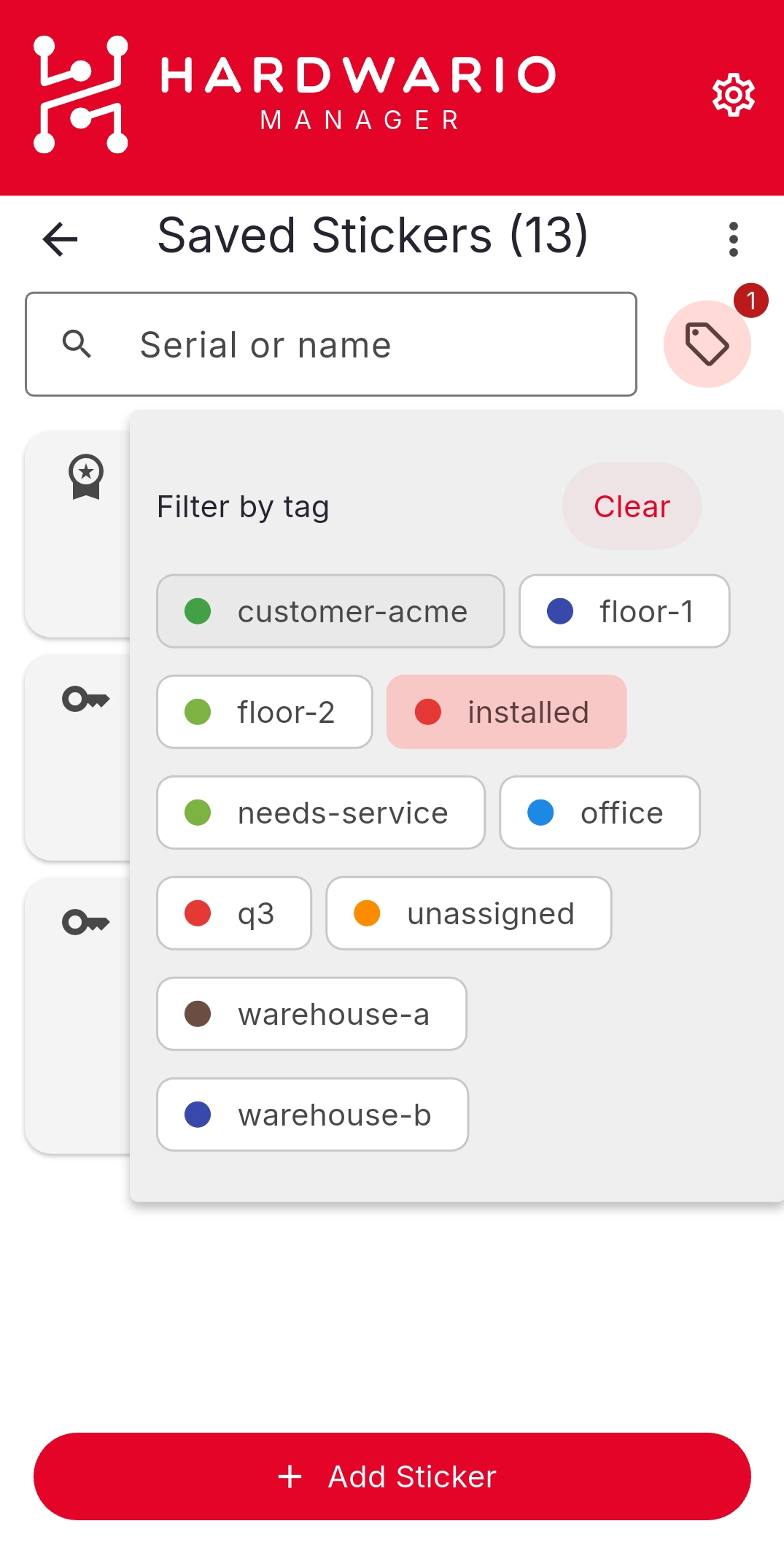
Filtering works alongside the Serial or name search box, so you can narrow by tag and then search within the result.
Tags are not secret, so they ride along in exports. Tick Include tags when exporting to add a tags column to the CSV; importing unions those tags onto the matching serials and creates any that do not exist yet. See Saved STICKERs.