Data
A data downlink sends a JSON object down to the device. Your firmware decodes it into a structure with the values filled in — use it to control outputs, change a setpoint, or trigger an action.
Send a data downlink
- Open the device's Messages and click + SCHEDULE DOWNLINK.
- Set Message type to data.
- Enter the JSON Body your firmware expects, then click SEND.
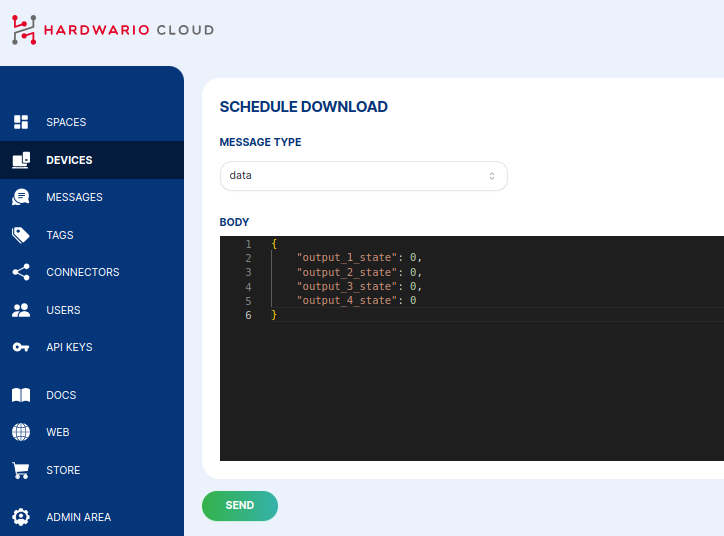
For example, a CHESTER Control application with four outputs might accept:
{
  "output_1_state": 0,
  "output_2_state": 0,
  "output_3_state": 0,
  "output_4_state": 0
}
The exact keys depend on your device's firmware. Like every downlink, the message is queued and delivered the next time the device boots, sends an uplink, or polls the Cloud.