Bulk Actions
Bulk Actions let you configure or manage many devices at once instead of one at a time — handy when you roll out a fleet of CHESTER devices that should share the same configuration, firmware, tags, or labels.
Selecting Devices
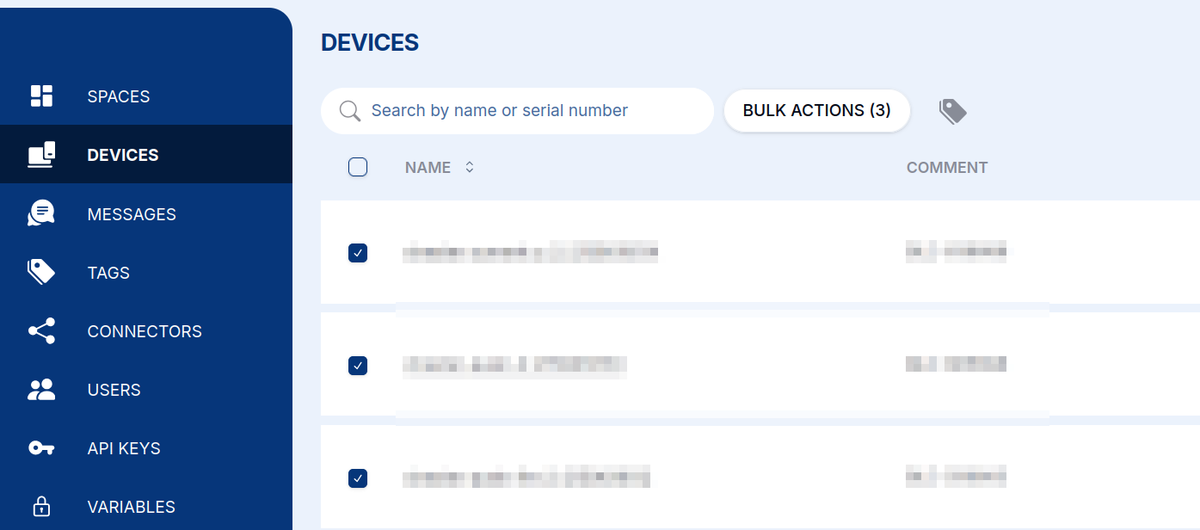
On the Devices page, tick the checkbox next to each device you want to include (or the header checkbox to select them all). The BULK ACTIONS button shows how many devices are selected — click it to open the Bulk Actions dialog.
Running an Action
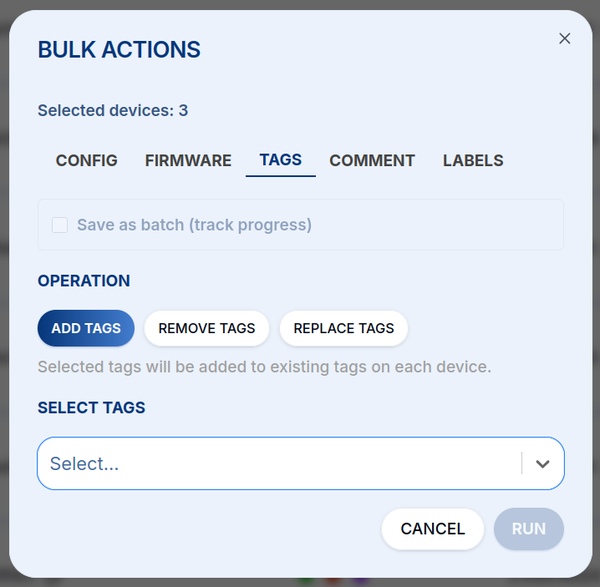
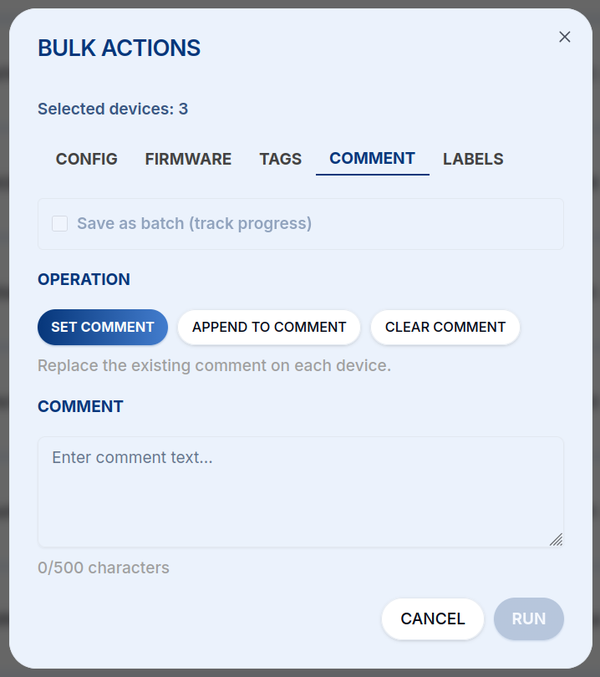
The dialog shows the number of selected devices and offers five tabs — one per kind of action. Tick Save as batch (track progress) to record the operation as a batch so you can follow its progress afterwards, then click RUN to apply the action to every selected device.
Config
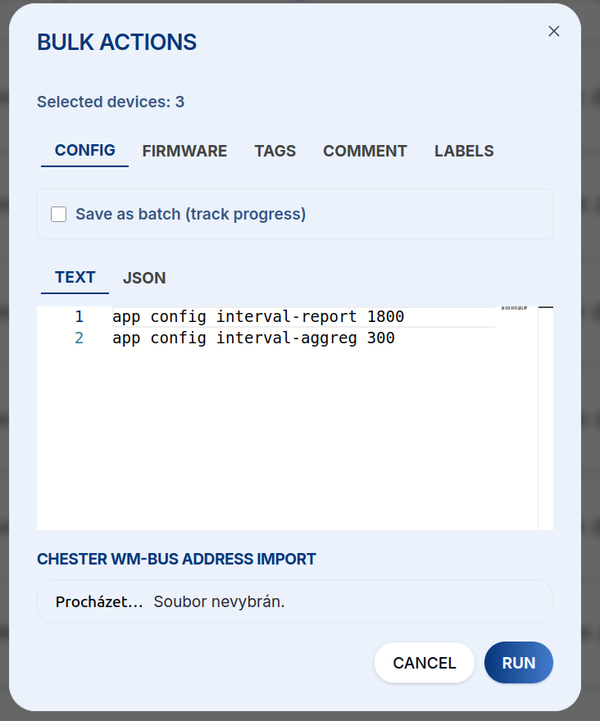
Send app config commands to every selected device — the same as a
Config downlink, applied in bulk. Enter the commands as Text or
JSON. For CHESTER wM-Bus deployments you can also import device addresses from a file.
Firmware
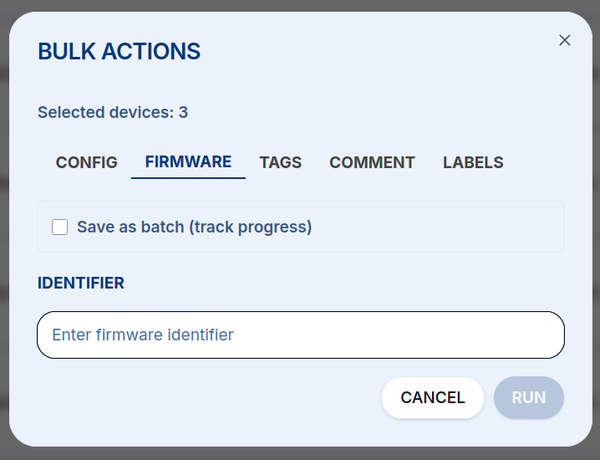
Update the firmware of every selected device over the air — enter the firmware identifier to roll out (see FOTA).
Tags
Add, remove, or replace tags on the selected devices. Choose the operation (Add / Remove / Replace) and pick the tags to apply.
Comment
Set, append to, or clear the comment on the selected devices (up to 500 characters).
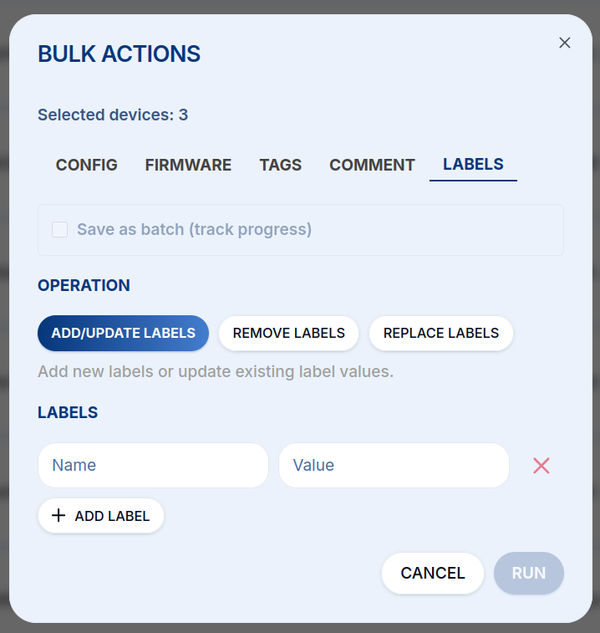
Labels
Add/update, remove, or replace labels (name–value pairs) on the selected devices.