Manual connection
The automatic connection is simpler: you add one connector and every tagged device appears by itself. Use the manual connection only for devices that already exist in HARDWARIO Dashboards, or when you need your own data format.
With the manual connection, each device in HARDWARIO Dashboards has an access token. A connector in HARDWARIO Cloud reads the token from a device label and sends the device's data to it.
Step 1: Create the device
Skip this step if the device already exists in HARDWARIO Dashboards.
-
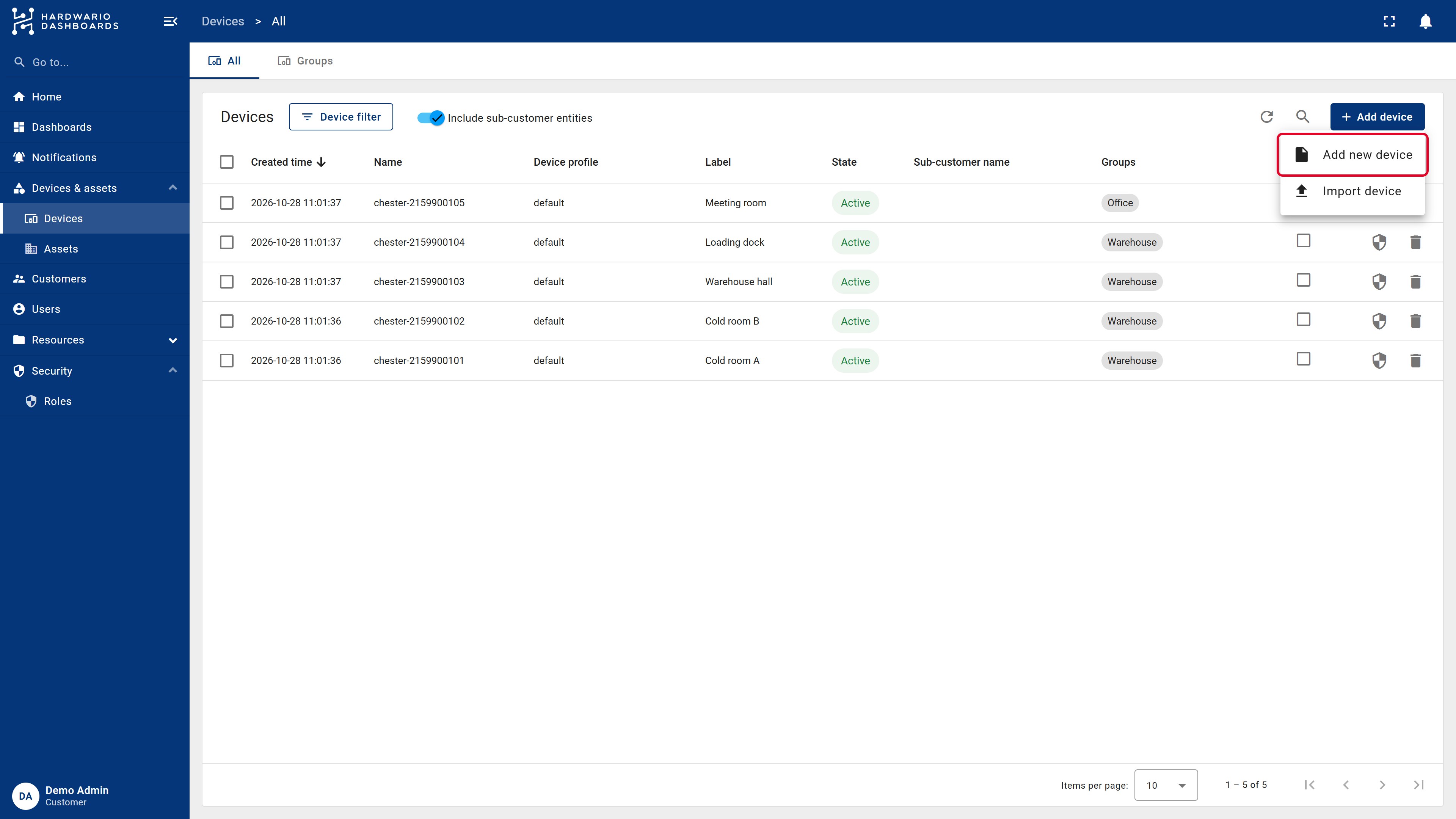
Open Devices & assets → Devices (Entities → Devices for tenant administrators), click Add device in the top-right corner and choose Add new device.
-
Enter a Name (1), for example the serial number, and a Label (2), a readable name such as Cold room A. You can also pick its Groups. Click Add (3).
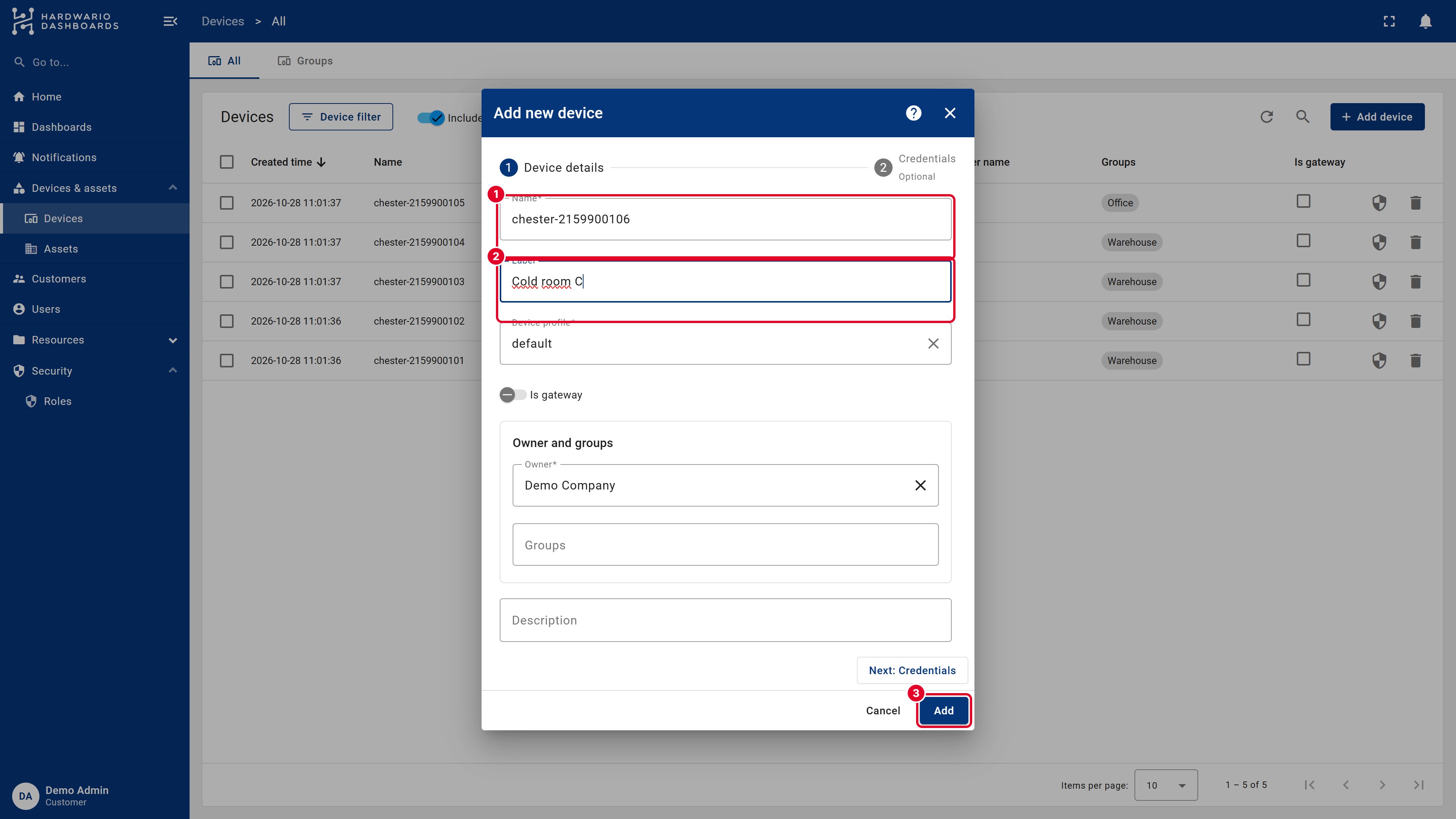
The device now appears in the list.
Step 2: Copy the access token
Click the device in the list. In the device details, click Copy access token.
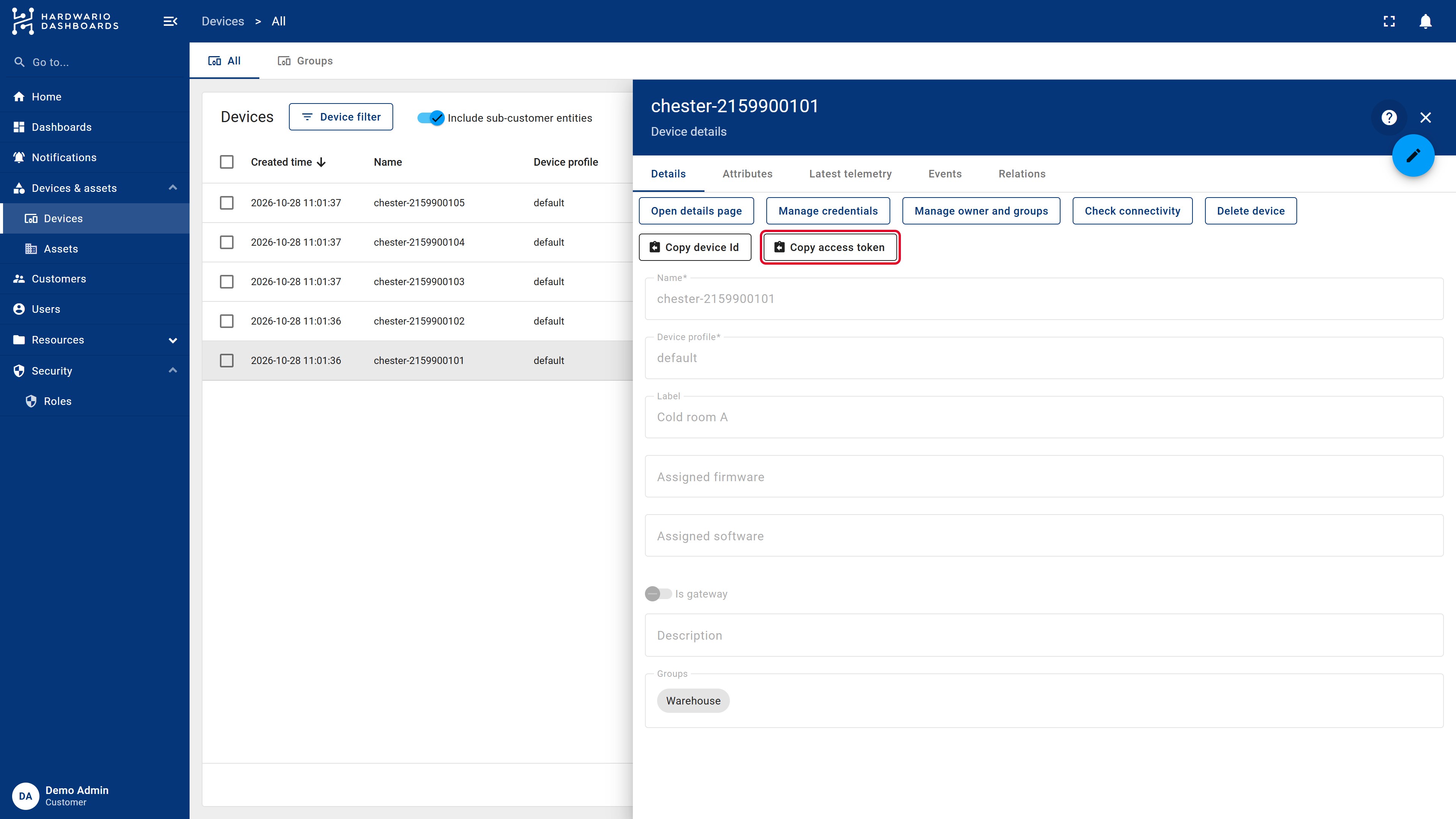
The access token lets anyone send data to this device. Don't share it outside the connector.
Step 3: Prepare the device in HARDWARIO Cloud
Open the device in HARDWARIO Cloud:
- Assign a tag (for example
dashboards-manual), see Assigning tags. The connector sends data of every device with this tag. - Add the access token as a label. At the very bottom of the device page, in the Labels section, create a label:
- Name:
thingsboardtoken. You can choose another name, but it must be the same on all devices that share this connector, and it must match the name in the transformation code (job.device.label.thingsboardtoken). - Value: the access token from Step 2.
- Name:
Step 4: Create the connector
-
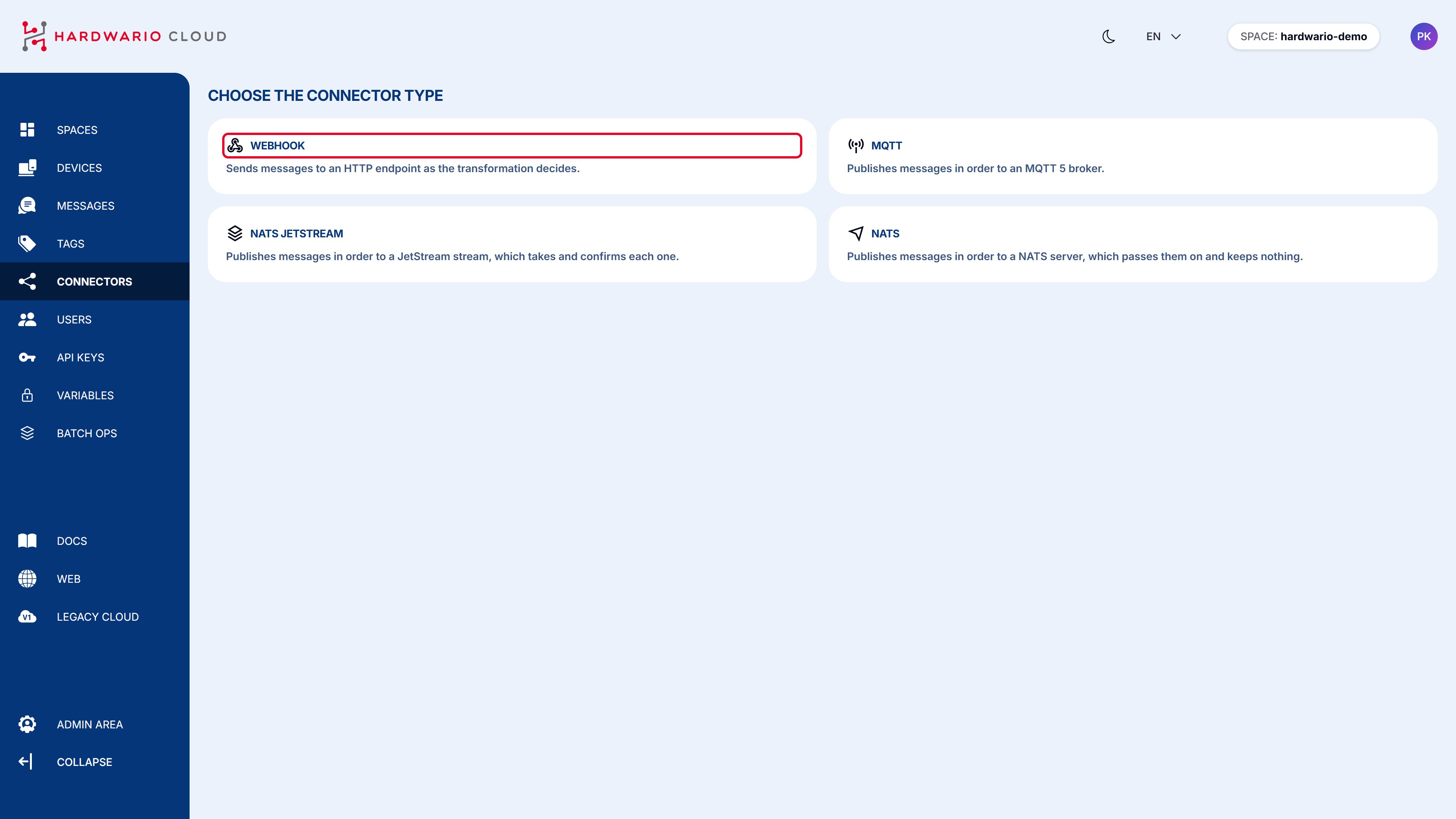
In HARDWARIO Cloud, open Connectors in the left menu, click New connector and choose Webhook.
-
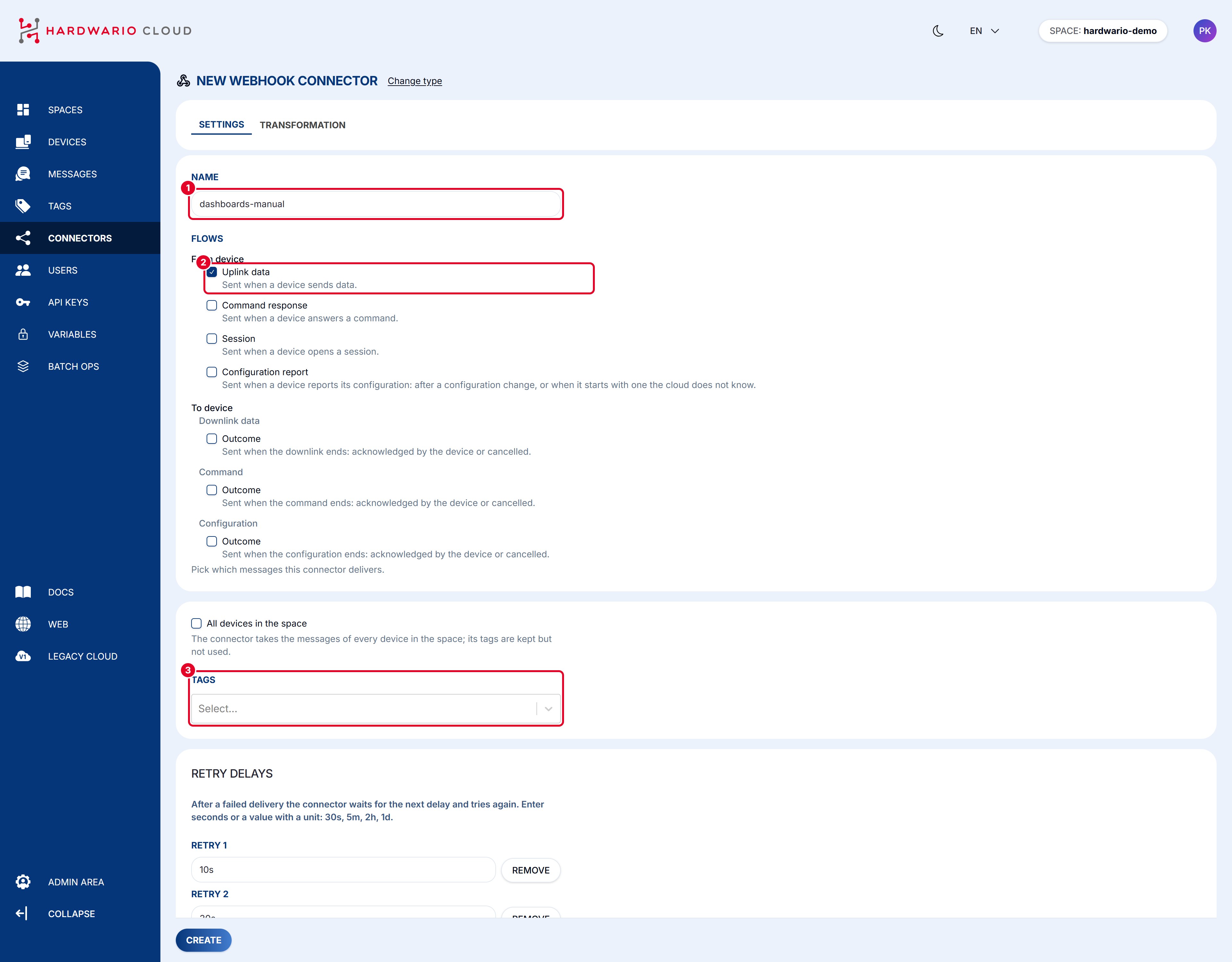
Fill in the settings:
- Name (1): for example
dashboards-manual, - Flows (2): keep only Uplink data, the data the device sends,
- Tags (3): the tag from Step 3.
- Name (1): for example
-
Click Create.
Step 5: Add the transformation code
HARDWARIO Dashboards expects its own data format. The transformation code converts the device message into it.
-
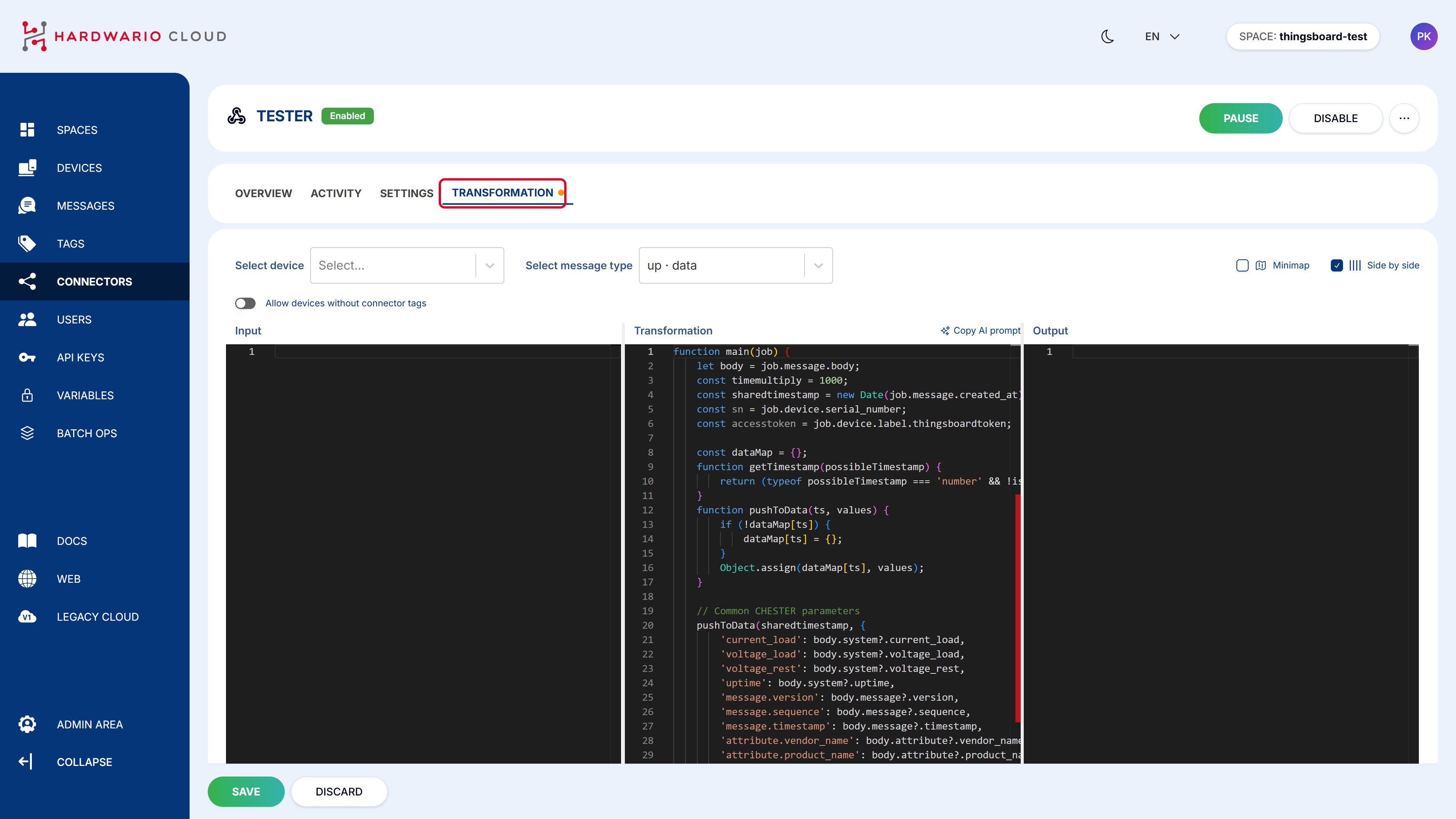
On the connector page, open the Transformation tab.
-
Paste the code below into the Transformation editor in the middle and click Save.
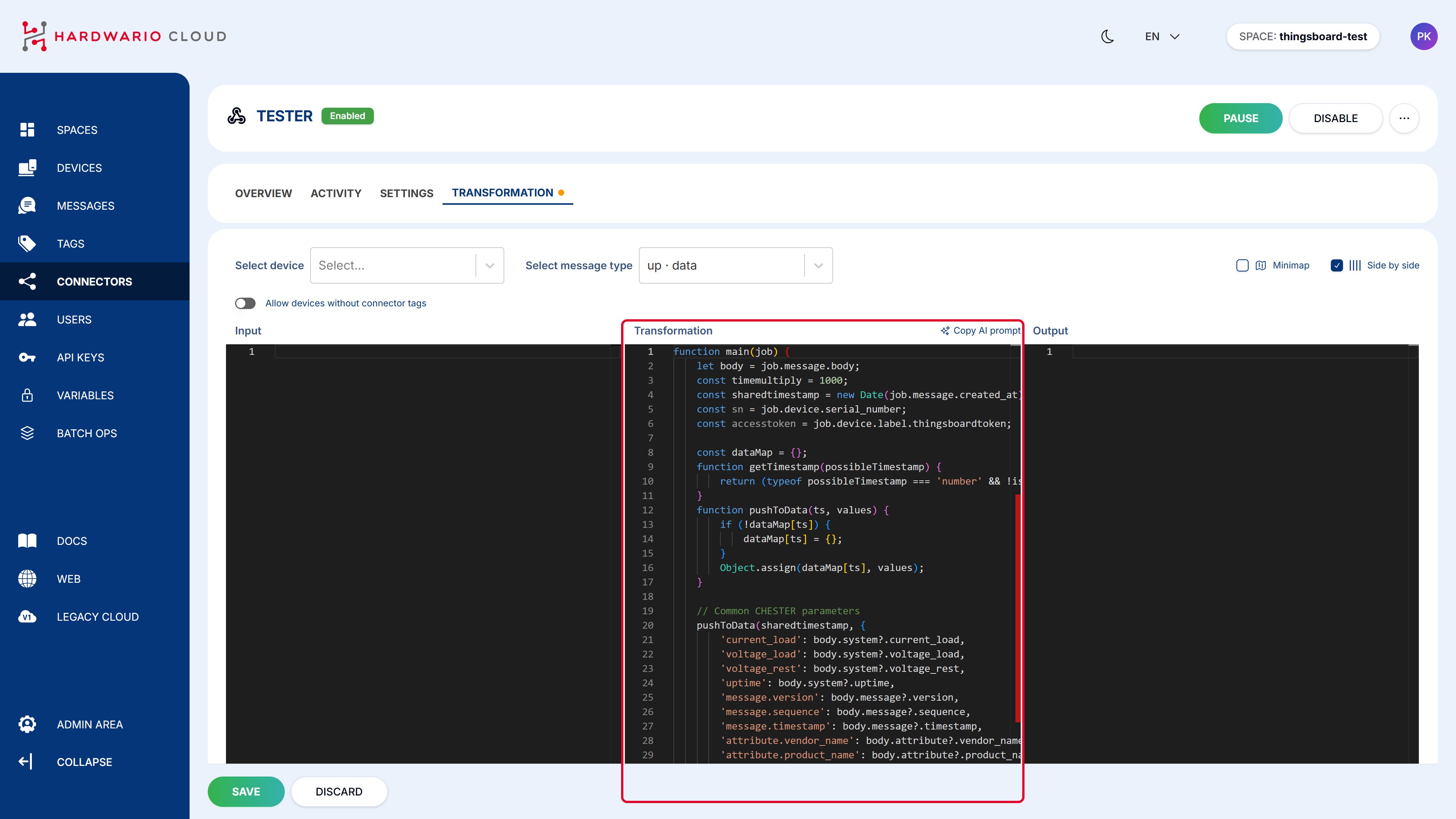
The code covers the common CHESTER measurements and BLE tags. You can edit it right here before copying:
Step 6: Check the data
On the Transformation tab, pick your device in Select device (1). On the left (Input, 2) you see the last message from the device, on the right (Output, 3) the transformed data sent to HARDWARIO Dashboards. If the device is not in the list yet, turn on Allow devices without connector tags.
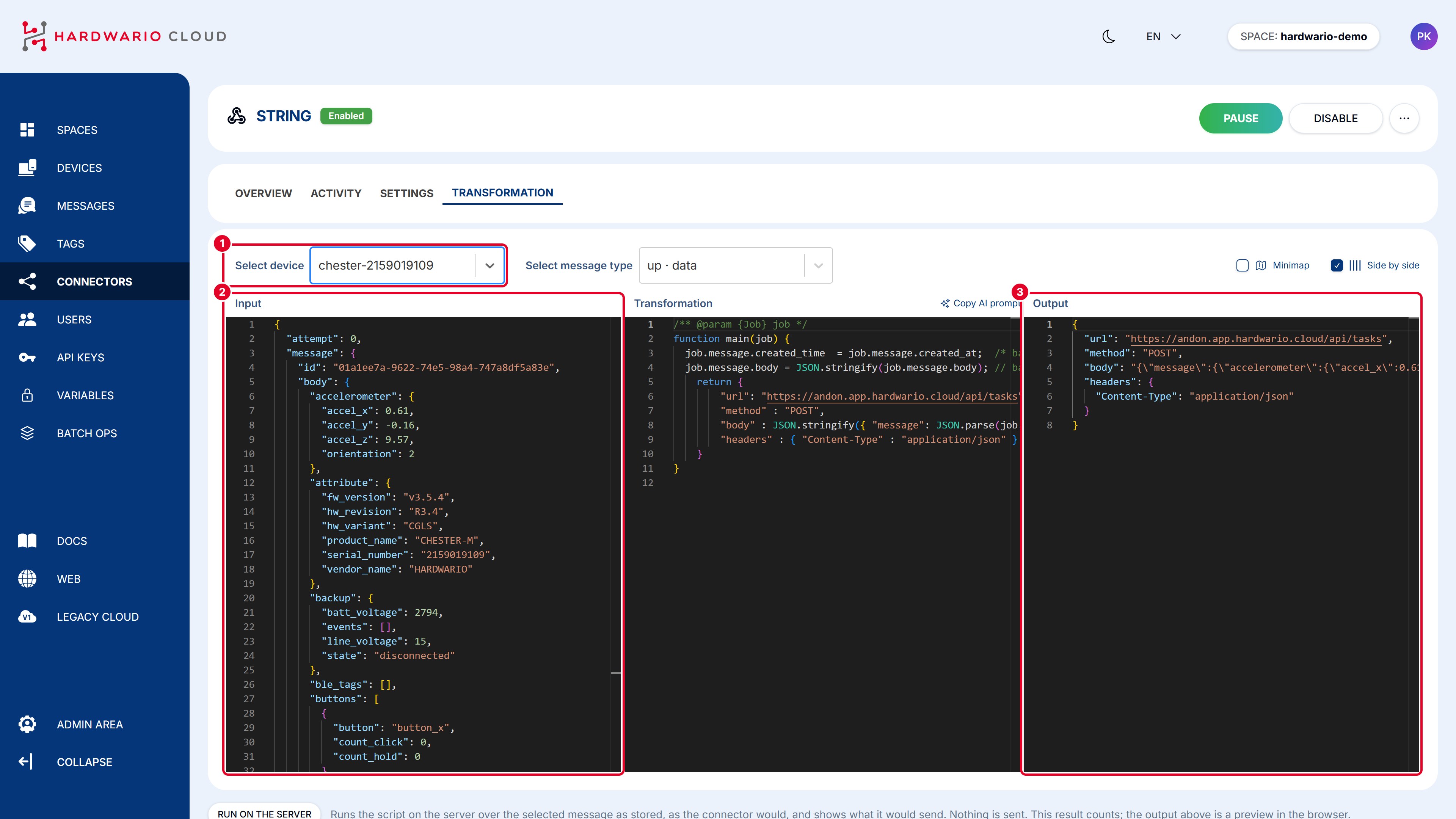
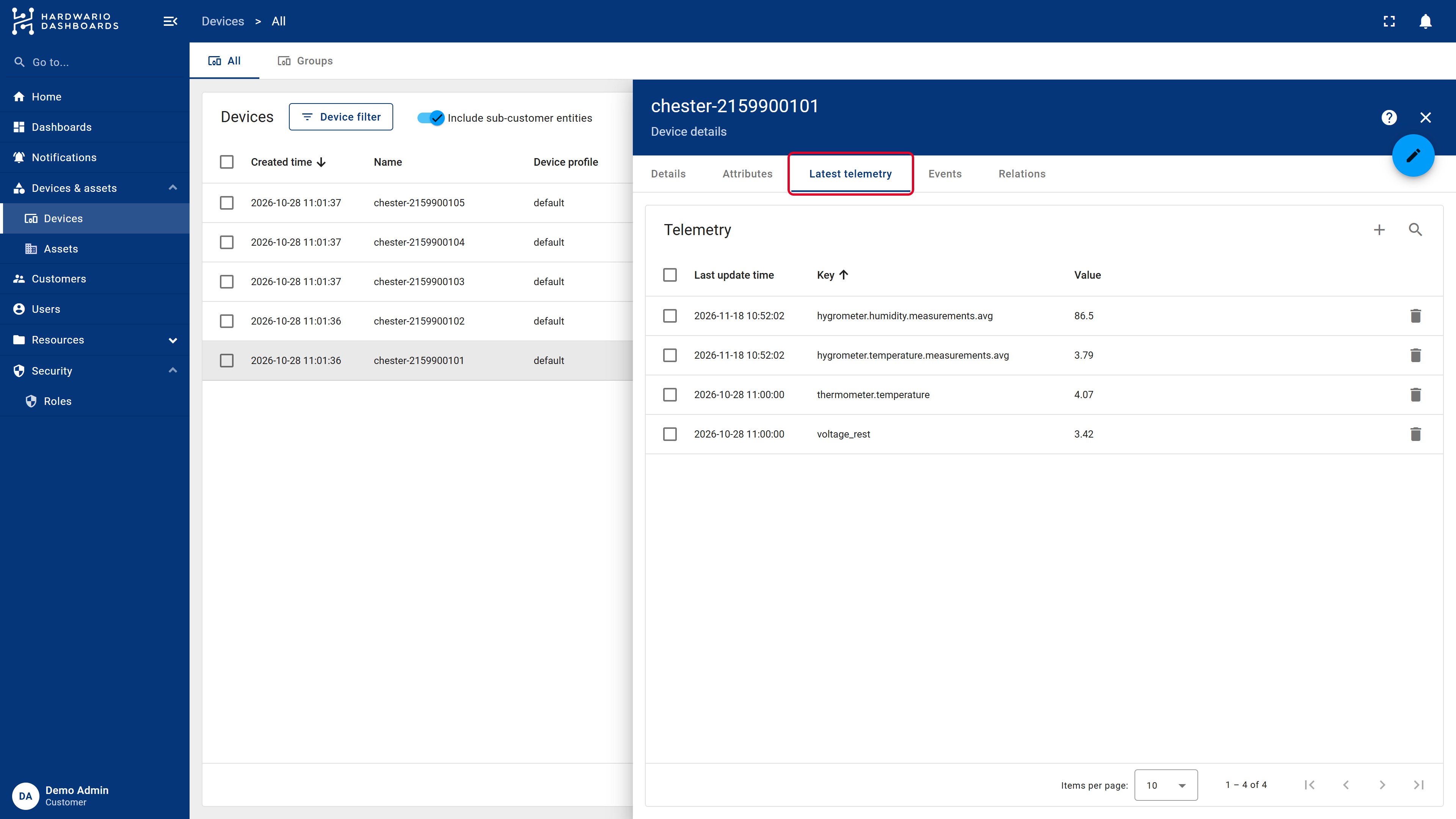
With the next message of the device, open it in HARDWARIO Dashboards and switch to Latest telemetry. The values should appear and update with each new message.
Troubleshooting
| Problem | What to do |
|---|---|
| No data in Latest telemetry | Check that the device has the tag and the label, and that the label name matches the code. Wait for the next message of the device. |
| The transformed data look right, but nothing arrives | The access token in the label is probably wrong. Copy it again from the device details. |
Anything else: ask@hardwario.com.
Next steps
- Managing devices: labels, groups and the data of your devices.
- Your first dashboard: show the data.
HARDWARIO Dashboards is built on ThingsBoard. More details in the official ThingsBoard documentation: HTTP device API.