Connecting to the HARDWARIO Cloud
There are two ways to get your devices from HARDWARIO Cloud into ThingsBoard:
- Automatic connection (recommended): you add one connector, and every tagged device creates itself in your device group.
- Manual connection: for devices that already exist in ThingsBoard.
Automatic Connection
Your devices appear in your ThingsBoard account by themselves, in the device group you choose. You add one connector and tag the devices you want to send. There is nothing to set up in ThingsBoard.
You need a ThingsBoard account. If you do not have one yet, contact us at ask@hardwario.com.
Step 1: Find Your Device Group
The device group tells ThingsBoard where your devices belong.
-
Sign in to ThingsBoard, open Entities → Devices and switch to the Groups tab.
-
Click the row of the group you want the devices in. Choose All if you do not use groups, or create a new group first.
-
In the group details on the right, click Copy entity group Id.
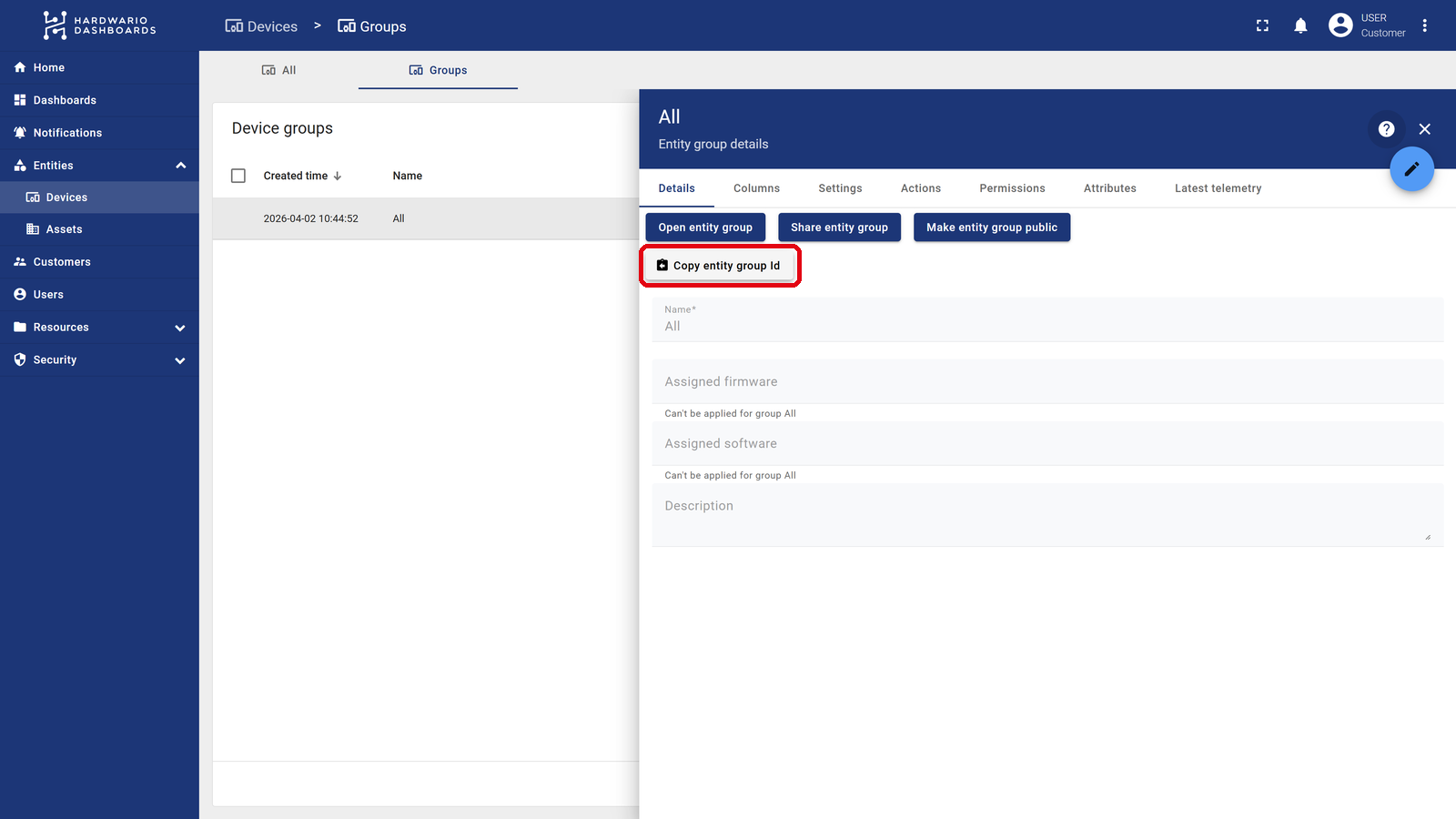
The group ID decides where your devices are created. Create a group for each building, site or project, and add one connector per group. Give each connector its own group ID and its own tag (e.g. thingsboard-warehouse, thingsboard-office). Every device then lands in the right group by itself.
Step 2: Get Your Connector Code
Paste the copied ID below. The code fills itself in.
Paste the ID copied with "Copy entity group Id". The address of the group page works too.
Paste the group ID above and the transformation code appears here, ready to copy.
Step 3: Add the Connector
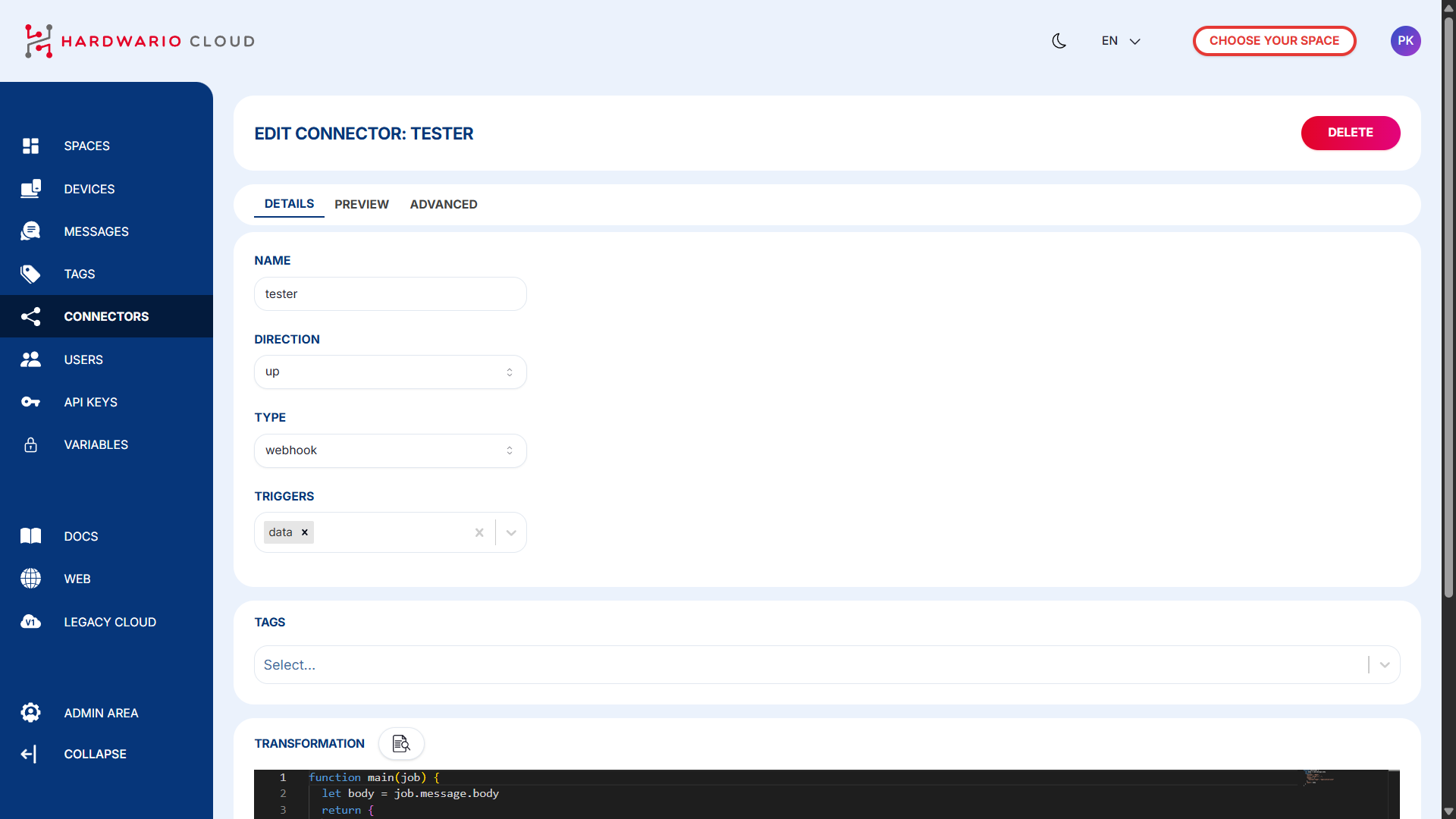
Create a connector with these settings and paste the code from Step 2 as its transformation function:
| Setting | Value |
|---|---|
| Name | thingsboard |
| Triggers | data, session, config (see Triggers) |
| Tags | a new tag thingsboard (see Creating a Tag) |
Step 4: Tag Your Devices
Add the thingsboard tag to each device you want in ThingsBoard, see Assigning Tags, or tag many devices at once with Bulk Actions.
What Happens in ThingsBoard
With the next message of each tagged device, the device appears in your device group:
| In ThingsBoard | Value |
|---|---|
| Device name | chester-<serial number>, e.g. chester-2159012345 |
| Label | the serial number |
| Attributes | device name from HARDWARIO Cloud, product, firmware version, IMEI, ICCID, device configuration, serial numbers of BLE tags |
| Telemetry | all measurements with their original timestamps, rounded to two decimals; BLE tags as ble_tags.0.…, ble_tags.1.… |
Every next message only adds new data. A device reports at its own interval, so it can take up to one interval before it appears.
- Renaming a device in HARDWARIO Cloud only updates its name attribute. The device keeps its name, label and history.
- New devices later: just tag them with
thingsboard. - A different group: put the new group's ID into the connector. Devices move there with their next message.
- Stopping the data: remove the
thingsboardtag. The device and its history stay in ThingsBoard. - Deleting a device in ThingsBoard does not stop the data. While the device is tagged, its next message adds it again, so remove the tag first.
- Devices you already have in ThingsBoard: do not tag them, they would appear a second time. Use the manual connection for them.
Troubleshooting
| Problem | What to do |
|---|---|
| A device does not appear | Check that it has the thingsboard tag and has sent a message since you tagged it. |
| Devices do not appear in my group | Check the group ID in the connector against your group. After you fix it, devices move there with their next message. |
Anything else: ask@hardwario.com.
Manual Connection
Use this guide for devices that already exist in ThingsBoard. You create a connector, transform your data, and send it to ThingsBoard with the device's access token.
Step 1: Prepare Your Device
Before setting up the connector, you need to prepare your device in the HARDWARIO Cloud so it knows where to send data and how to authenticate:
- Assign a Tag: open your device details and assign a tag (created in the right-hand menu)
- Add the Access Token Label: scroll down to the very bottom of the device page to find the
Labelssection. You need to create a new label here:Name: enter a name for your token, e.g.,thingsboardtoken
(Note: You can choose any name, but it must be exactly the same for all devices sharing this connector and must match the name in your transformation code)Value: paste your ThingsBoard Access Token here
Log in to your ThingsBoard dashboard, navigate to Entities > Devices, and click on your specific device. In the device details panel that pops up, click the Copy access token button.
Step 2: Create a New Connector
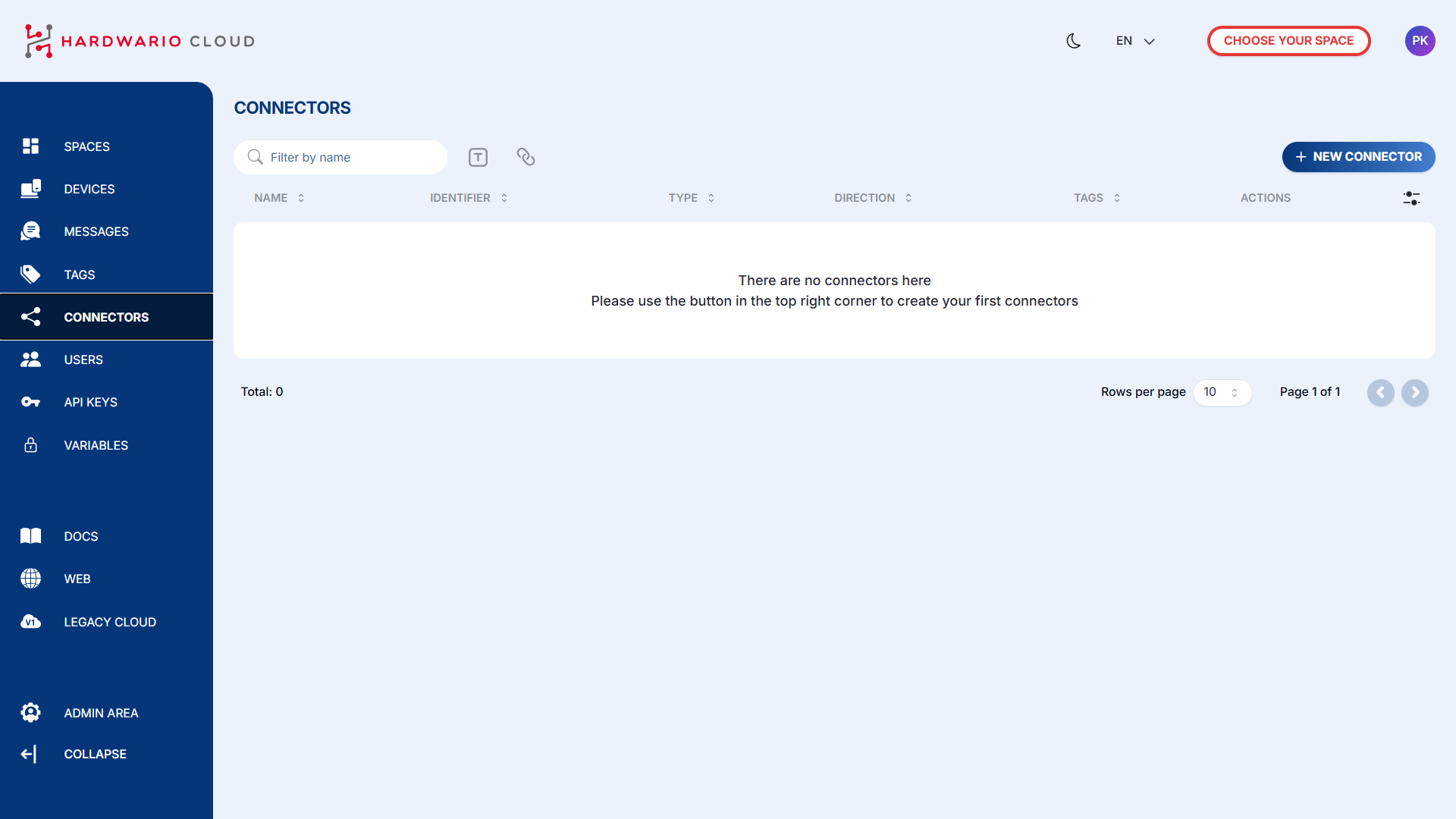
To establish communication with ThingsBoard, go to the Connectors section in the left-hand menu.
Click + New Connector and configure the following:
Name: give your connector a nameType: selectWebhookfor ThingsBoard integrationTrigger: chooseDataTag: assign the tag you created earlier
Step 3: Transform Data for ThingsBoard Format
ThingsBoard requires a specific data format. You need to adjust your device data using a transformation code.
In the connector page, scroll down to the Transformation section and click the magnifying glass icon 📄🔍 to open the code editor.
Step 4: Insert the Transformation Code
Add the transformation logic that converts incoming data to a ThingsBoard-compatible format.
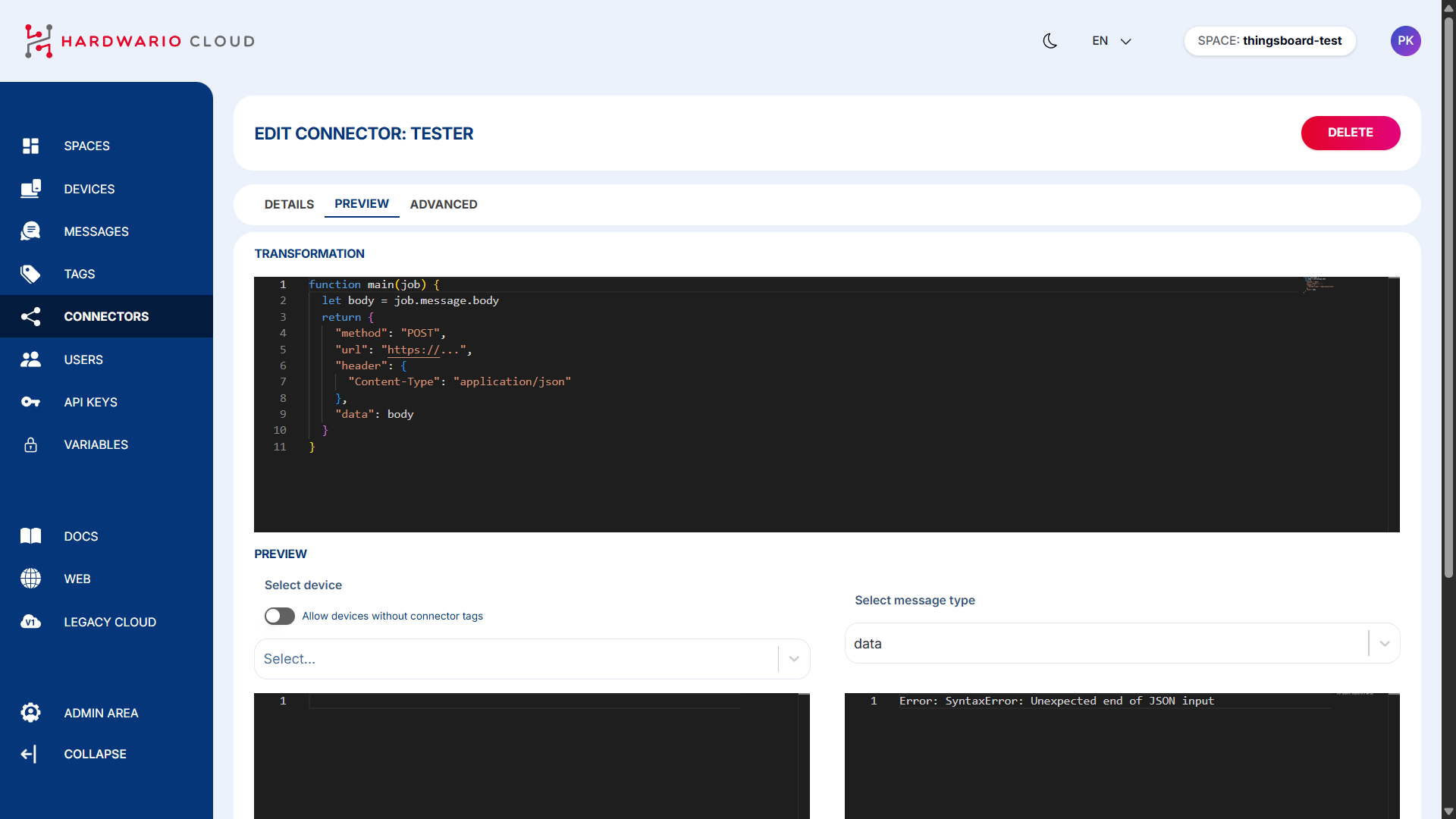
Example of transformation code here:
Step 5: Assign Devices to Connector
Scroll down and select which devices (with the matching tag) should be connected.
On the left side, you'll see incoming data from the device.
On the right side, you'll see the transformed data being sent to ThingsBoard.
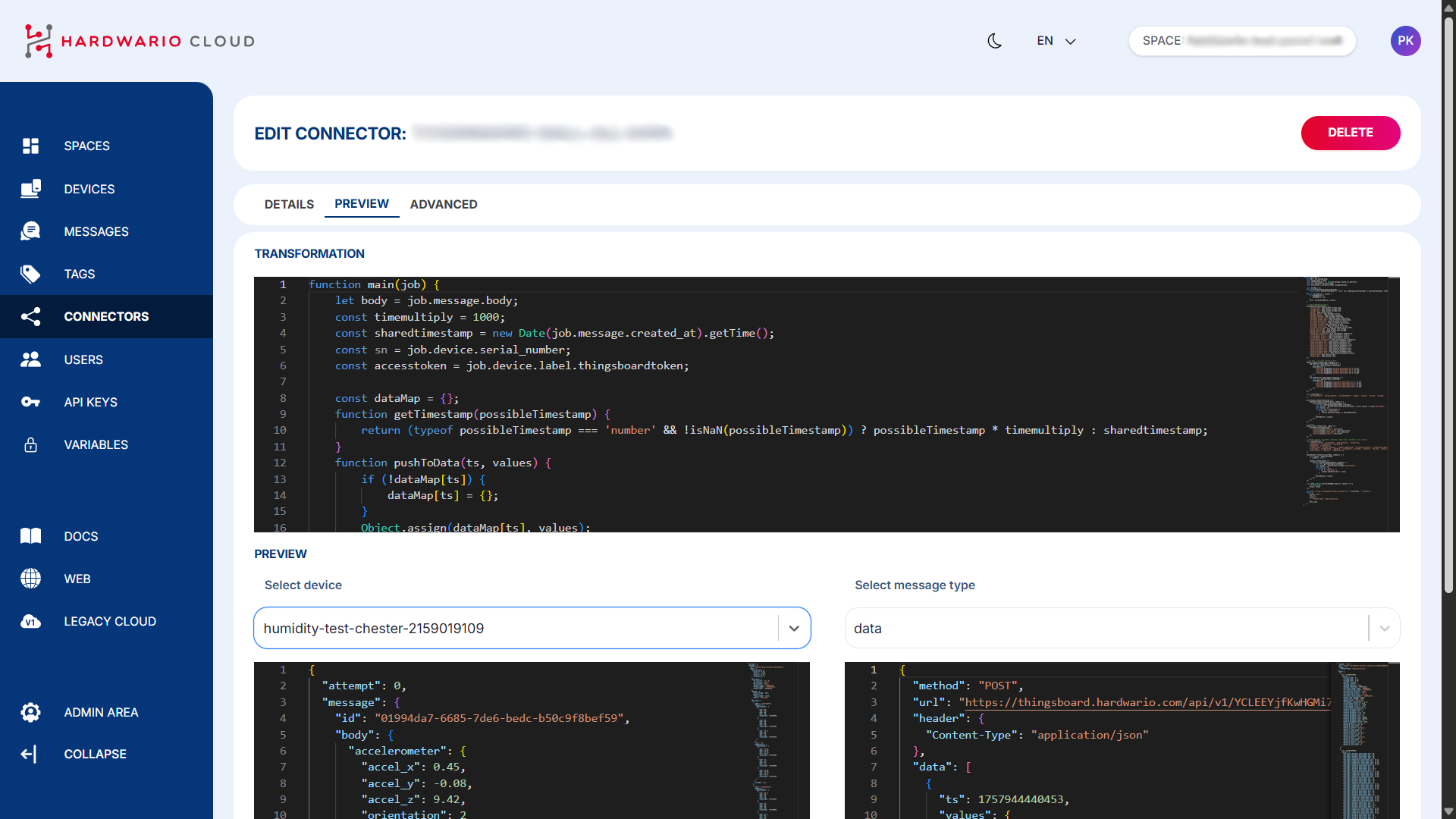
Once everything is properly configured, your device’s data should begin flowing into ThingsBoard automatically.
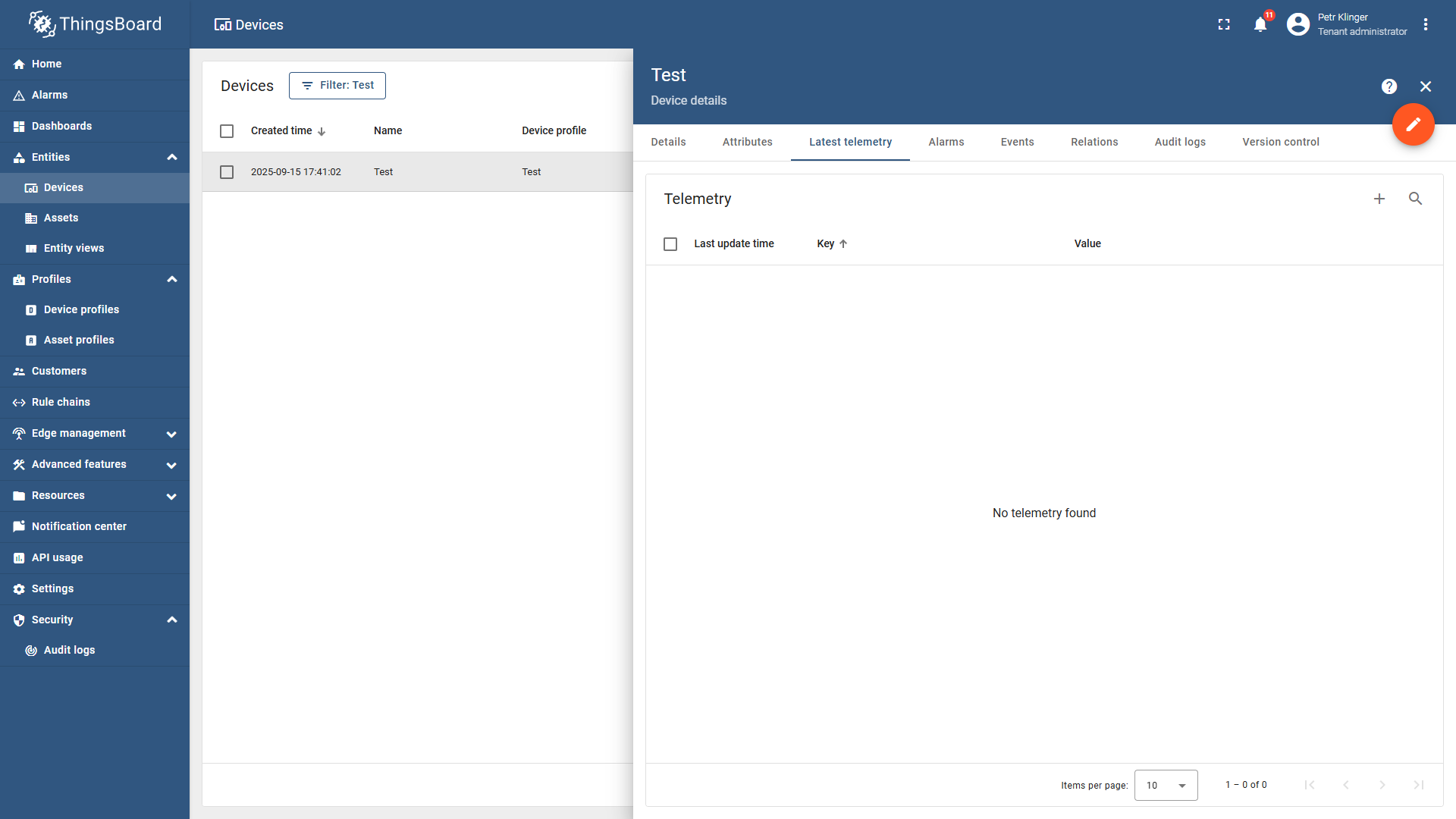
You can test the data by opening your device in ThingsBoard and checking whether the variables are being updated in real-time. You can find them by clicking on the device and then selecting the Latest Telemetry tab.
Video Tutorial
If you need further assistance or a visual demonstration of the process described in this guide, consult the Video Guide.