Import STICKERs from a CSV or JSON file
If your devices are already listed somewhere — a supplier's spreadsheet, an export from another system, a table you keep yourself — you can load that list into the app in one go instead of typing every device in by hand.
Two formats work, and both do the same thing:
- CSV — for a list that lives in a spreadsheet (Excel, Google Sheets, LibreOffice). The only format that can also carry tags.
- JSON — for a list produced by another system or a script.
An import writes only to your saved list — see Saved STICKERs.
Templates
CSV
serial,name,secret_key,vendor_key,tags
2162165139,Front door,00112233445566778899aabbccddeeff,,warehouse-a;installed
2162165140,Loading bay,0123456789abcdef0123456789abcdef,,warehouse-a;needs-service
2162165141,Spare (no key yet),,,unassigned
Replace the three sample rows with your own and keep the header row — it is what tells the app which column is which.
Only serial is required, so the shortest valid file is:
serial
2162165139
2162165140
JSON
[
  {
    "serial": 2162165139,
    "name": "Front door",
    "secret_key": "00112233445566778899aabbccddeeff"
  },
  {
    "serial": 2162165140,
    "name": "Loading bay",
    "secret_key": "0123456789abcdef0123456789abcdef"
  },
  {
    "serial": 2162165141,
    "name": "Spare (no key yet)"
  },
  {
    "serial": 2162165143,
    "name": "Side gate",
    "secret_key": "0f1e2d3c4b5a69788796a5b4c3d2e1f0",
    "vendor_key": "ffeeddccbbaa99887766554433221100"
  }
]
A wrapped object works too, if that is what your system produces:
{ "stickers": [ { "serial": 2162165139, "name": "Front door" } ] }
The fields
| Field | Required | What it is |
|---|---|---|
serial | yes | The device serial number, as a plain decimal number such as 2162165139. It is the identity of the entry — rows are matched to devices by it. |
name | no | Your own label for the device ("Front door"). Leave it empty and the app shows STICKER <serial> instead. |
secret_key | no | The device's AES-128 key — 32 hex digits (16 bytes). Without it the device is still saved, but the app can only read it, not configure it. |
vendor_key | no | The vendor-token, for vendor and service use only. Same 32-hex-digit shape. Leave it empty unless your supplier gave you one. |
tags | no | Your own labels for grouping and filtering, separated by semicolons: warehouse-a;installed. CSV only — see below. |
serial
A plain number, greater than zero. No spaces, no thousands separators, no
prefix: 2 162 165 139 and 2,162,165,139 are both rejected.
secret_key and vendor_key
32 hex digits, for example 00112233445566778899aabbccddeeff. Upper and lower
case both work (the app stores them lower case), and spaces, colons and dashes
are ignored.
An all-zero secret_key (00000000000000000000000000000000) is refused:
that is the firmware's unset default and cannot address the device. The row
still imports, just without a key. An all-zero vendor_key is accepted —
for the vendor-token, all zeros legitimately means "not provisioned".
tags
Semicolons separate the tags, so warehouse-a;installed;q3 is three tags. They
are trimmed, capped at 32 characters each, de-duplicated ignoring case, and
sorted. A tag the phone has not seen before is created during the import, and
the confirmation dialog says how many will be new. See
Organise devices with tags.
A tags field in a JSON file is silently ignored, in both directions — the
app's JSON export does not write tags either. If your list has tags, use CSV.
Rules that trip people up
1. A CSV must be comma-separated, not semicolon-separated
This is the single most common failure. In Czech, German, French and most other European Windows locales, Excel's Save as CSV writes semicolons:
serial;name;secret_key ← the app will NOT read this
The import then fails with No "serial" column in the header row. Before
importing, open the file in any text editor and check that the first line reads
serial,name,secret_key with commas.
To get commas:
- Google Sheets — File › Download › Comma-separated values (.csv). Always commas, whatever your language. The easiest fix.
- LibreOffice Calc — Save as › Text CSV, tick Edit filter settings, and
set Field delimiter to
,. - Excel on Windows — change the system list separator: Windows Settings ›
Time & language › Region › Additional date, time & regional settings › Change
date, time, or number formats › Additional settings → set List separator
to
,, then save the file again. - Or replace by hand — open the saved file in a text editor and replace
every
;with,. Only do this if none of your names or tags contain a comma or a semicolon, otherwise you will split the wrong cells.
2. Names with a comma need quotes
Standard CSV: a field containing a comma goes in double quotes, and a literal double quote inside one is doubled.
serial,name
2162165141,"Wing A, room 3"
2162165142,"The ""cold"" store"
Spreadsheets do this for you automatically.
3. Header names, order and extra columns
The header is matched case-insensitively and the columns may appear in any
order. Columns the app does not know are ignored, so an existing spreadsheet
imports as-is — no need to strip your own location or note columns.
Note,SECRET_KEY,Serial,Tags ← all fine
4. Encoding and line endings
Save as UTF-8 so accented names survive. A byte-order mark — what Excel's CSV UTF-8 adds — is fine. Windows and Unix line endings both work, blank lines are skipped, and a trailing newline is optional.
5. File size
2 MB maximum: thousands of rows, so a real list never comes close.
Import the file
- Put the file where the phone can reach it — mail it to yourself, or copy it into the phone's Downloads, Google Drive, iCloud Drive, and so on.
- Open HARDWARIO Manager and go to STICKER → Saved STICKERs.
- Open the ⋮ menu, choose Import, then Import from file, and pick
your
.csvor.json.
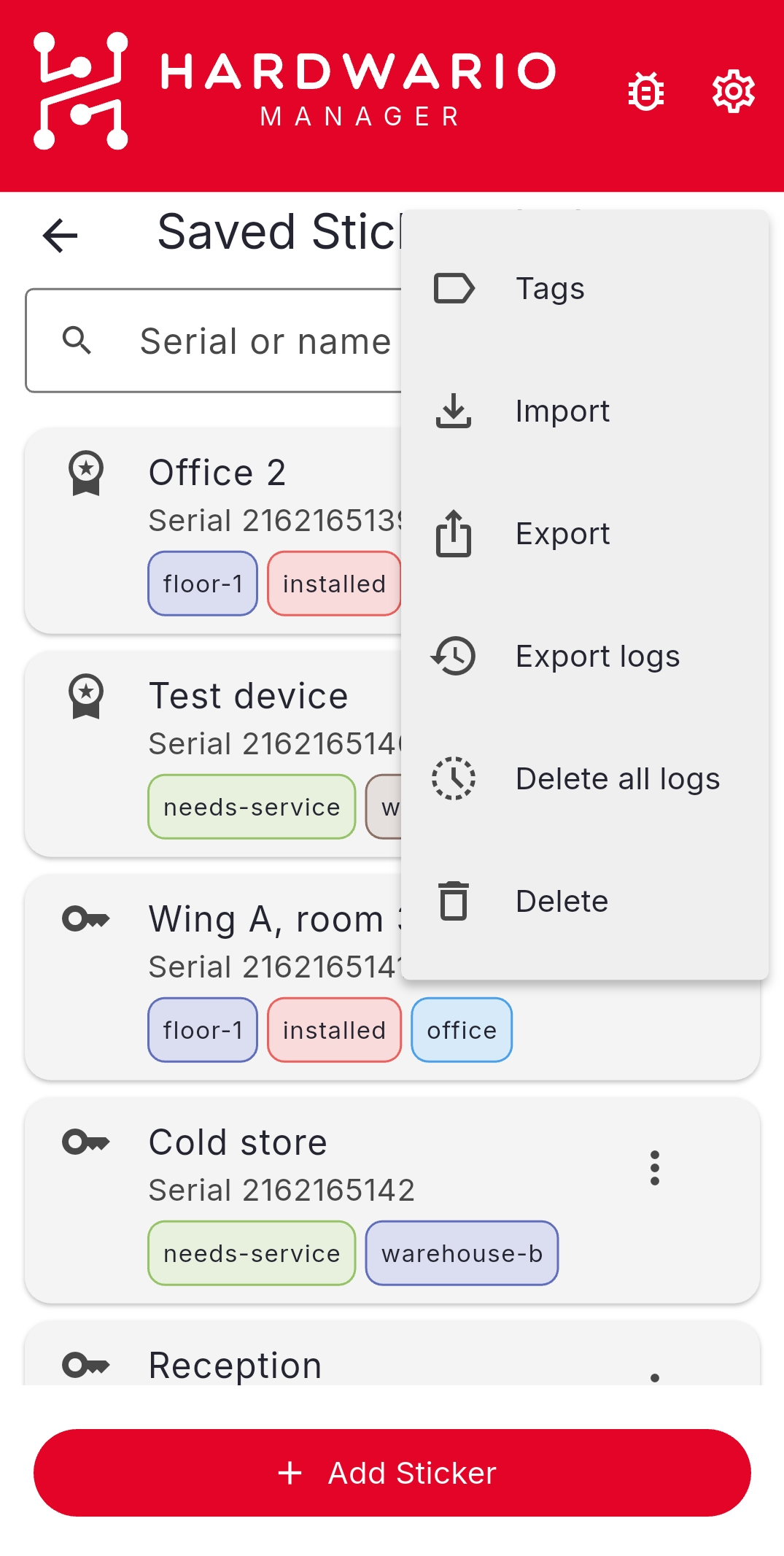
Before anything is written the app confirms what it found: how many devices will be imported, how many of them carry a secret key, how many new tags will be created, and every row it had to skip. Tap Import to commit.
The other entry in that menu, Import from QR code, does the same job for up to 8 devices at a time without a file — for a list shared from another phone.
What an import does
- Merges by serial number. A serial that is not in the list yet is added; one that is already there is updated. An import never deletes anything.
- An empty
namekeeps the existing name rather than blanking it, so a partial list can be re-imported without losing labels set on the phone. - Tags are added, not replaced — the file's tags are merged onto whatever the entry already carries.
- Keys go into the phone's secure storage (Keychain or Keystore), never into the plain list — the same as a hand-typed key.
- The devices themselves are not touched. An import changes only what the phone knows; nothing is written to any STICKER, and no ATELOS vault is modified.
If a row is skipped
The confirmation dialog lists a note for every row it could not take. These notes are shown in English in all app languages.
| Note | What happened | Fix |
|---|---|---|
No "serial" column in the header row. | The header has no serial column — nearly always a semicolon-separated CSV. | See rule 1 above. |
The file has no rows. | The file is empty, or has only blank lines. | Check you exported the right sheet. |
Row N: skipped — invalid serial "…" | That row's serial is not a plain number greater than zero (spaces, thousands separators, letters, 0). | Write the serial as bare digits. Row N counts the header as row 1. |
Row N: skipped — duplicate serial … | The same serial appears twice in the file; the later row is dropped. | Remove the duplicate — or merge the two rows, since the first one wins. |
Serial S: secret key ignored — must be 32 hex digits. | The key is not 16 bytes of hex. The device still imports, without a key. | Check for a truncated or partially pasted key. |
Serial S: secret key ignored — an all-zero key … | The key is all zeros, the firmware's unset value. The device still imports, without a key. | Leave the cell empty instead, or get the real key. |
Serial S: vendor key ignored — must be 32 hex digits. | The same, for the vendor-token. | Leave it empty unless your supplier gave you one. |
Not valid JSON. | The .json file does not parse — usually a trailing comma or a missing bracket. | Paste it into any JSON validator. |
JSON is not a list of STICKERs. | The JSON is a single object rather than an array. | Wrap it in [ … ], or use {"stickers": [ … ]}. |
Skipped an entry with no serial. | A JSON object without a serial field. | Add the serial. |
That file is too large to import … | Over the 2 MB limit. | Split the file. |
A template straight from the app
If one device is already saved, the app can produce a correctly shaped file for you to fill in: ⋮ menu → Export, select the devices, optionally switch on Include vendor token and Include tags, then Share as CSV or Share as JSON. See Saved STICKERs for the export options.
What comes out is exactly what the importer reads back, so it is the safest starting point — and it makes moving a list between two phones a two-step job.
A file that contains secret_key values is as sensitive as the devices
themselves: anyone holding it can reconfigure those STICKERs. Send it the way
you would send a password, and delete it from Downloads and from your mail once
the import is done. To share only which devices exist, export without keys —
leave the secret_key column empty.