Winbox 4 Installation
This step-by-step guide explains how to install Winbox 4 on Windows and Linux.
Windows
1. Download Winbox 4
Click the link below and go to the MikroTik download page:
https://mikrotik.com/download/winbox
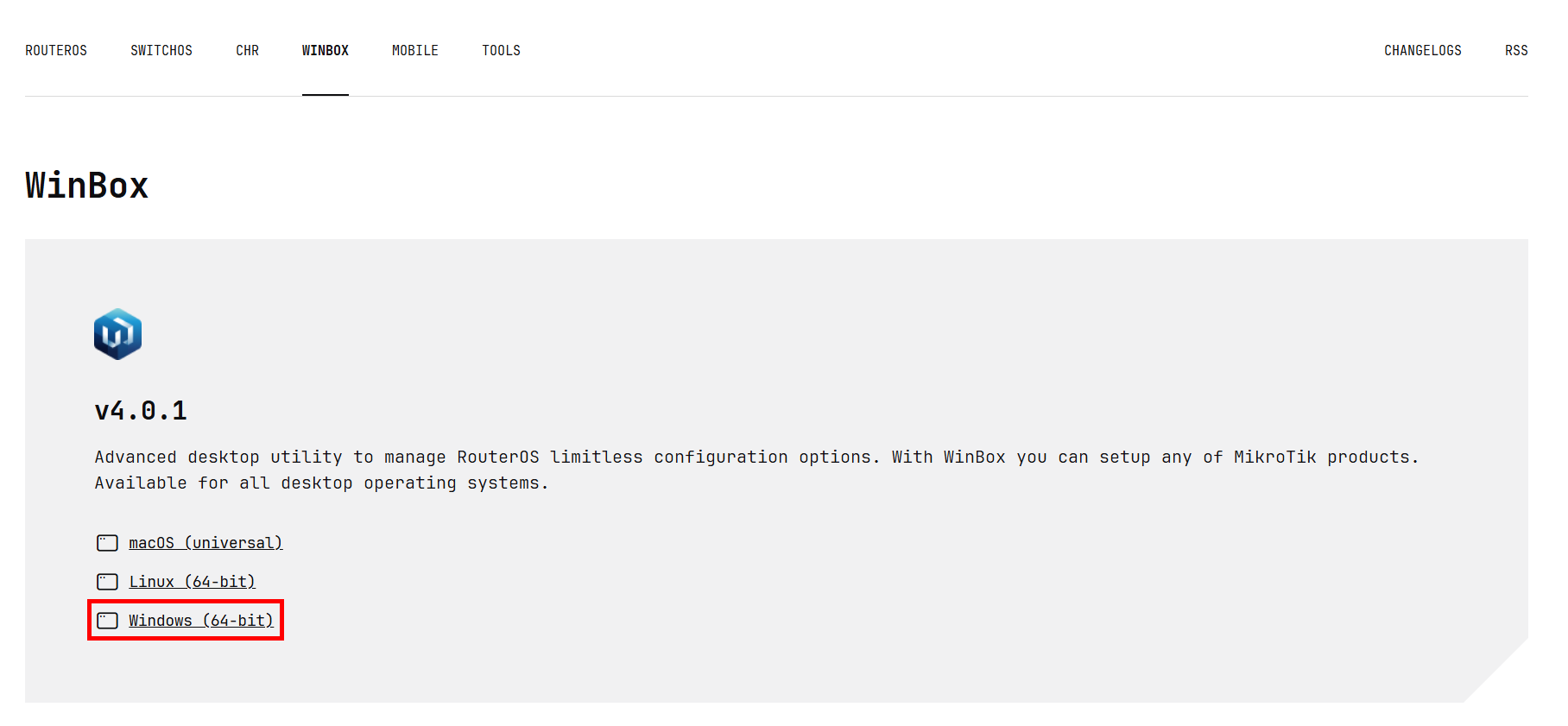
On the page, click Windows (64-bit) — this will download a .zip file.
2. Extract the Archive
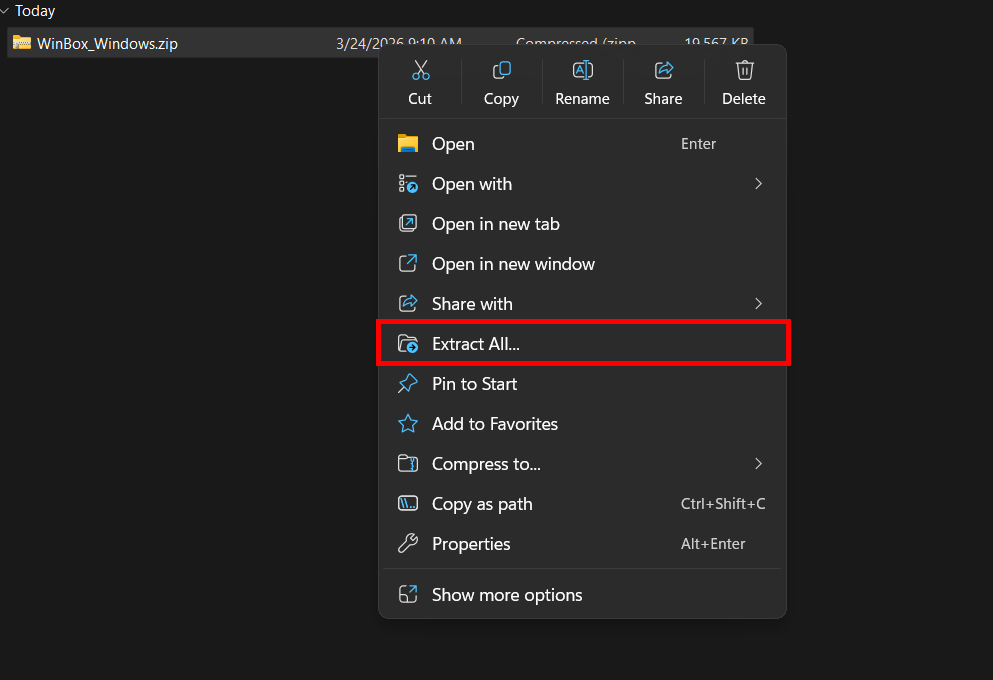
Open the folder where the file was downloaded. Right-click on the file and click Extract All.
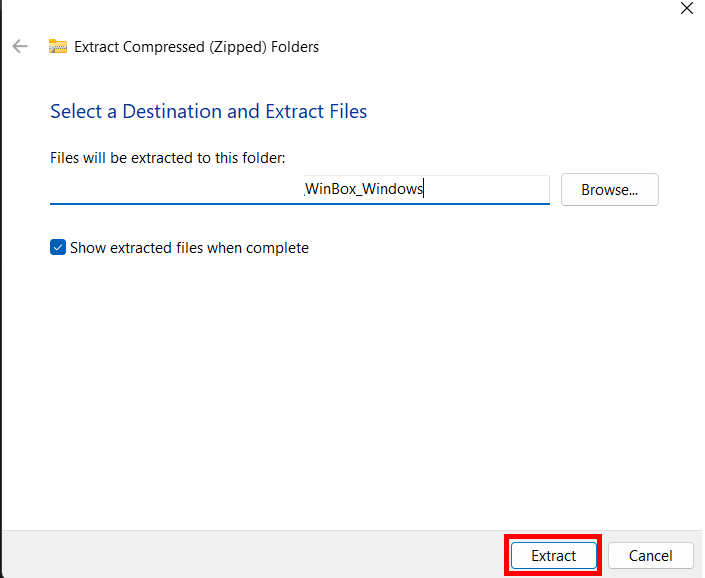
Click the Extract button to extract the file.
3. Run Winbox 4
Open the WinBox.exe application in the extracted folder. After opening the application, a system window will appear — confirm it by clicking Allow.
Winbox 4 is now ready to use.
Linux
1. Download Winbox 4
Click the link below and go to the MikroTik download page:
https://mikrotik.com/download/winbox
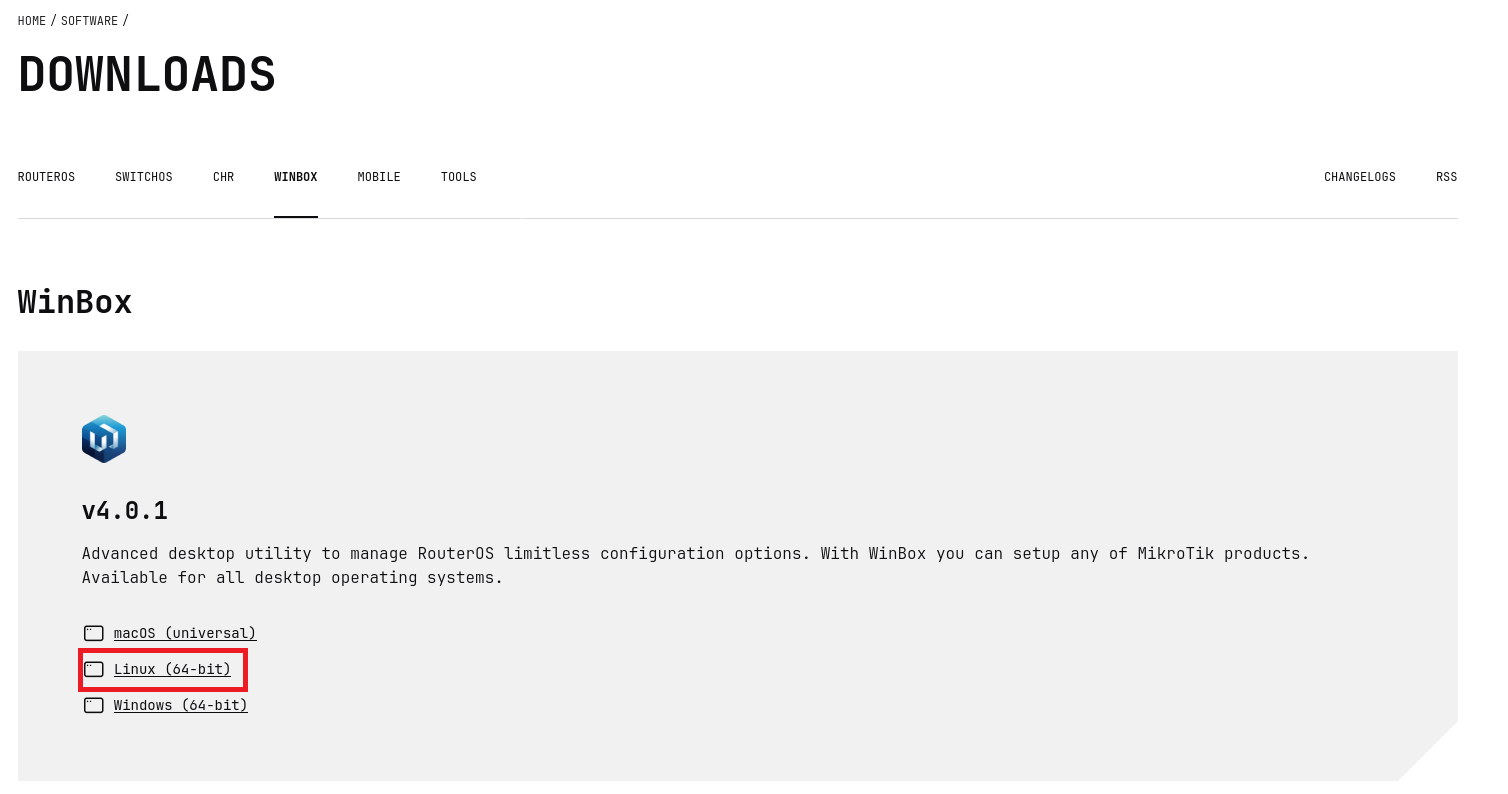
On the page, click Linux (64-bit) — this will download a .zip file. Make sure to place it somewhere easy to access, like the Downloads folder.
2. Extract the Archive
Right-click on the downloaded WinBox_Linux.zip file and select Extract Here — or Extract to… if you want to place it in a specific folder.
Once the extraction is complete, you will see a folder containing the WinBox file and an assets folder.
3. Run Winbox 4
- Open the folder you just extracted.
- Find the file named WinBox.
- Right-click on the file.
- Select Run or Run as Program.
- Wait a few seconds until Winbox opens and is ready to use.
Winbox 4 is now ready to use.