ChirpStack v4
This guide shows how to connect the HARDWARIO EMBER LoRaWAN gateway (MikroTik RouterOS) to a ChirpStack v4 network server.
Useful docs
- ChirpStack v4 Installation → https://docs.hardwario.com/apps/chirpstack/chirpstack-installation
- EMBER → ChirpStack: https://docs.hardwario.com/ember/chirpstack/chirpstack-ember/
- EMBER hotspot configuration (RouterOS basics, LoRaWAN section): https://docs.hardwario.com/ember/hotspot-configuration/
Before configuring the HARDWARIO EMBER gateway, make sure ChirpStack v4 is installed and running.
Installation instructions are available here:
https://docs.hardwario.com/apps/chirpstack/chirpstack-installation
Prerequisites
- Access to the EMBER management interface (WebFig or WinBox)
- Your ChirpStack gateway endpoint (hostname/IP + UDP ports) — typically the Gateway Bridge endpoint
- If you are not using the HARDWARIO managed network server, point the LoRaWAN server address to your own LoRaWAN server (no VPN tunnels needed).
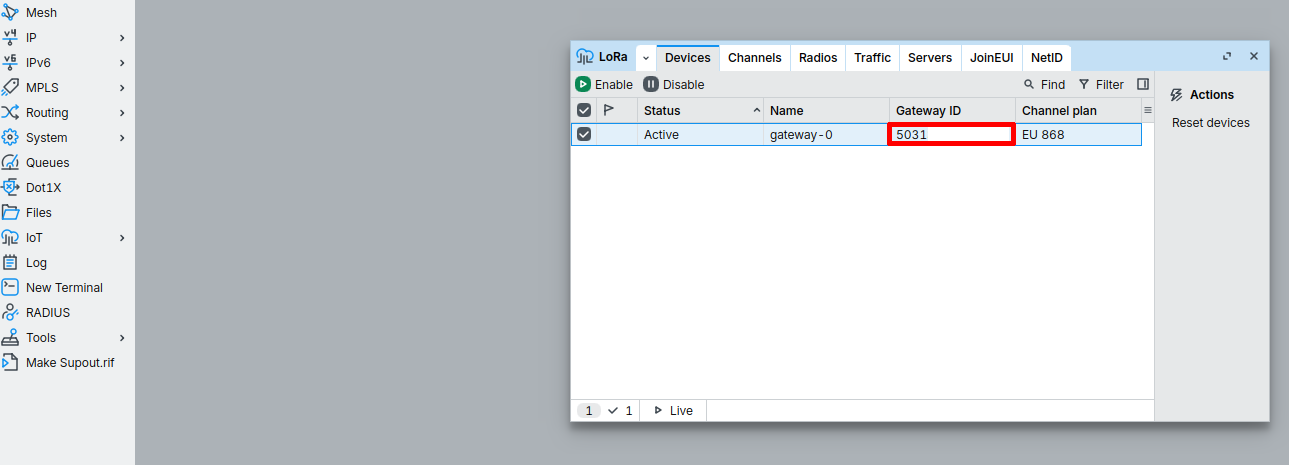
1) Get the Gateway ID (EUI-64) from EMBER
On MikroTik RouterOS, the gateway EUI is shown as Gateway ID:
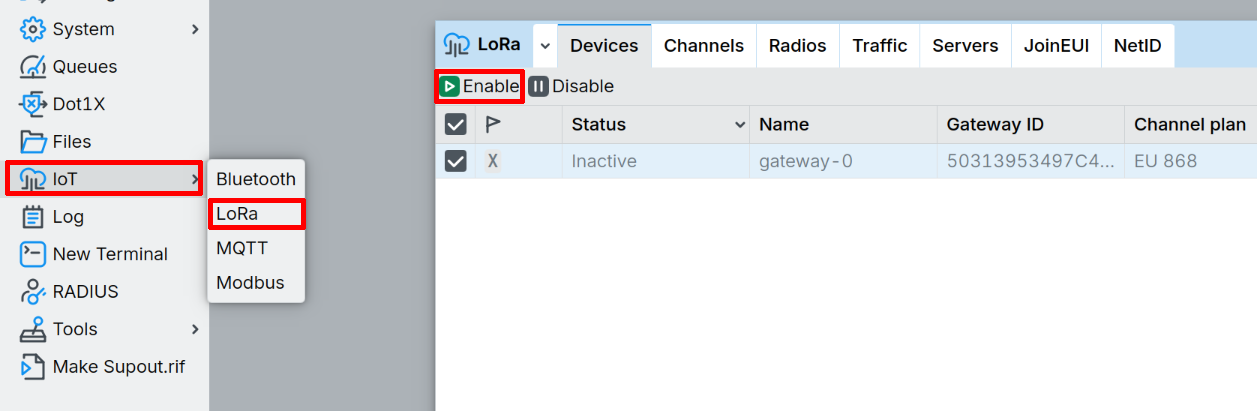
- IoT → LoRa → Devices → Gateway ID
2) Configure EMBER (MikroTik RouterOS) to connect to ChirpStack
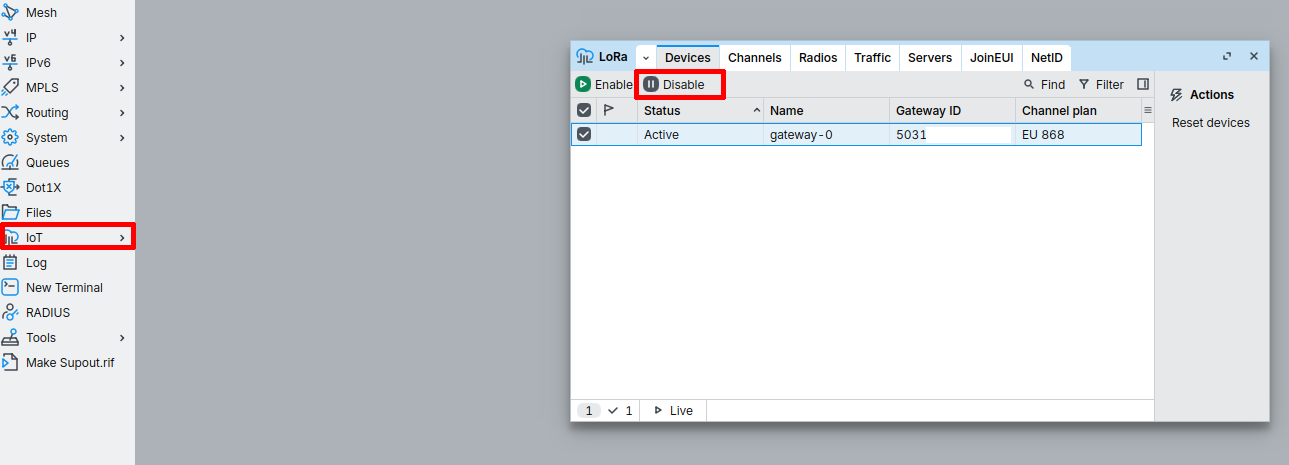
RouterOS typically requires the LoRa card to be Disabled while you change LoRa settings.
-
In the left panel, open IoT→ LoRa. Click on line at the list and aply disable.
-
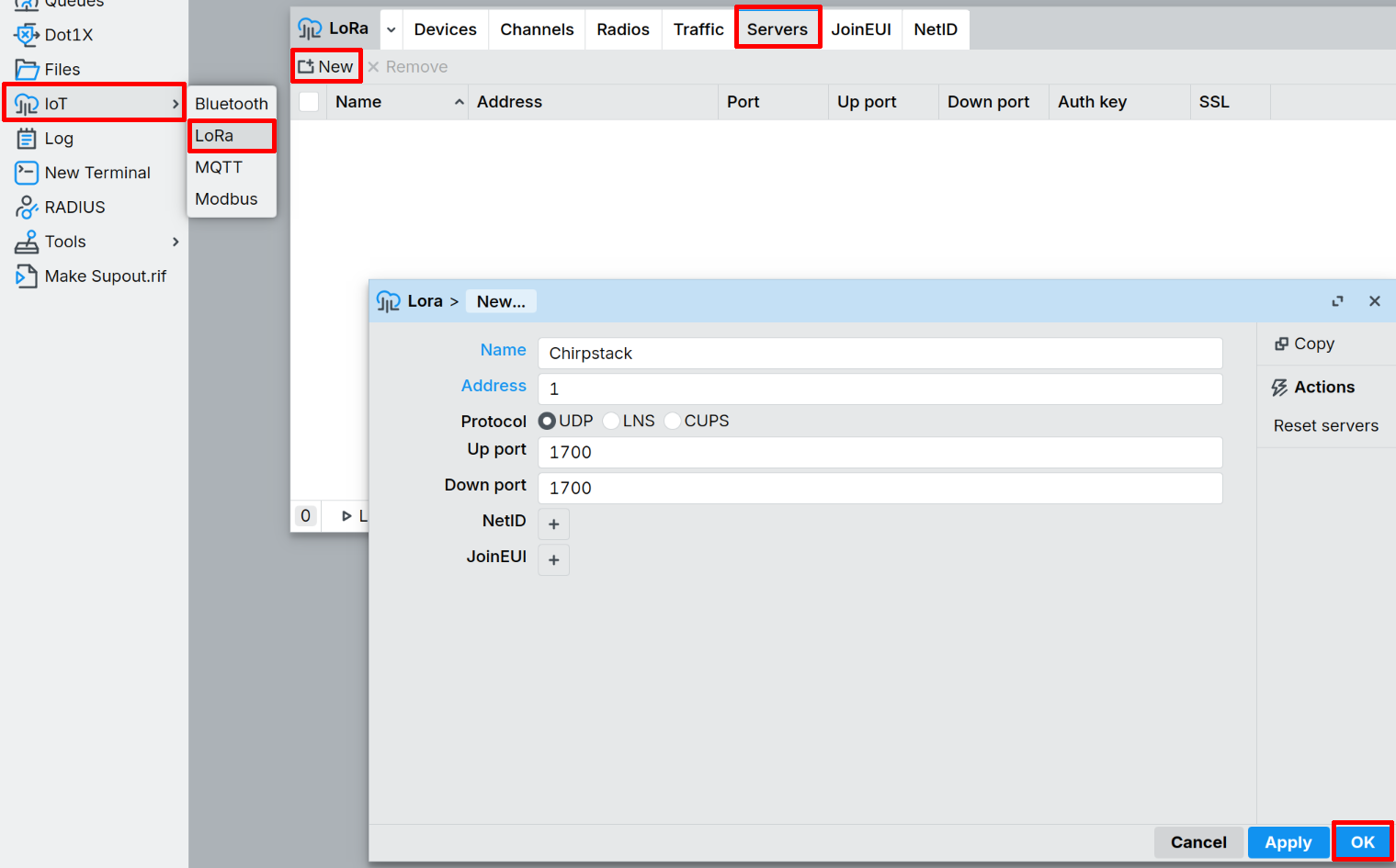
In the left panel, open IoT→ LoRa→ Servers. Select New and fill boxes:
- Name: Chirpstack
- Address: ENTER_ADDRESS_OF_CHIRPSTACK_SERVER
- Protocol: UDP
- Up/Down ports: 1700 (Or your custom port)
-
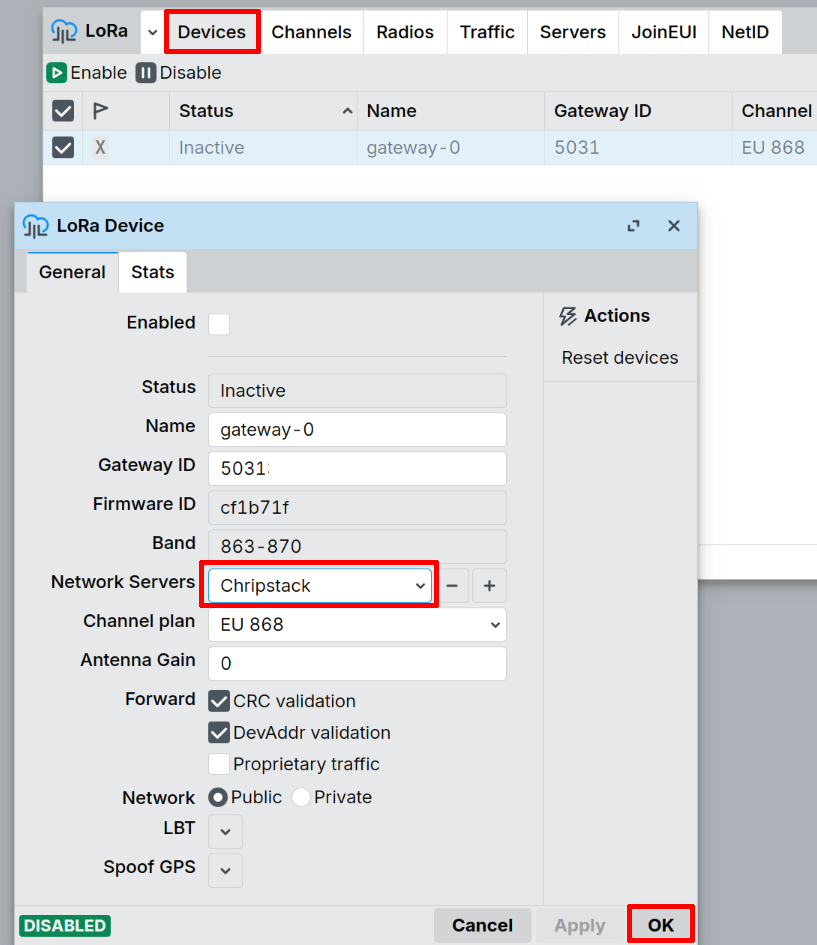
Go to IoT → LoRa → Devices and double-click on the device. In the Network Servers field, check that ChirpStack is selected. If not, click + and add it.
-
Enable your LoRa card. Go to IoT → LoRa → Devices → Enable
3) Register EMBER as a gateway in ChirpStack
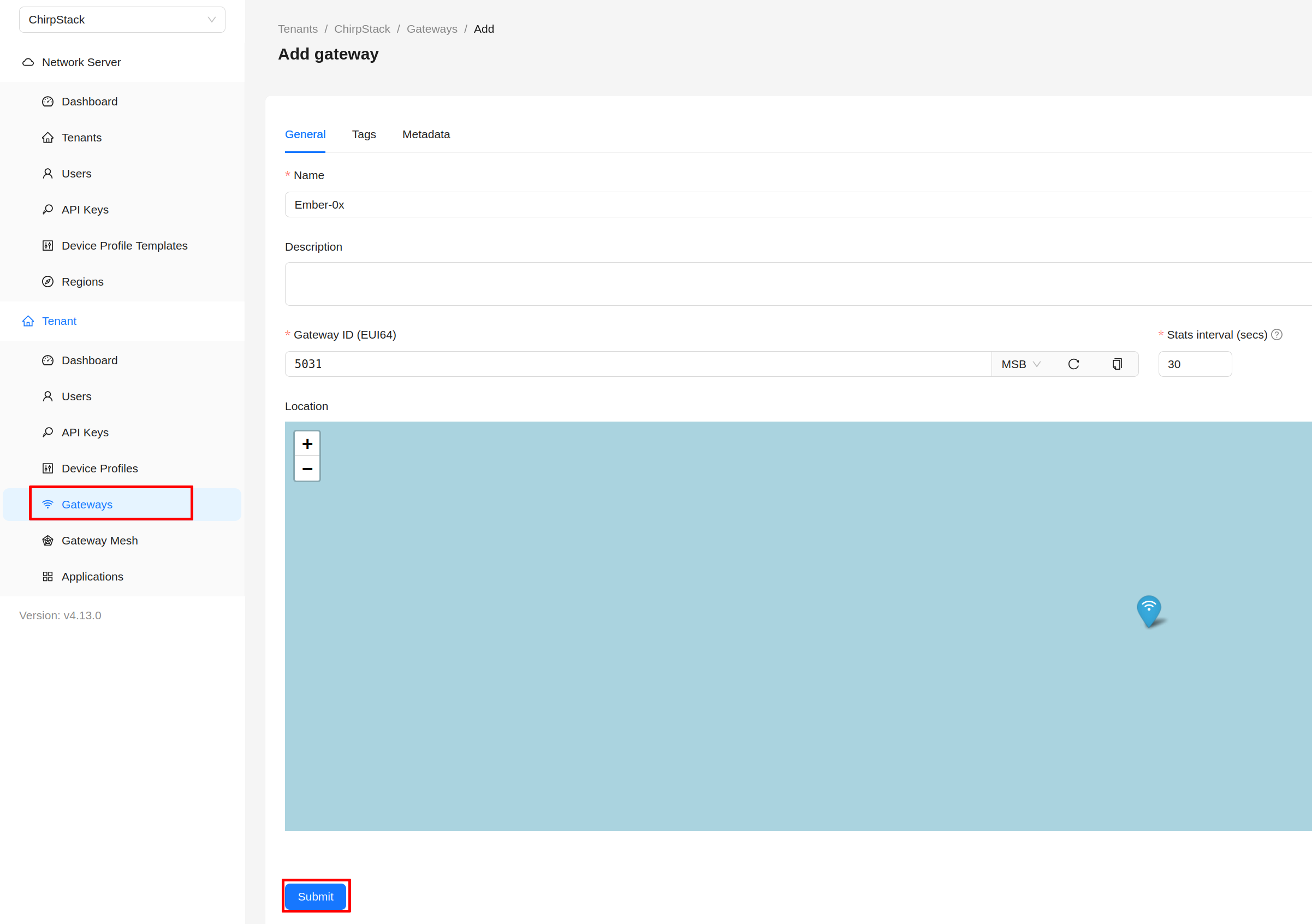
- In ChirpStack v4, open Tenant → Gateways.
- Click Add Gateway.
- Fill in:
- Name: EMBER-0 (Or your preferred name)
- Gateway ID: GATEWAY_ID
- Stats Interval: YOUR_PREFERENCE
- Click Submit.
4) Verify gateway traffic
- On EMBER: WebFig → LoRa → Traffic should show incoming messages when nearby end devices transmit.
- In ChirpStack: the gateway should show activity (e.g., status/“last seen” updates).
Payload decoder links (for end devices)
EMBER (gateway) forwards packets only — payload decoding is configured per end device/app in ChirpStack.
Example decoder (CHESTER Clime):