Adding Users
In this guide, you will learn how to create new user accounts, send activation links, and manage login credentials in ThingsBoard.
Step 1: Create a New User
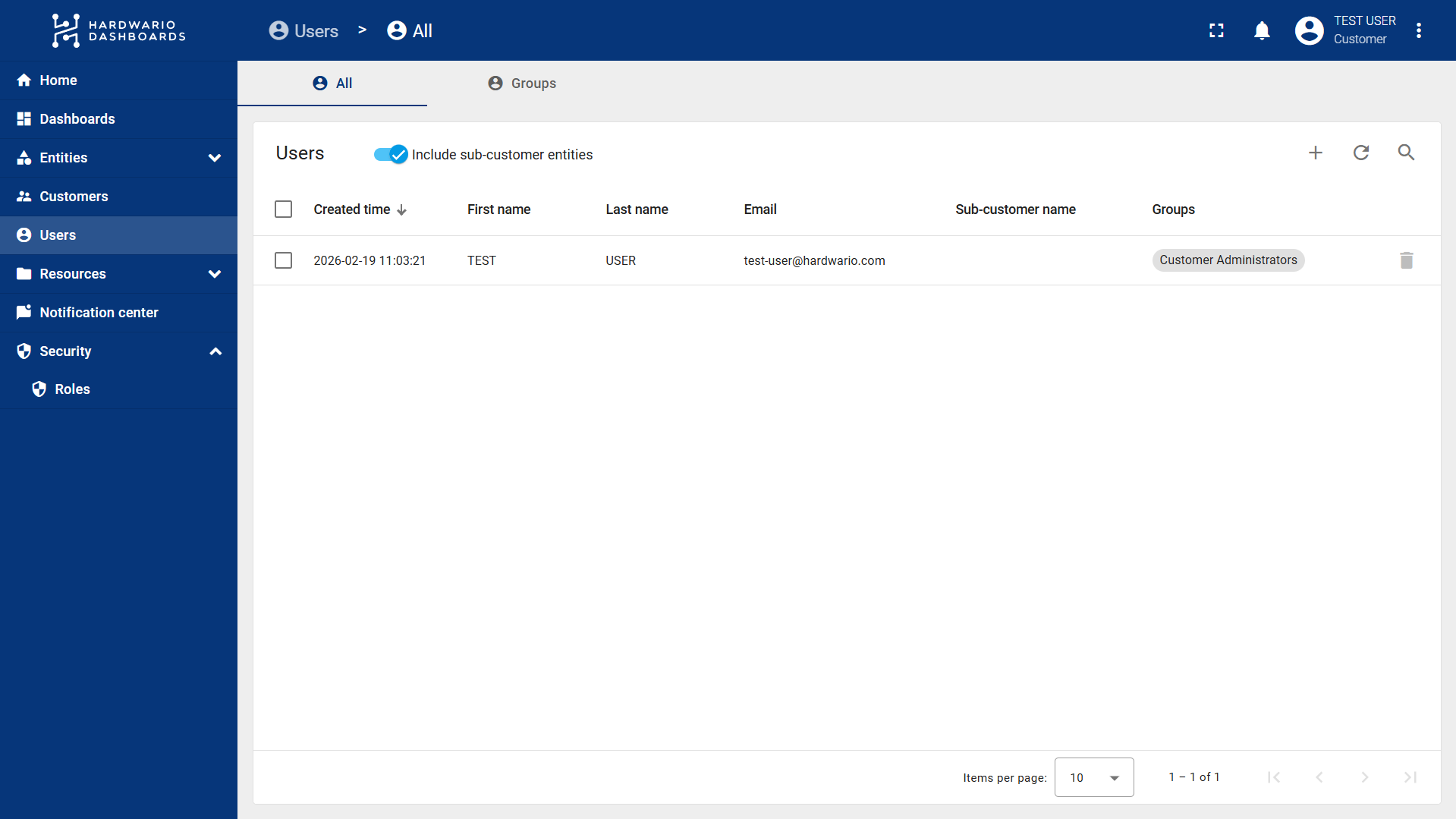
- Select Users from the left-hand navigation menu.
- Click the "+" (Plus) button on the right side of the screen.
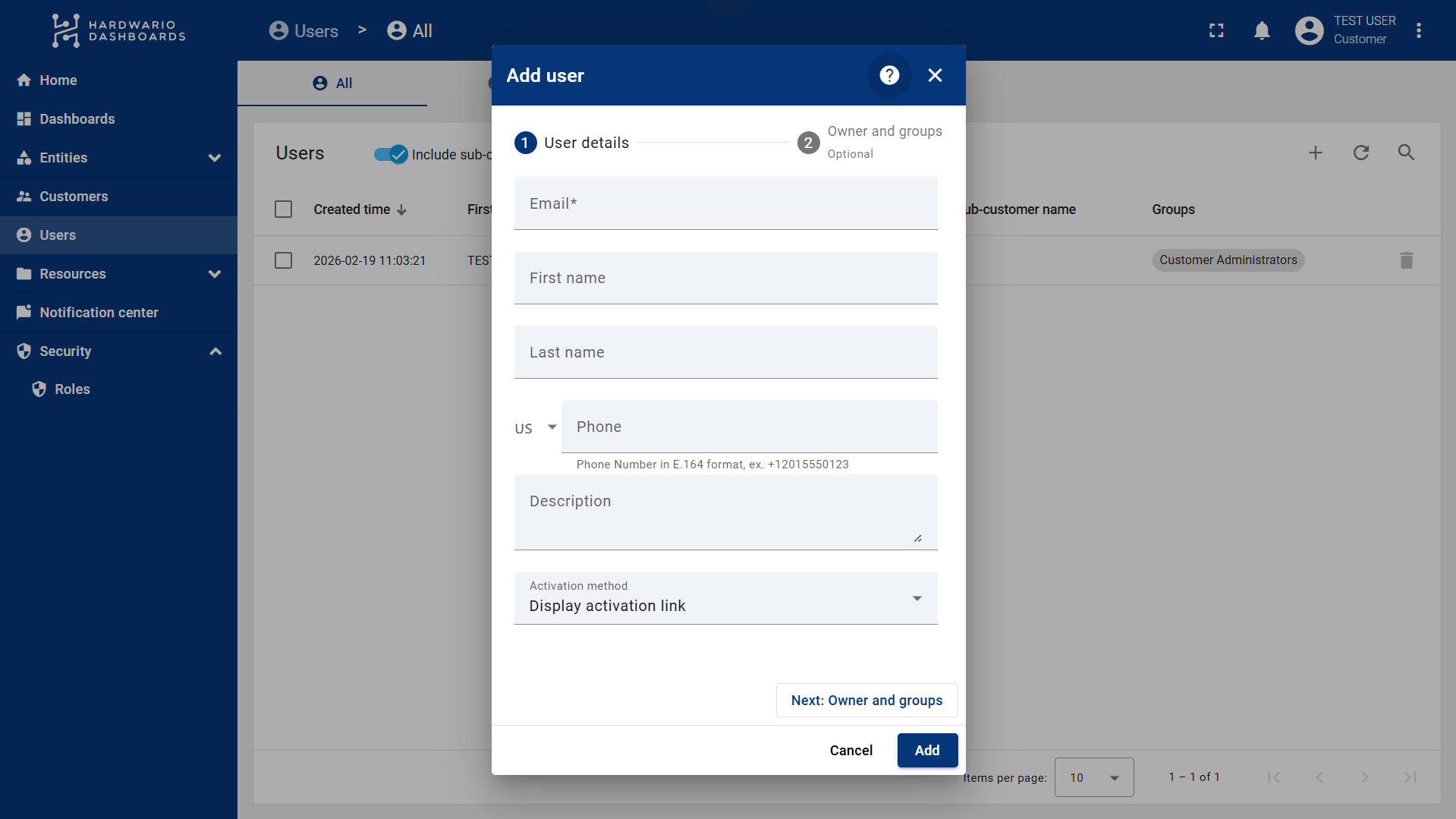
- Enter the required information about the user.
- At the bottom, locate the Activation method section. You have two options for inviting the user to ThingsBoard (this can also be done later):
- Display activation link: Generates a link that you can manually copy and send to the user yourself.
- Send activation mail: Sends an automated email directly from ThingsBoard containing the activation link.
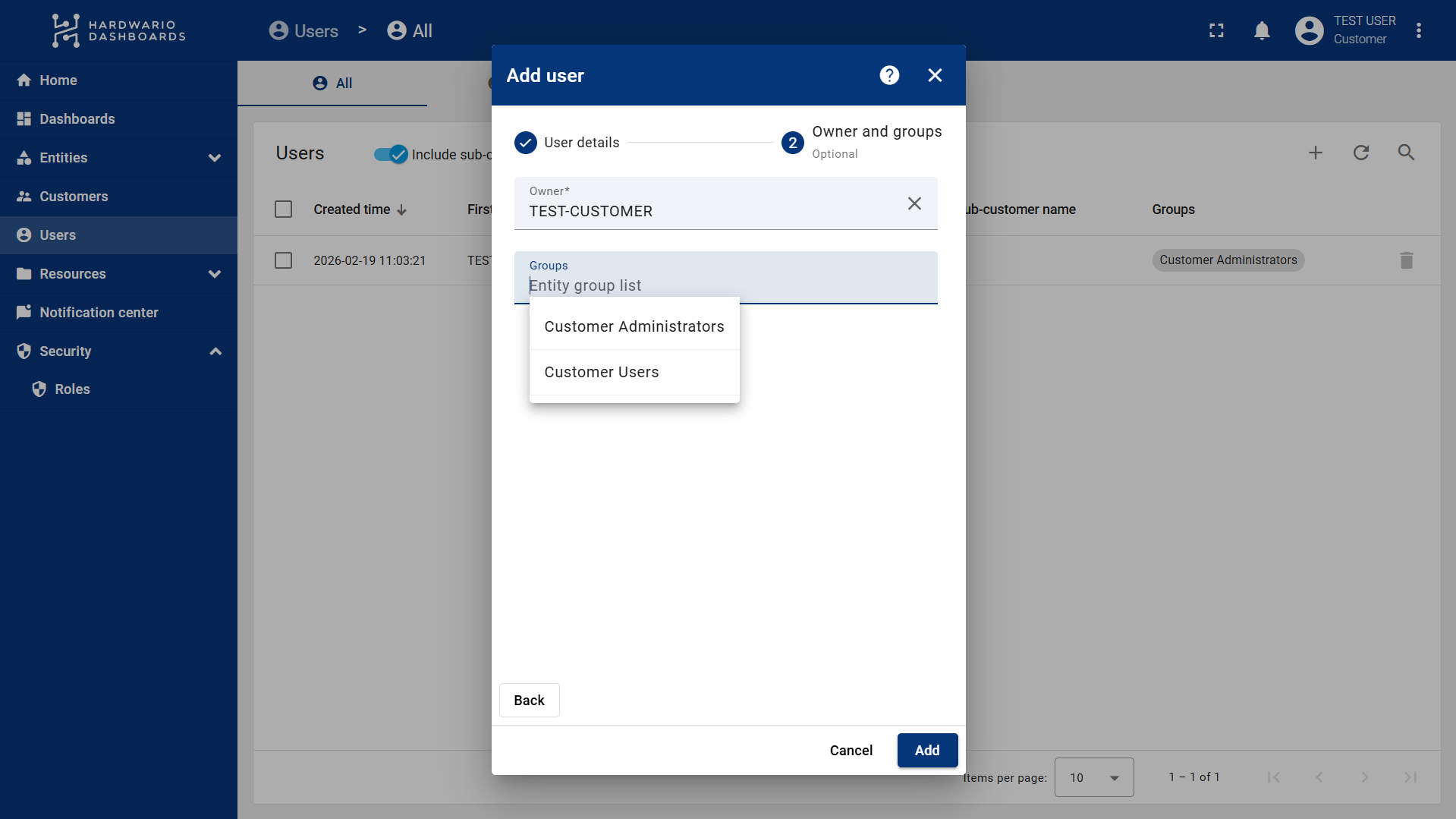
- Next, click on Owner and groups at the top right.
- Select the Customer and the User Group the user will belong to.
Reminder: The assigned group determines which dashboards and devices the user will be able to see, as well as their specific permissions.
- Finally, click Add.
You have successfully created a new user!
info
Need to manage user access? See User Management to learn how to create groups, assign roles, and control access to specific devices or dashboards.
Step 2: Invite or Activate a User
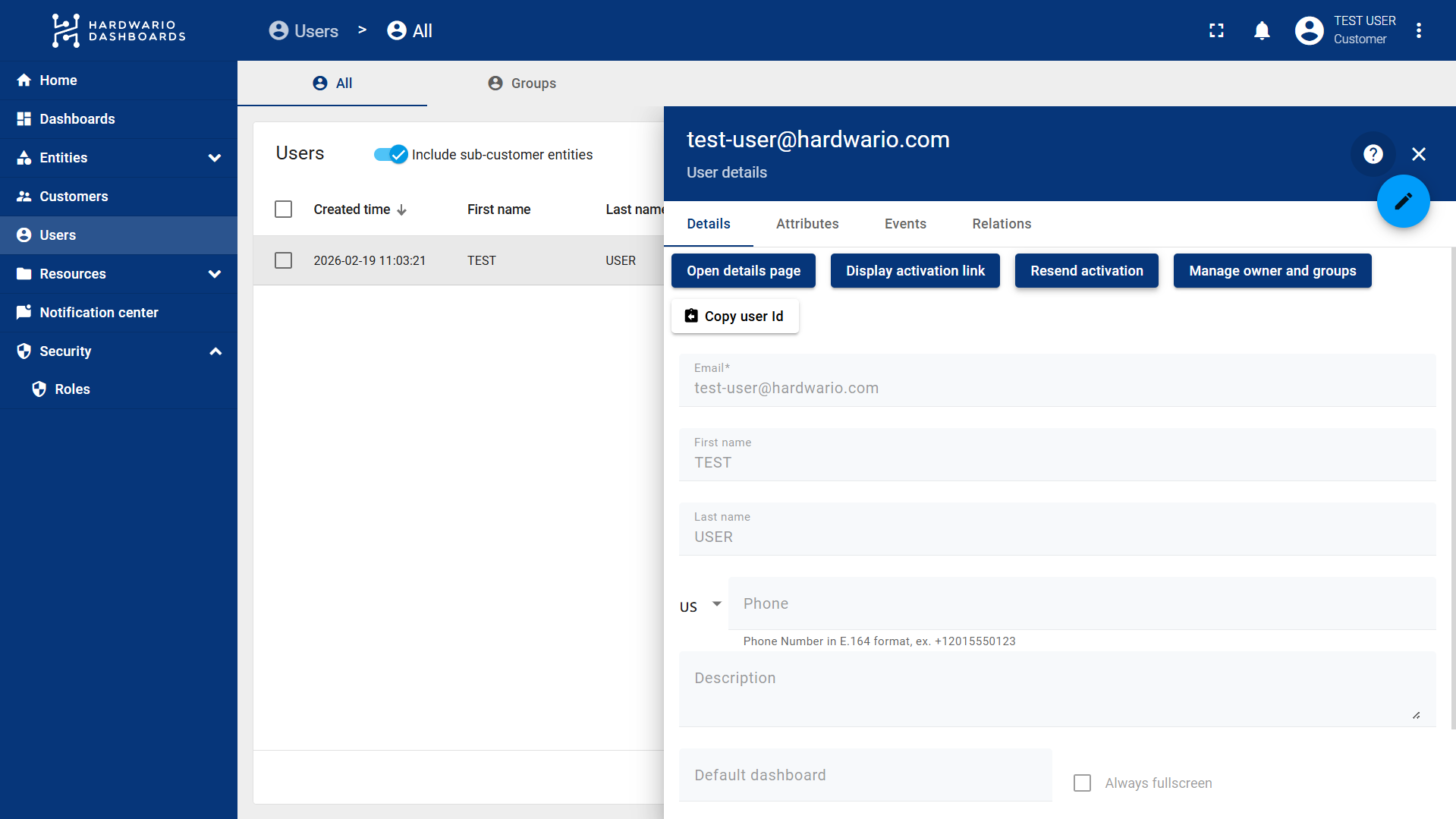
If you skipped the activation step during creation, or if you need to resend the invite so the user can log in and create a password, do the following:
- Click on the specific user from your Users list.
- In the Details tab, choose one of the following actions:
- Resend activation: Automatically sends an email with the activation link to the user.
- Display activation link: Displays a URL that you can manually copy and send to the user. Once they click this link, they will be prompted to create their new password.
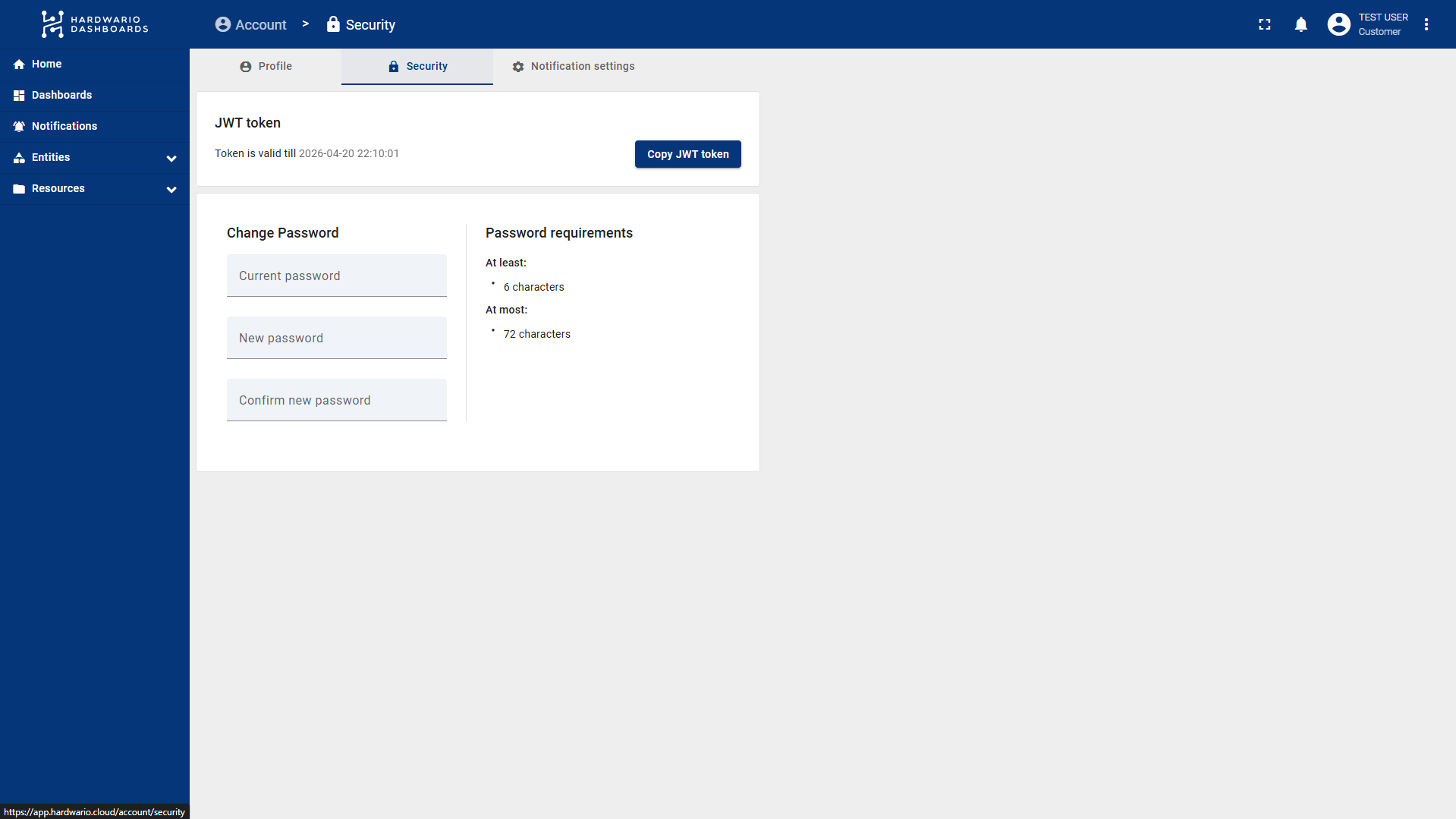
How to Change Your Password
- Click on the three dots next to your user icon in the top right corner.
- Select Account from the drop-down menu.
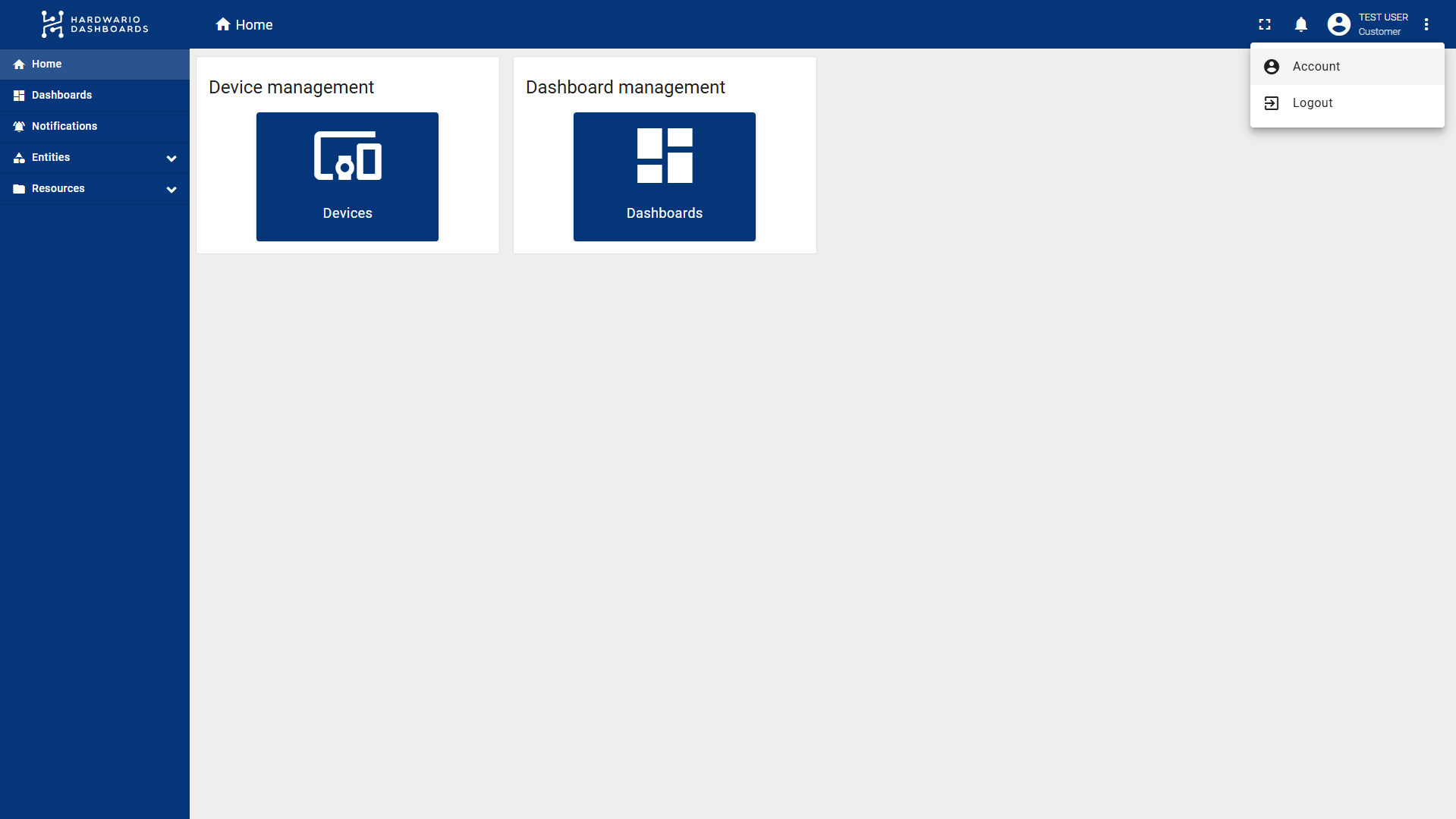
- You will be directed to the Profile tab, where you can also update your general account information.
- To change your password, switch to the Security tab.
- Enter your current password, followed by your new password.
info
If you received a temporary password via email, please enter it in the current password field.