ChirpStack v4 – OTAA
This page explains how to register HARDWARIO STICKER as a LoRaWAN end device in ChirpStack v4 using OTAA (Over-The-Air Activation), including the recommended device-profile settings and how to add a payload decoder.
Useful HARDWARIO docs:
- ChirpStack v4 Installation
https://docs.hardwario.com/apps/chirpstack/chirpstack-installation - ChirpStack v4 – End Devices
https://docs.hardwario.com/apps/chirpstack/chirpstack-configuration/chirpstack-end-devices - ChirpStack v4 – Data Decoding (STICKER codec example)
https://docs.hardwario.com/apps/chirpstack/chirpstack-configuration/chirpstack-decoding - STICKER Decoder - https://github.com/hardwario/sticker-firmware/blob/main/app/decoder/ttn.js
Before registering your STICKER, make sure ChirpStack v4 is installed and running.
Installation instructions:
https://docs.hardwario.com/apps/chirpstack/chirpstack-installation
Prerequisites
- A working LoRaWAN gateway connected to ChirpStack v4 and configured for your region / frequency plan.
- A ChirpStack v4 tenant with the gateway visible and online.
- Your STICKER powered and within gateway coverage.
1) Collect the required LoRaWAN identifiers & keys
The required LoRaWAN identifiers and keys are provided together with the STICKER (device provisioning).
You will need:
- DevEUI
- AppEUI / JoinEUI
- AppKey
STICKER supports configuration via NFC.
A HARDWARIO provisioning and configuration application using NFC is currently under development.
2) Create a Device Profile for STICKER (recommended)
In ChirpStack v4:
Tenant → Device Profiles → Add Device Profile
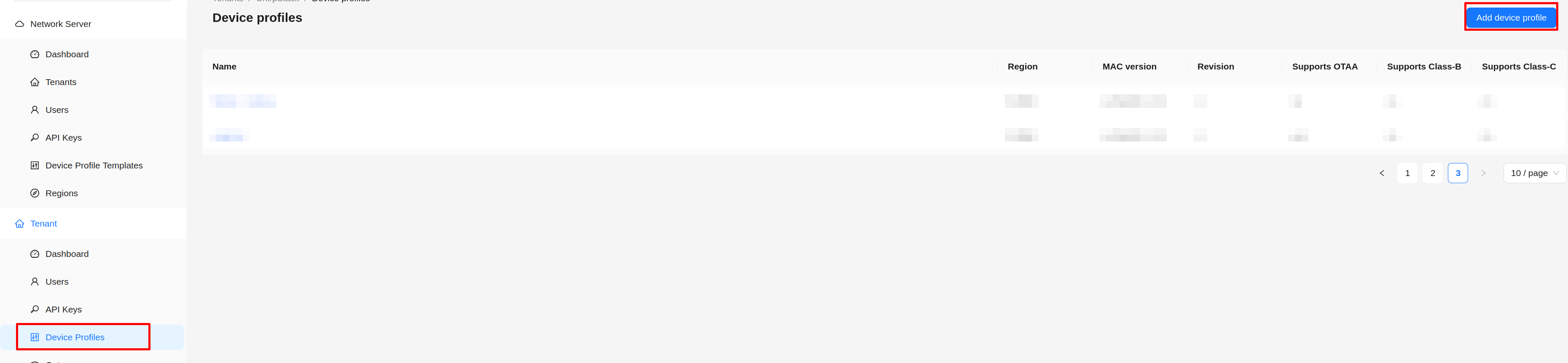
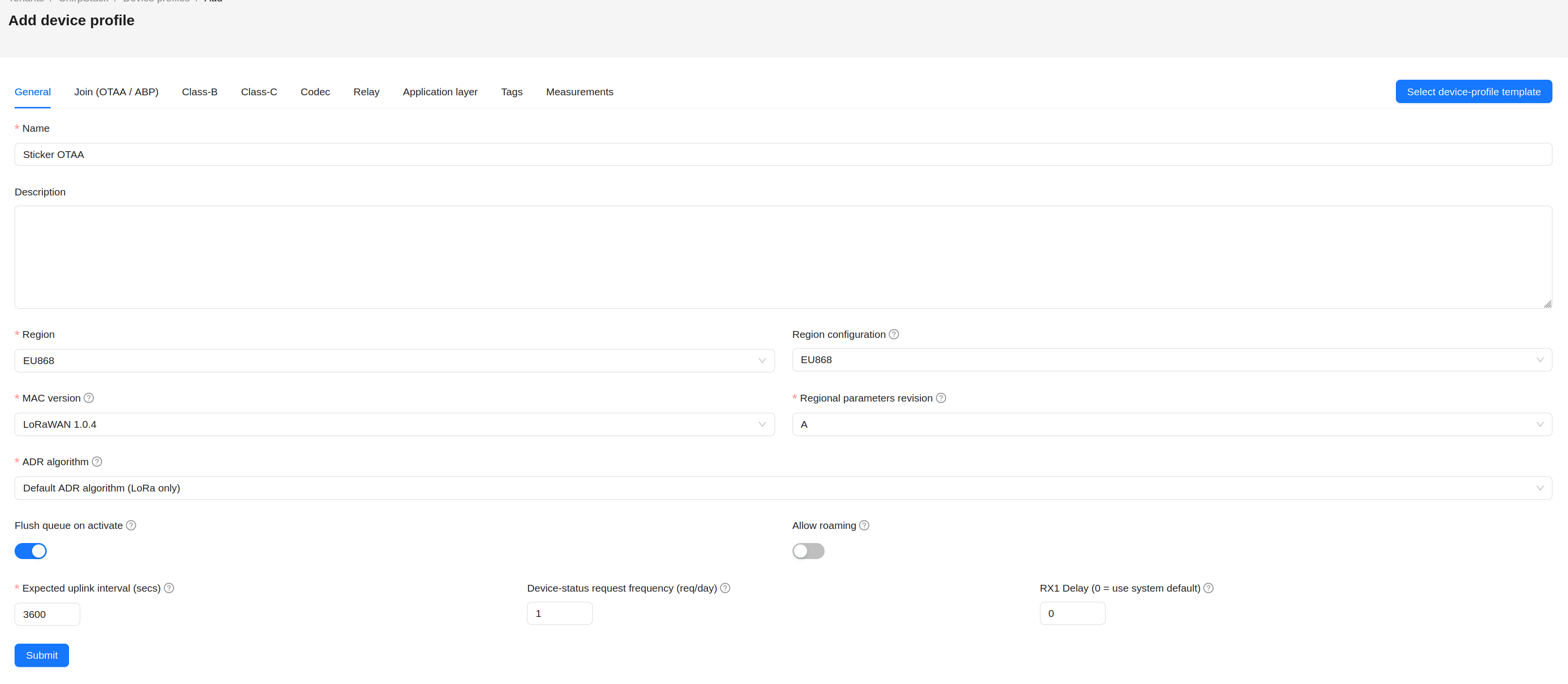
Next, configure the following parameters:
- Name: Sticker - OTAA (or your chosen identifier for the device)
- MAC Version: LoRaWAN 1.0.4
- Region: EU866 (or US915 if you are outside the EU)
- Expected uplink interval: X (according to your STICKER firmware configuration)
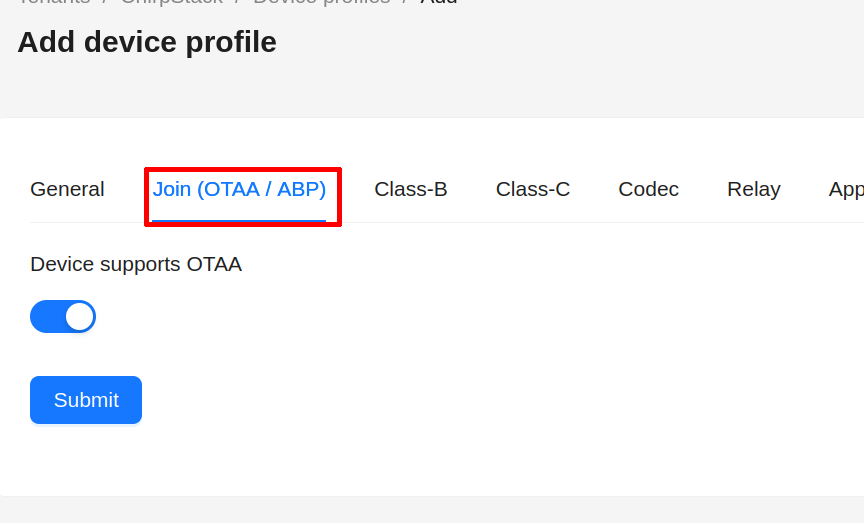
Go to the Join (OTAA / ABP) tab and verify that Device supports OTAA is toggled on.
As the final step, add a codec to the device profile. Switch to the Codec tab, select JavaScript functions in the Payload codec dropdown, and paste the codec linked below into the input field:
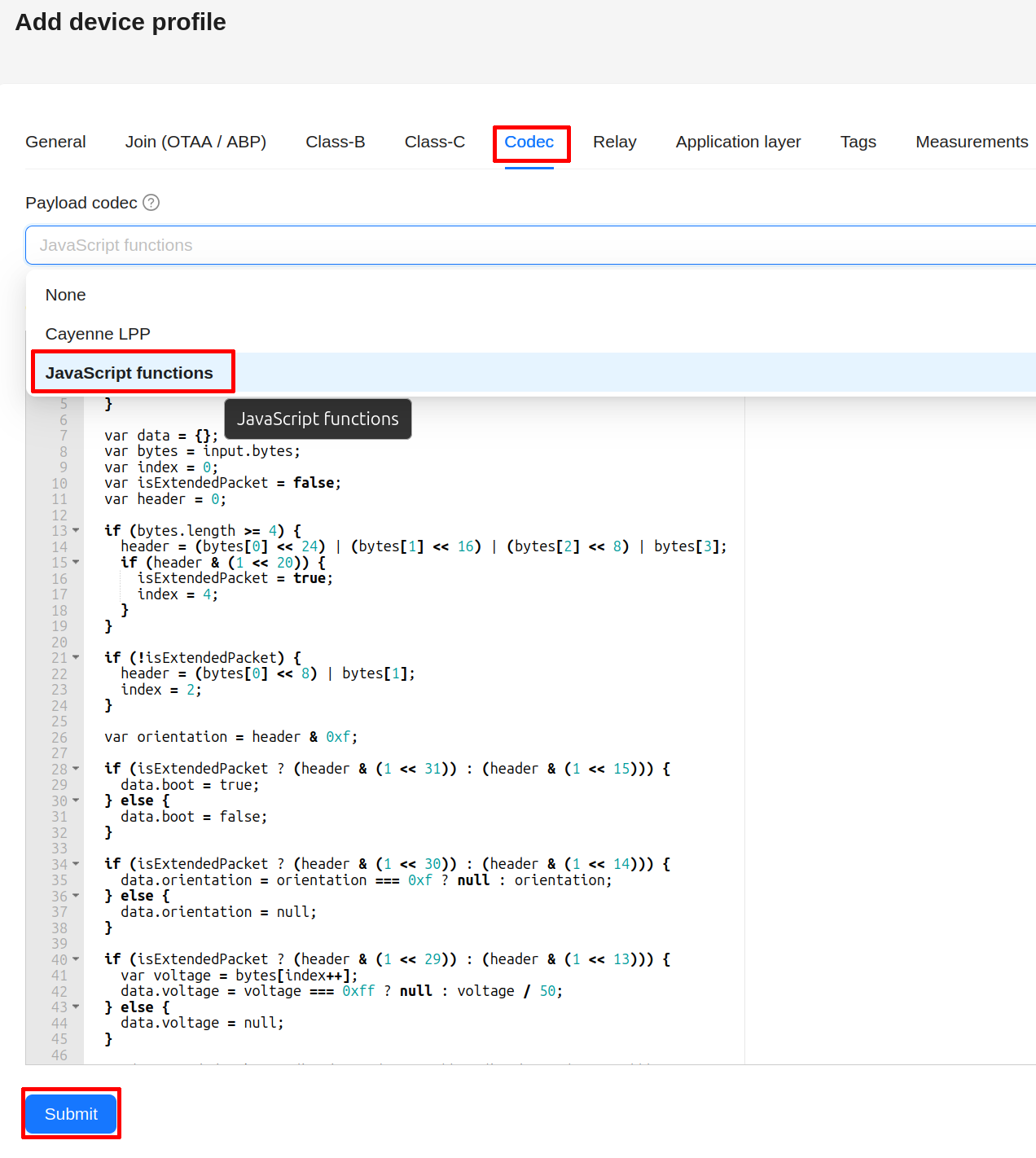
Save the device profile by clicking Submit.
3) Create an Application in ChirpStack
In ChirpStack, go to Applications → Add Application and fill in the fields:
- Name: Sticker (or any name of your choice)
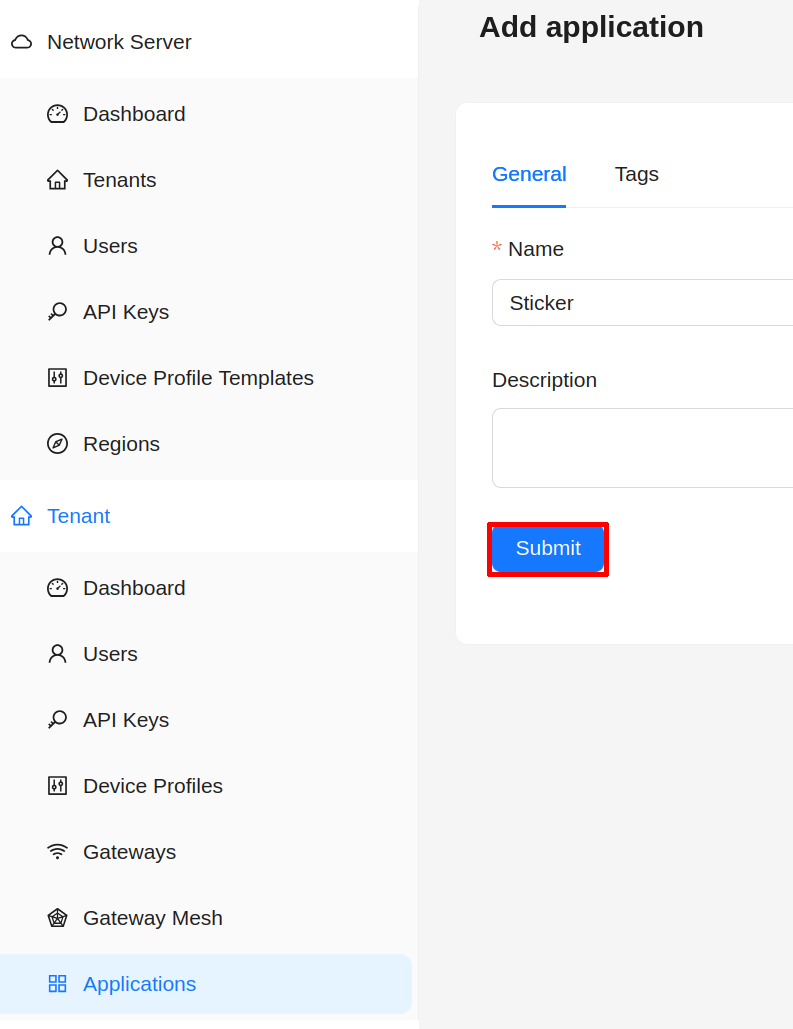
Save by clicking Submit.
4) Register the STICKER end device
In your application:
Application → End Devices → Add End Device
Fill:
- Name (human-readable)
- Device EUI (DevEUI)
- Device Profile → select the STICKER profile you created
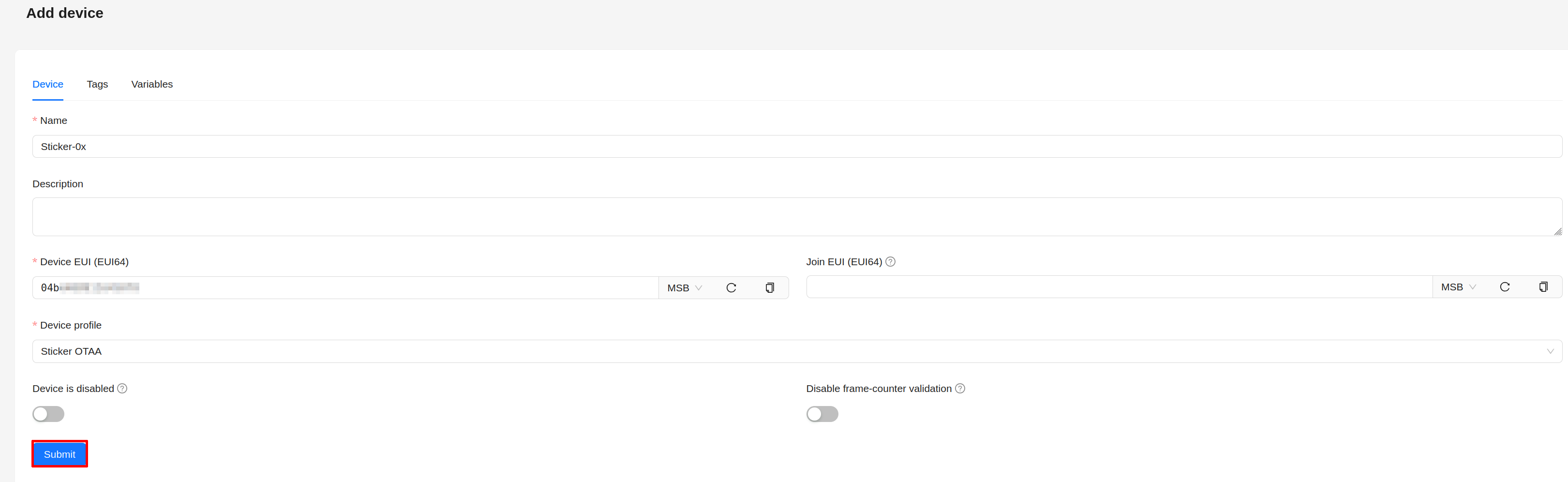
Save by clicking Submit.
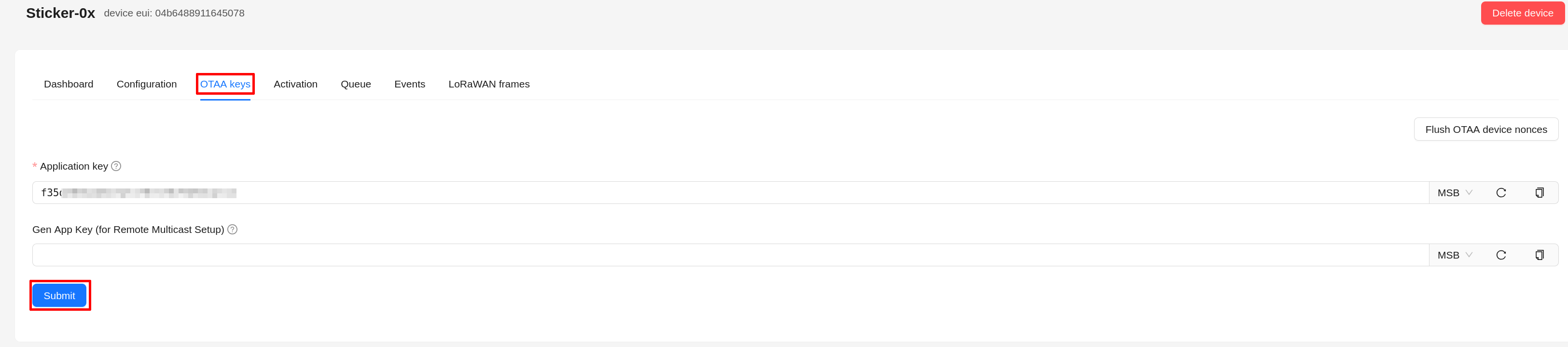
New window will pop up. In Application key fill the App Key of your device.
5) Verify uplinks
- Go to Applications → (your application) → Events
- Check Up events
- You should see:
- raw payload bytes
- decoded JSON fields (if the codec is correct)