The Things Stack
This guide shows how to connect the HARDWARIO EMBER LoRaWAN gateway (MikroTik RouterOS) to The Things Stack (TTS).
Useful docs
- TTS gateway registration: https://docs.hardwario.com/apps/the-things-stack/tts-configuration/tts-gateways/
- MikroTik RouterOS + TTS (UDP / LNS / CUPS): https://help.mikrotik.com/docs/spaces/ROS/pages/67633276/The%2BThings%2BStack
- EMBER hotspot configuration (RouterOS basics): https://docs.hardwario.com/ember/hotspot-configuration/
Prerequisites
- Access to the EMBER management interface (WinBox)
- A TTS account with permissions to create gateways
- If you are not using the HARDWARIO managed network server, point the LoRaWAN server address to your own LoRaWAN server (no VPN tunnels needed).
1) Get the Gateway EUI (EUI-64)
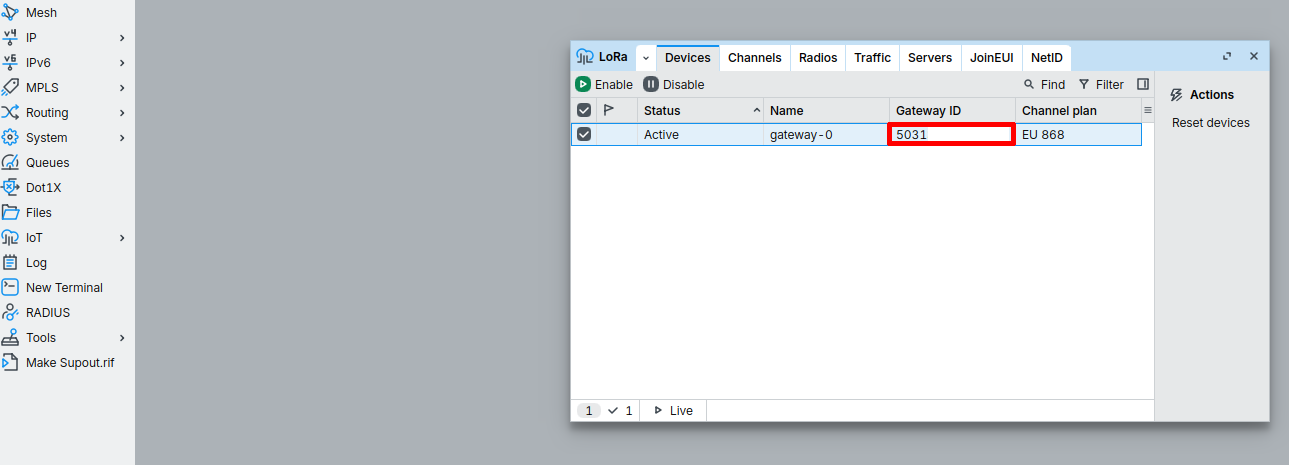
On MikroTik RouterOS, the gateway EUI is shown as Gateway ID:
- IoT → LoRa → Devices → Gateway ID
2) Register the gateway in The Things Stack
- In TTS Console, click Register gateway.
- Enter the Gateway EUI (use RouterOS Gateway ID).
- Fill the gateway details:
- Gateway ID ( Your chosen identifier for the device → example: test-gateway-001)
- Gateway Name (Your chosen name for the device → example Test Gateways-001)
- Frequency plan (choose the one matching your region/hardware; e.g., Europe 868.1 MHz)
- Enable Require authenticated connection.
- Enable both:
- Generate API key for CUPS
- Generate API key for LNS
- Click Register gateway and download both API keys (CUPS + LNS).
3) Configure EMBER (MikroTik RouterOS) to connect to TTS
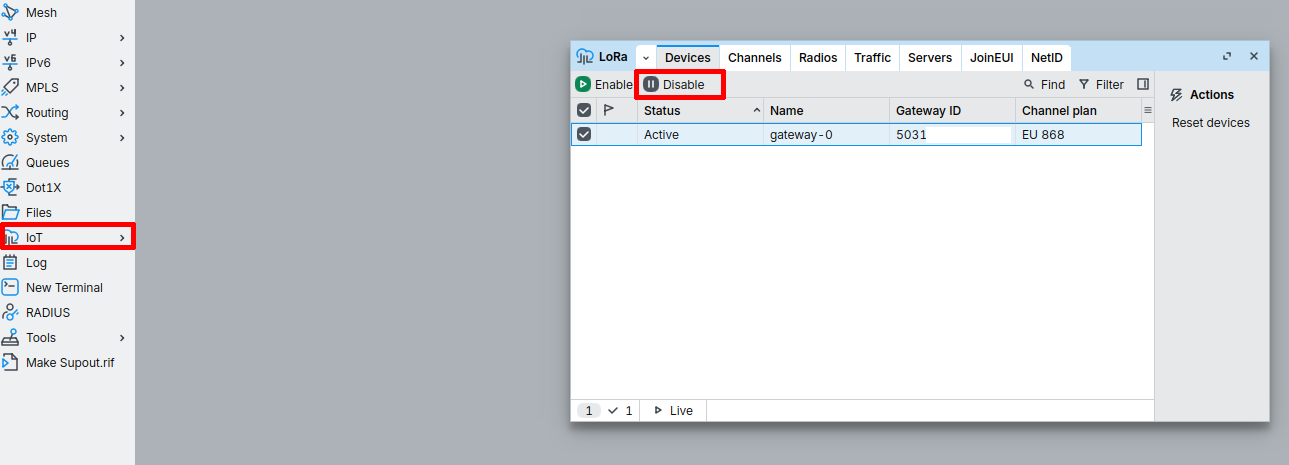
RouterOS typically requires the LoRa card to be Disabled while you change LoRa settings.
In the left panel, open IoT→ LoRa. Click the line in the list and choose Disable.
 You’ll use the downloaded keys in RouterOS.
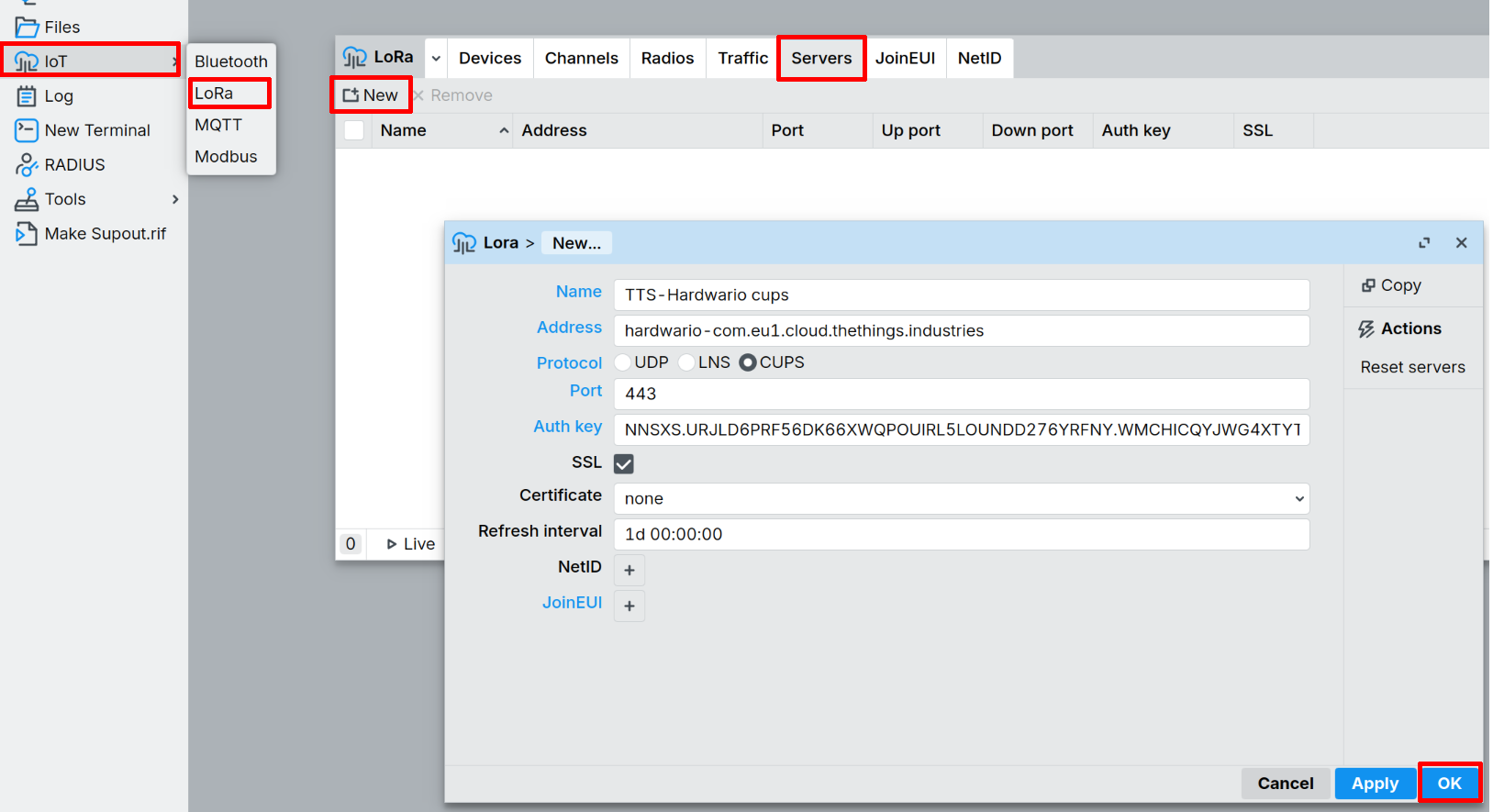
CUPS (Configuration & Update Server)
- Protocol: CUPS
- Port: 443
- Set the CUPS key (from the downloaded
cups.keyfile) - Enable SSL/TLS
In the left panel, open IoT→ LoRa→ Servers. Select New and fill boxes:
- Name: TTS-HARDWARIO cups
- Address: hardwario-com.eu1.cloud.thethings.industries
- Port: 443
- Auth Key: (Value of file "cups.key")
Root certificates (required for SSL/TLS)
To establish a secure TLS connection to The Things Stack (LNS / CUPS), import the official The Things Stack Root CA certificates into RouterOS and mark them as trusted.
- Download the certificates from:
https://www.thethingsindustries.com/docs/reference/root-certificates/
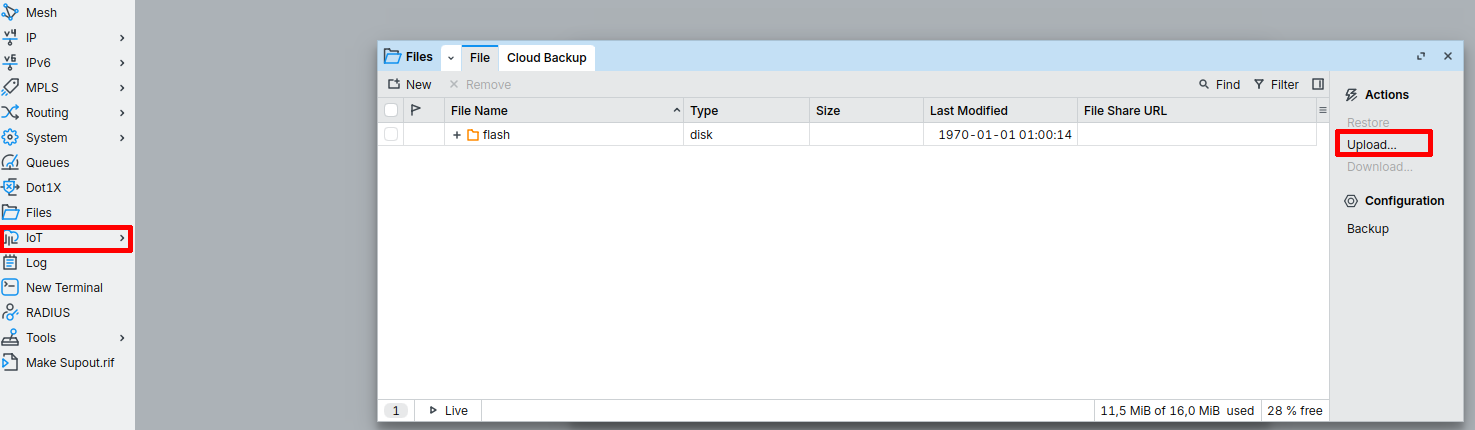
In the left panel, open Files→ Upload and choose file "ca.pem".
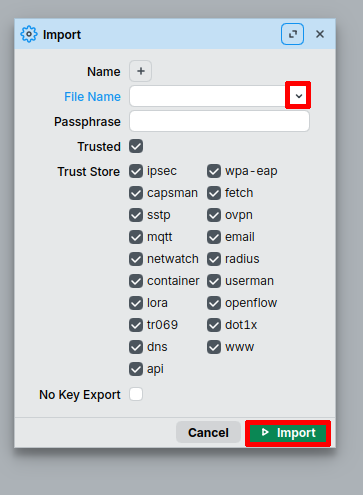
In the left panel, open System→ Certificates→ Import. Click on dropdown arrow, select file "ca.pem" and click at Import.
Select Network server
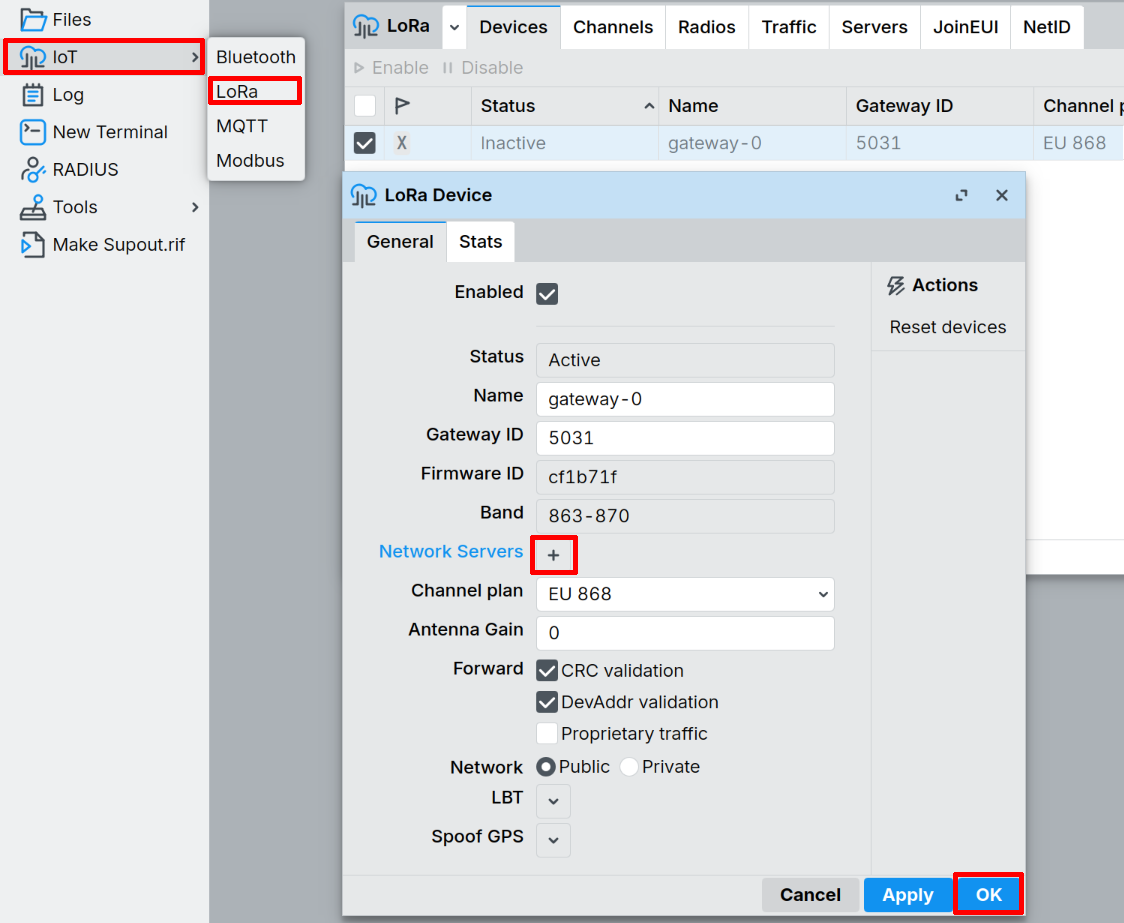
You need to select a network server.
- In the left panel, open IoT → LoRa click on the device. A new window will show, click + to select TTS server, after that click OK.
4) Enable and verify
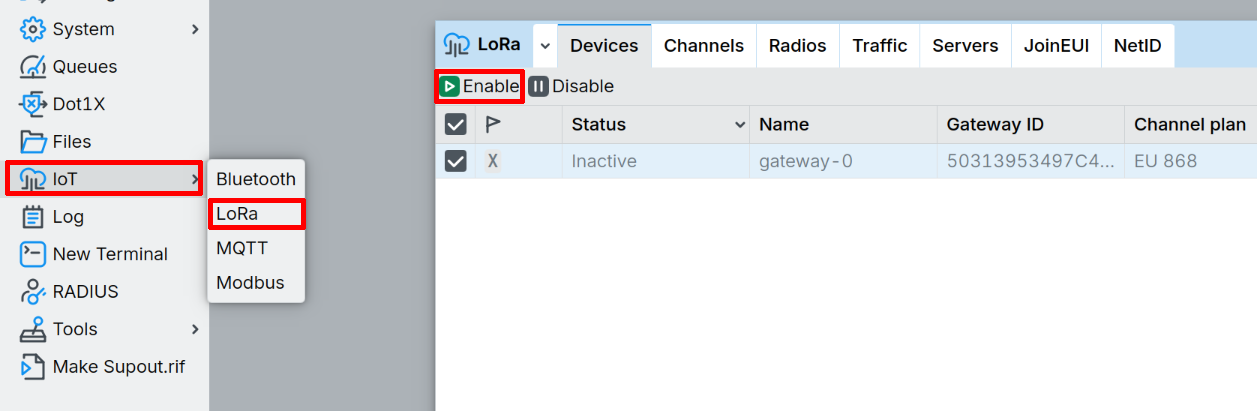
- In RouterOS: IoT → LoRa → Devices → Enable
- In TTS Console, open the gateway and confirm Live data updates.
Payload decoder links (for end devices)
Decoders are configured per end device/application in TTS (Payload Formatter).
Example decoder (CHESTER Clime):