The Things Stack – OTAA
This page explains how to register HARDWARIO STICKER as a LoRaWAN end device in The Things Stack (TTS) using OTAA (Over-The-Air Activation), and how to add a payload formatter (decoder).
Useful HARDWARIO docs:
- TTS – End Devices
https://docs.hardwario.com/apps/the-things-stack/tts-configuration/tts-end-devices - STICKER Decoder – https://github.com/hardwario/sticker-firmware/blob/main/app/decoder/ttn.js
Before registering your STICKER, make sure you have access to a The Things Stack deployment (Cloud, Community, or Enterprise) and that a LoRaWAN gateway is connected and online.
Prerequisites
- A working LoRaWAN gateway connected to The Things Stack and configured for your region / frequency plan.
- A TTS account with permission to create applications and register devices.
- Your STICKER powered and within gateway coverage.
1) Collect the required LoRaWAN identifiers & keys
Use the HARDWARIO Manager to get the required identifiers and keys for your STICKER.
You will need:
- DevEUI
- AppEUI / JoinEUI
- AppKey
2) Register the STICKER end device
Inside your application:
Application → + Register end device

Select Enter end device specifics manually.
Under End Device Type, configure:
- Frequency plan – select your region (e.g. Europe 863–870 MHz)
- LoRaWAN version – LoRaWAN Specification 1.0.4
- Regional Parameters version – RP002 Regional Parameters 1.0.4
Under Provisioning Information, enter the JoinEUI (AppEUI) and click Confirm.
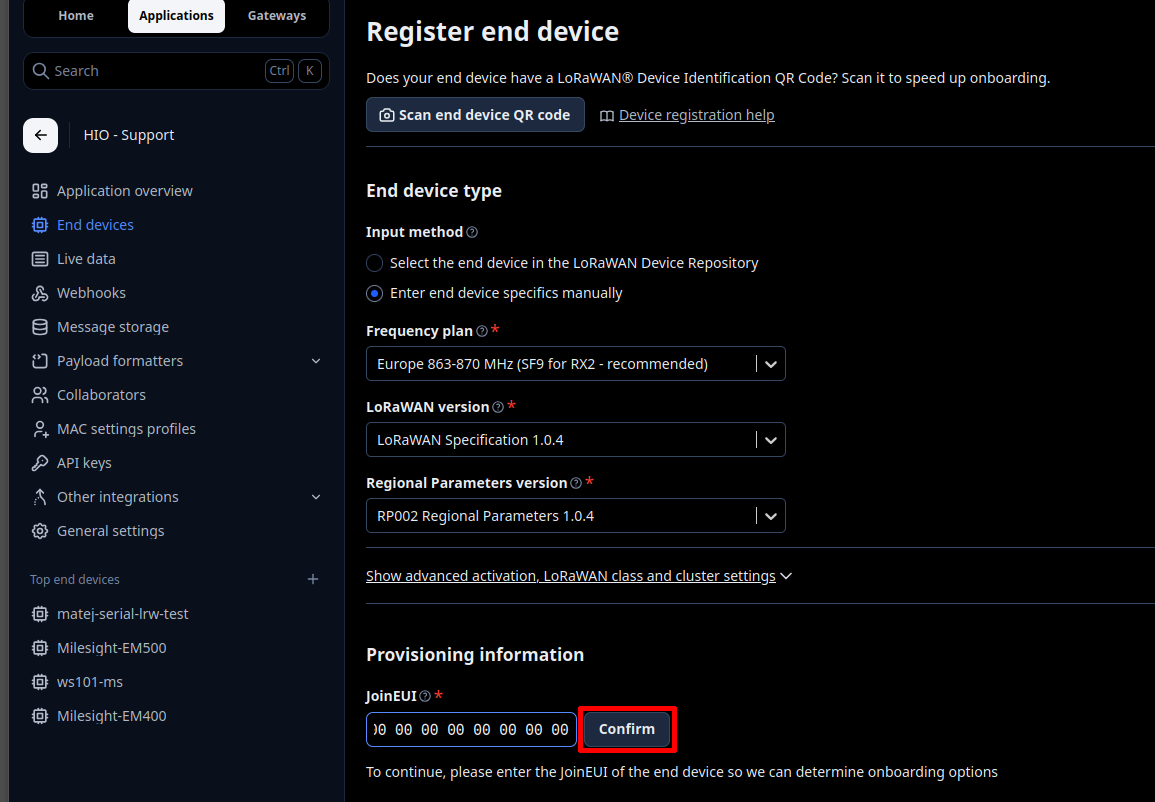
Under Device Identifiers, fill in:
- DevEUI – DEVICE_EUI (unique identifier printed on the device)
- AppKey – APPLICATION_KEY (from HARDWARIO Manager)
- Device ID – your chosen name for this device (e.g. sticker-ox)
Click Register end device.
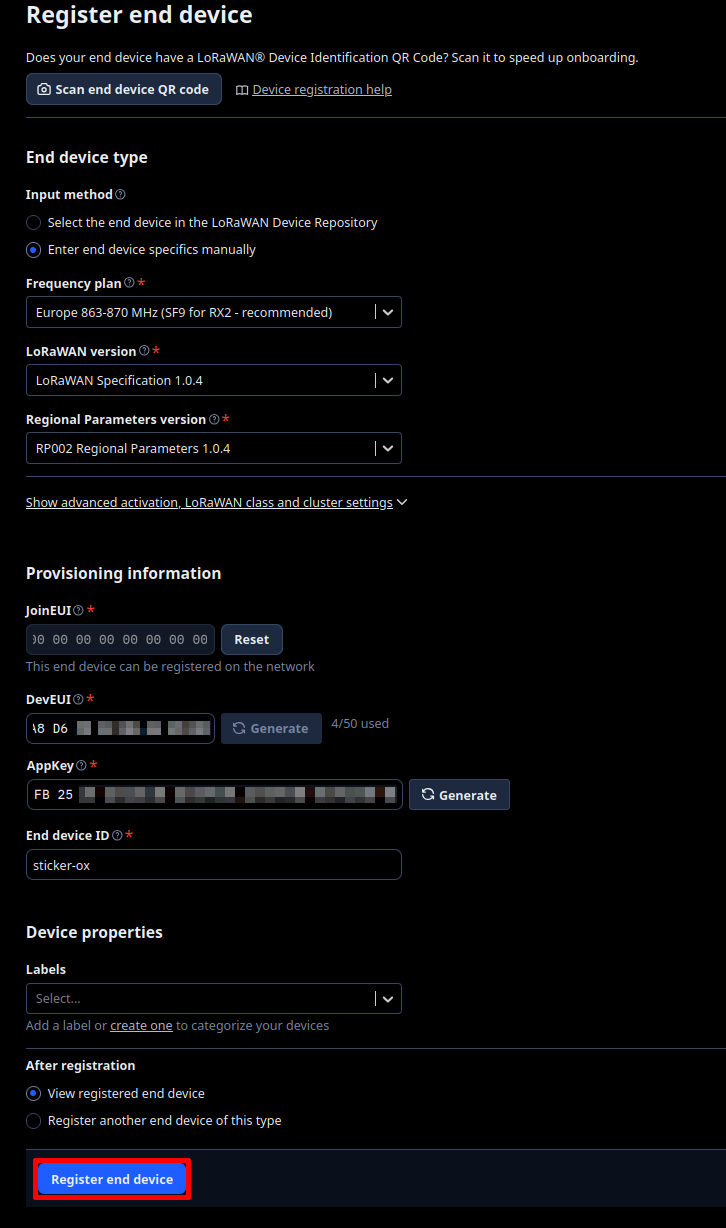
3) Add a payload formatter (decoder)
To decode raw uplink bytes into readable JSON fields, navigate to:
Application → (YOUR_DEVICE) → Payload formatters → Uplink
Set the formatter type to Custom Javascript formatter and paste the STICKER decoder from the link below:
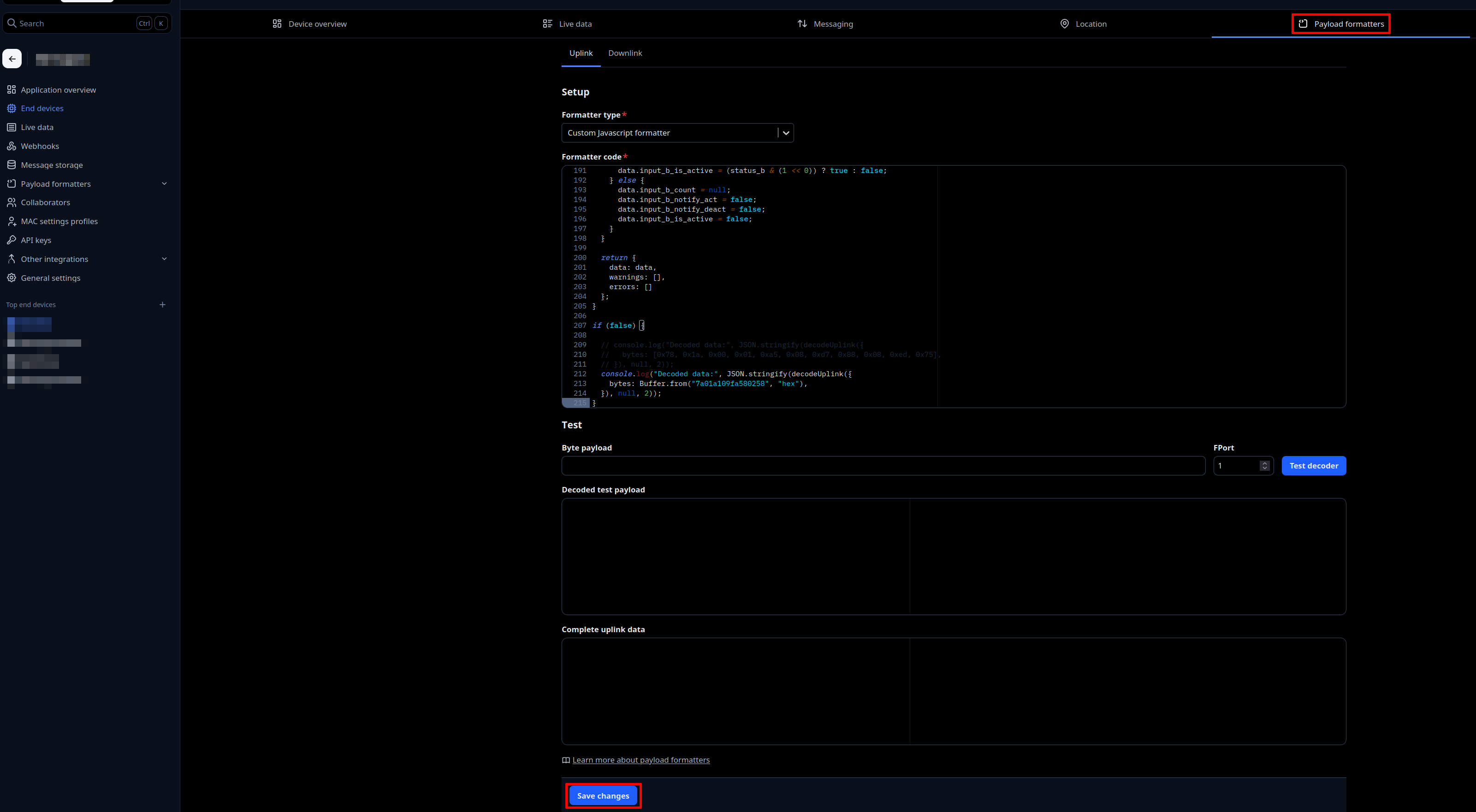
Click Save changes.
Downlink command encoding is part of the upcoming STICKER firmware v1.4.0 (not in v1.3.x).
The same ttn.js codec also encodes downlink commands (via its encodeDownlink function), so you can send commands to the device, for example to force a report, change a setting, or set an alarm rule. Add the same file again as the Downlink formatter at Application → (YOUR_DEVICE) → Payload formatters → Downlink (Custom Javascript formatter), then queue a command as a JSON object on fPort 85 and The Things Stack encodes it to bytes. Use the Downlink Commands Generator to build a command and get its JSON and hex.
4) Verify uplinks
- Open the device's Live data view in the TTS Console
- You should see:
- Incoming uplink frames
- Decoded JSON fields (if the payload formatter is correctly set up)