Devices
The Devices page lists all IoT devices registered in your space. Each device corresponds to a physical CHESTER (or other HARDWARIO device) and has its own identity, status, and configuration.
Adding a Device
Watch How to add CHESTER to Cloud for a step-by-step walkthrough.
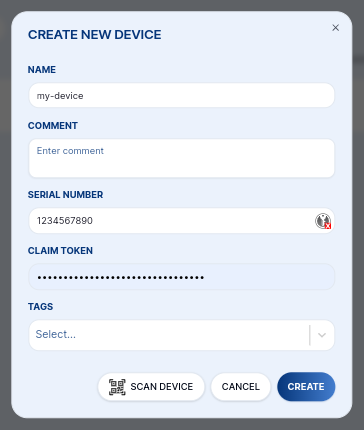
Click + NEW DEVICE in the top-right corner. You can provision a device in two ways:
Scan QR Code
Click SCAN DEVICE to open the camera scanner. Point it at the QR code on the device label. The scanner fills in the Serial Number (HSN) and Claim Token automatically.
Manual Entry
Fill in the fields manually:
| Field | Description |
|---|---|
| Name | Human-readable name, e.g. warehouse-sensor-01 |
| Serial Number (HSN) | HARDWARIO Serial Number printed on the device label |
| Claim Token | Unique per-device token — visible on the QR code or via info show over J-Link RTT |
Device List
The device list shows a summary for each device:
- Name and optional comment
- Last Seen — timestamp of the last uplink
- Firmware — application name and version
- Tags — assigned tags shown as color-coded chips
Click a device row to open its detail page.
Device Detail
Overview
Shows the full device profile, populated automatically from session messages:
| Field | Description |
|---|---|
| Name | Editable human-readable name |
| Comment | Optional free-text note |
| Serial Number | HARDWARIO Serial Number (HSN) |
| Last Seen | Timestamp of the last received message |
| Product | Hardware vendor and product name (e.g. CHESTER-M) |
| HW Variant / Revision | Hardware variant string and PCB revision (e.g. R3.4) |
| Firmware | Application bundle ID, name and version |
| LTE Firmware | Modem firmware version |
| IMEI / ICCID / IMSI | LTE modem identifiers |
| BLE Passkey | Bluetooth passkey for local BLE configuration |
Tags
Assign or remove tags on the device. Tags determine which connectors receive this device's messages — a device and a connector must share at least one tag for messages to be forwarded.
Labels
Labels are key-value pairs attached to a device. They are included in every connector callback payload so your backend can react differently per device.
Example use cases:
location: prague-warehouse-acustomer: acme-corpfloor: 3
Messages
Shows the message history for this specific device. See Messages for details.
Firmware
Shows firmware update history and allows scheduling a FOTA update. See FOTA.
Downlink
Schedule downlink commands to be delivered on the device's next connection. See Downlink.