View a device's change log
The change log records each configuration read and each successful write for a saved STICKER, so you can see what a device was set to and when.
Turn the change log on
Open Settings → STICKER change log and choose how long entries are kept: Off, 30, 60, or 90 days. The default is 30 days. Choosing Off stops new recording; entries already recorded are kept.
See App settings.
Open a device's log
- Go to STICKER → Saved STICKERs and open a device's Detail.
- Open its Change log and pick an entry from the Recorded read list. Each is stamped with its date, time, and which sections it covers.
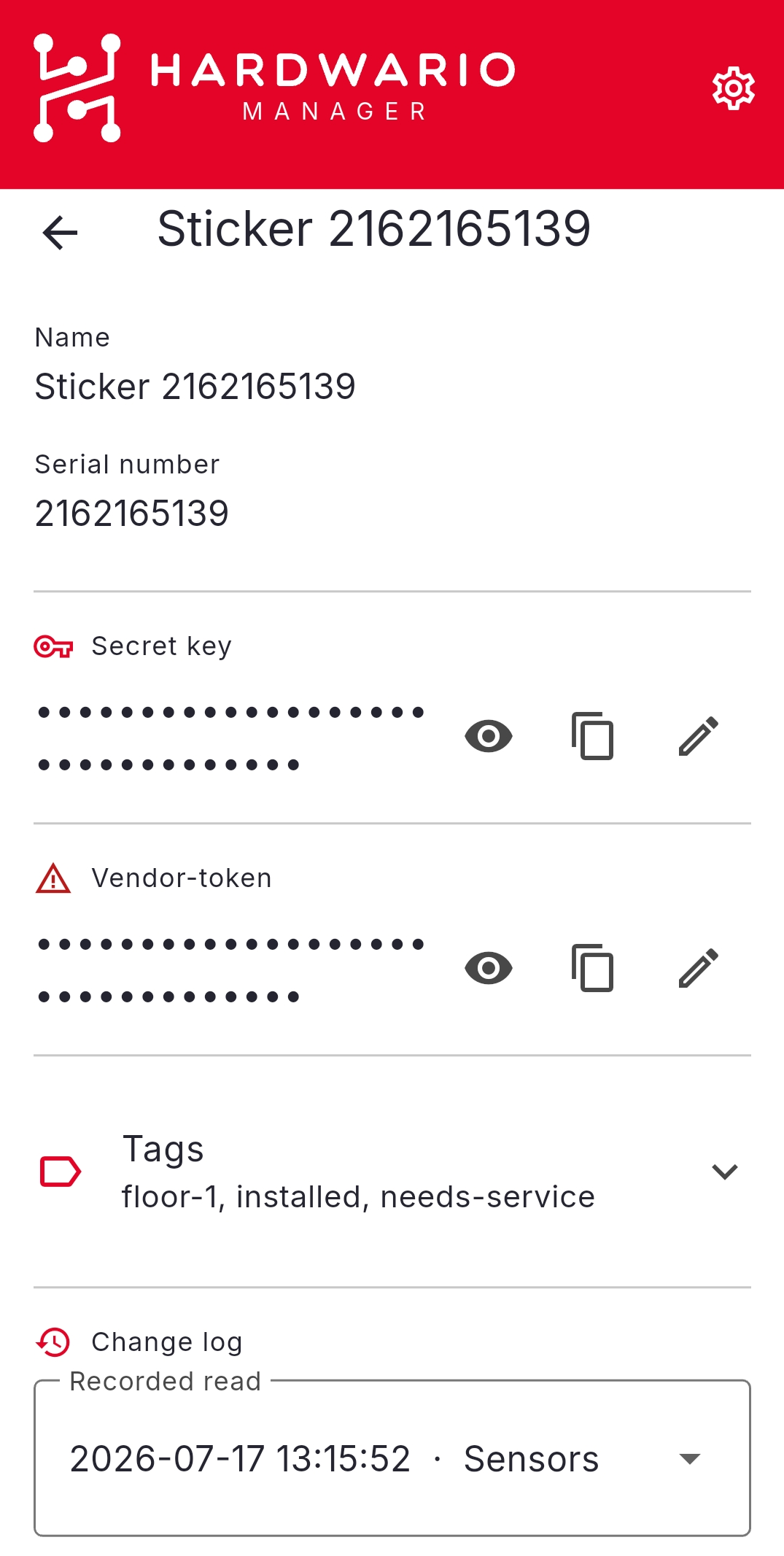
For the selected entry you can:
| Action | Effect |
|---|---|
| Configure a STICKER with this | Write that recorded configuration back to a device. A point-in-time restore |
| Export this | Share the single entry as a file |
| Export log | Share this device's whole log |
| Delete this entry | Remove just that entry |
| Delete full log | Remove this device's log |
Configure a STICKER with this is the quickest way back to a known-good state after a change goes wrong. You can also reach the same recorded points through Configuration → Configure from file by picking a change-log export and then choosing a point in time. See Configuration.
Across all devices
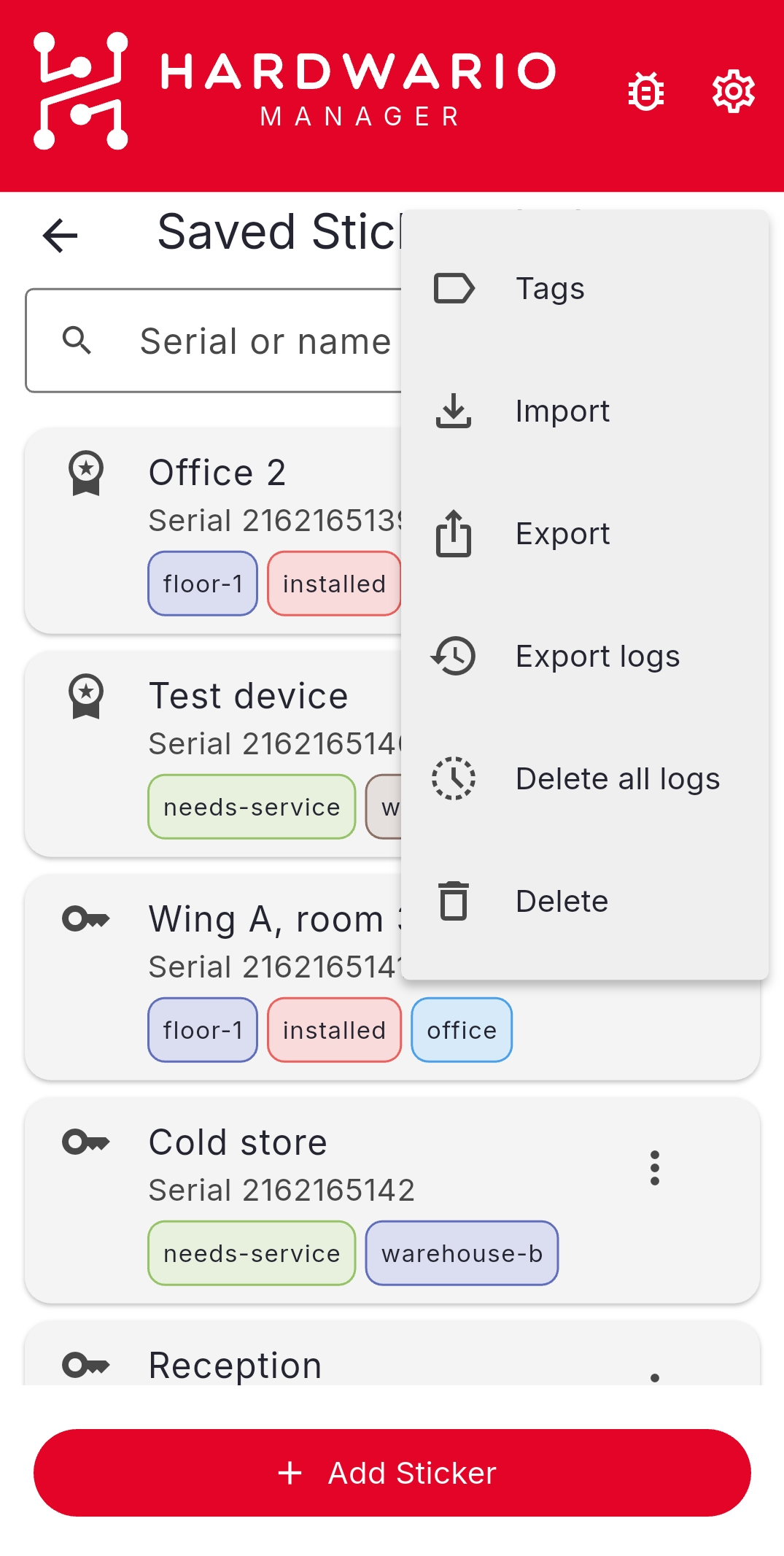
From the ⋮ menu on the Saved STICKERs list you can Export logs or Delete all logs across every device at once.